CHAPTER 09
Delphix (2): algorithms, file masking and hands-on labs
Masking algorithms and jobs, masking txt and dat files, and the Delphix lab series from connector to masked output.
Download chapter PDF ↓Contents of this chapter
Delphix: masking algorithms and masking jobs
Delphix: masking files (txt and dat)
Delphix hands-on labs
Profiling tells you which columns are sensitive. Masking is the step that actually changes them. In Delphix the work is split in two: an algorithm decides how one value becomes another, and a masking job applies the assigned algorithms to every row of a rule set. This section covers both halves. First the idea of algorithms (frameworks, instances, keys, lookup files, uniqueness), then a catalogue of every algorithm framework the documentation lists, then a close look at the algorithms for first name, SSN, alphanumeric text and telephone number. The second half explains how to build, run, monitor and tune a masking job.
It ends with two labs on the ShopSphere tables: masking FirstName, and masking alphanumeric text, SSN and telephone number. Rule sets and inventories are covered in the rule sets and keys chapter and the profiling chapter. For the generic ideas behind masking see the masking concepts chapter, and for the Informatica equivalent see the Informatica data masking chapter. Masking files is the topic of the file masking chapter, and the full lab set is in the Delphix hands-on labs chapter.
Tool-specific facts are from the Delphix Continuous Compliance documentation, version 2026.5. Screenshots come from engine versions 22.0.0.0 to 26.0.0.0 as shown in their banners. Before and after values in the ShopSphere tables below are examples of the documented behaviour; a real engine produces different values because the output depends on the algorithm key and lookup file.
9.1 Words to know first
- Algorithm (instance)
- A named, ready-to-use masking recipe with its configuration, such as
dlpx-core:FirstName. You assign instances to columns. - Algorithm framework
- A kind of algorithm that you can configure to create new instances, such as Secure Lookup or Segment Mapping. "FIRST NAME SL" is an instance of the Secure Lookup framework.
- Out-of-the-box instance
- An instance that ships with the engine. These cannot be edited or deleted; you create your own from a framework instead.
- Algorithm key
- A secret value inside most algorithms. Changing it changes the output, so the same input masks to something different.
- Deterministic
- Same input, same algorithm, same key, same configuration gives the same output every time. This keeps joins working across tables and across runs.
- Lookup file
- A plain text file with one replacement value per line (no header). The algorithm picks a line based on the input, so the output is always something from your file.
- Collision
- Two different inputs masked to the same output. Fine for names, harmful in a unique column.
- Non-conformant data
- A value that does not fit the format an algorithm expects, such as letters in a numeric-only algorithm. By default it is left unmasked and a warning is recorded.
- Masking job
- A saved set of options saying "apply the inventory of this rule set", with a method (in-place or on-the-fly), threads, memory and scripts.
- In-place / on-the-fly
- In-place changes the data where it sits. On-the-fly reads from a source and writes masked data to a different target.
- Stream
- One parallel lane of work. More streams let the engine mask several tables at once.
9.2 The big picture: from domain to masked row
The previous chapter ended with an inventory: every sensitive column carries a domain and an algorithm. The masking job reads that inventory, takes each row from the source, runs each assigned algorithm on the matching value, and writes the result.
Where do the algorithms live? Open Settings > Algorithms. The grid shows Algorithm Name, Framework Name, Mask Type and Owner; sortable by name, framework and mask type, filterable by name, framework, mask type and owner . The "+ Algorithm" button creates new instances.
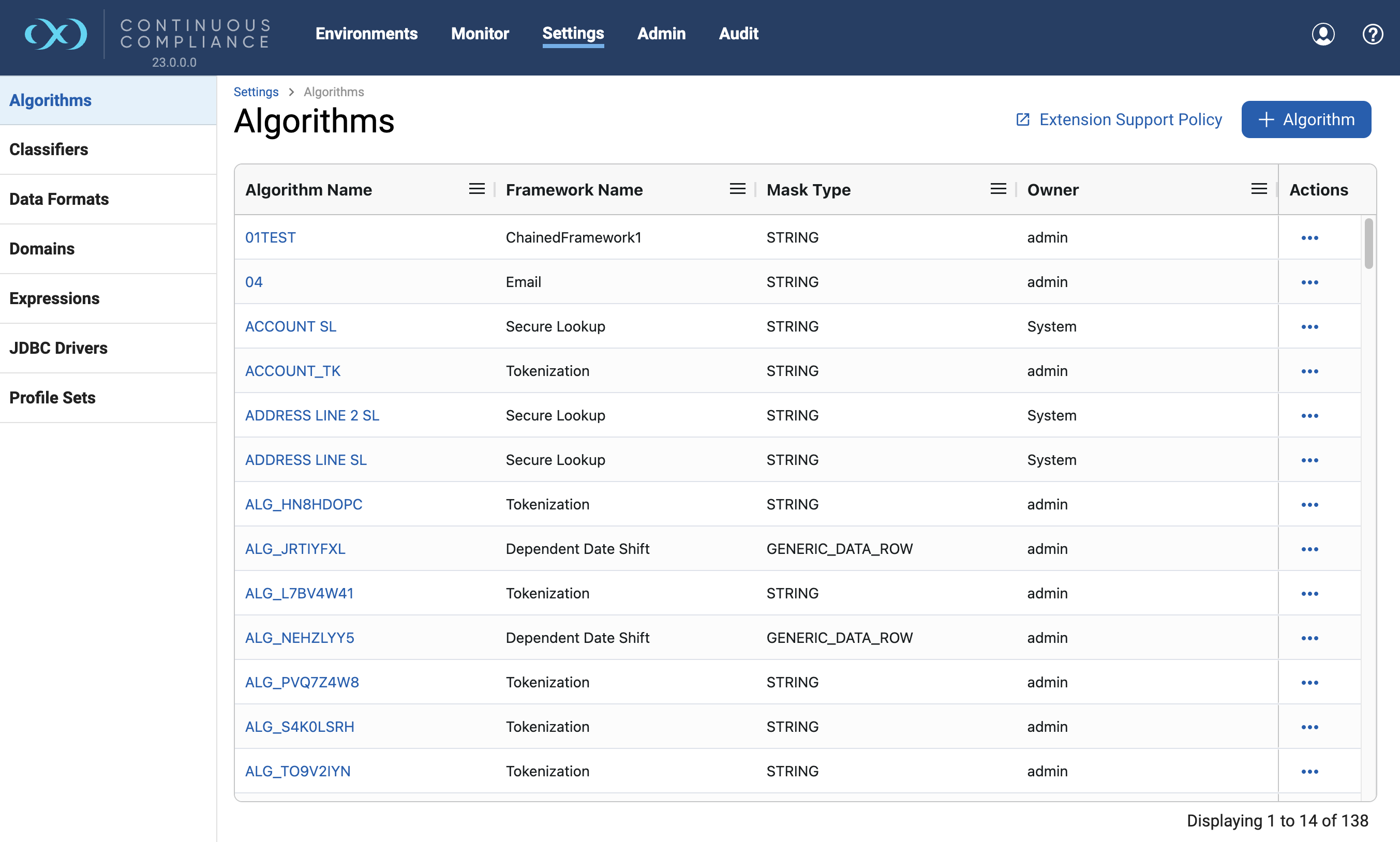
The Owner column tells you which instances are yours: System rows ship with the engine. The docs say system-defined instances and those from algorithm plugins can only be viewed, never edited or deleted. Administrators and users with the EDIT Algorithm permission can edit any user-defined one, but the name and framework cannot change after creation .
9.3 What an algorithm is, in five ideas
9.3.1 Idea 1: framework versus instance
Think of a framework as a recipe template ("replace each value with one chosen from a list") and an instance as a filled-in recipe ("...using this list of first names, ignoring case"). The documentation's own example: "FIRST NAME SL" is an instance of the Secure Lookup framework . The analogy stops being accurate in one place: a framework is not something you assign to a column. Only instances are assigned.
9.3.2 Idea 2: the key makes output repeatable but secret
Most algorithms include a key. If FirstNameLookup masks "Michelle" to "Rachael", changing the key might make it "Ben" instead . The key can be randomised through an API call (PUT /algorithms/{algorithmName}/randomize-key). Two consequences:
- Within one key, repeatable output means the same customer name masks the same way in every table and every run, so test data stays internally consistent.
- Whoever knows the key and the algorithm might be able to rebuild mappings, so treat the key like a password and do not casually re-key production algorithms, because every later run would produce different test data.
9.3.3 Idea 3: unique versus non-unique
Some algorithms may give two inputs the same output (collisions). Others guarantee that different inputs give different outputs. The docs are consistent about which is which:
| Property | Frameworks | Use it for |
|---|---|---|
| Collisions possible (non-unique) | Secure Lookup, Name, Full Name, Date Shift Discrete or Variable, Free Text Redaction, Min Max | Names, cities, comments: values that repeat naturally in real data |
| No collisions (unique) | Character Mapping, Segment Mapping, Mapping, Tokenization | Keys and identifiers: primary keys, foreign keys, SSN, account numbers |
Caveat from the docs: even Character Mapping can collide for numeric data types, because "001" and "1" are the same number once stored in a numeric column .
9.3.4 Idea 4: a lookup file is just a list
Lookup-based algorithms (Secure Lookup, Name and their out-of-the-box instances such as FirstNameLookup, LastNameLookup and FullNMLookup) hold a list of fake values. The engine hashes the input, uses the hash to choose a line, and returns that line. The file has one value per line, no header, in ASCII or UTF-8 . For example, a tiny file for cities could be:
Smallville
Clarkville
Farmville
Townville
With a hash method of SHA256 (the default) the same input always chooses the same line. The framework also offers LEGACY (to mimic old behaviour) and RANDOMIZE, which picks a random line each time and therefore does not keep referential integrity. RANDOMIZE suits things like gender, where you want a statistical spread rather than consistency .
9.3.5 Idea 5: masking versus tokenization
Almost all masking is one-way. Tokenization is the one family that can be reversed, which is why it exists: mask data, send it to an outside vendor, and later re-identify the vendor's findings . It is covered in the framework catalogue below.
The generic technique names map onto Delphix frameworks as follows:
- Substitution: Secure Lookup, Name, Mapping (replace a value with another real-looking value).
- Shuffle: SecureShuffle (moves existing values between rows).
- Key masking: Character Mapping and Segment Mapping (keyed permutation that keeps uniqueness).
- Encryption: Tokenization (AES-128 in the framework description, reversible).
9.4 Every algorithm framework, in one table
The documentation lists 25 frameworks (the Algorithm frameworks index). Each row below gives one plain sentence and an example taken from that framework's own page . Bold names are the ones used in the labs.
| Framework | What it does | Example from the docs |
|---|---|---|
| Binary Lookup | Replaces whole files stored in a column (such as images) with a fictional file you supply | Scanned cheque image becomes a stock image |
| BR - Financial ID | Masks Brazilian CPF and CNPJ numbers and keeps the check digits valid | "842.262.714-08" to "209.674.029-05" |
| Character Mapping | Keyed one-to-one swap of characters inside groups you define; unlisted characters are kept | "999-12-3456" to "453-71-6283" with group [0-9] |
| Character Replacement | Wraps another string algorithm and swaps listed characters before or after it (API only) | Replace "@", "#" and other symbols with "." in input and output |
| Checkdigit | Masks the digits and recomputes a valid check digit | Japan My Number, Brazil CPF |
| Data Cleansing | Not masking: standardises spellings from a lookup file before masking | "Arizona", "Ariz" and "Az" all become "AZ" |
| Date Replacement | Replaces a date with one from a min to max range | "1995-03-05 13:25:00" to "2020-01-02 00:00:00" |
| Date Shift | Moves a date by a number of days, months or years inside a range, never back onto itself | 3 to 5 days: "2021-02-03" to "2021-02-06" |
| Dependent Date Shift | Masks two related dates together, keeping their order and a chosen interval | Admission and discharge dates |
| Splits at "@" and masks name and domain separately | "bob@gmail.com" to "E.Duboise@example.com" (Email SL) | |
| Free Text Redaction | Blanks out listed words and pattern matches inside notes columns | "Bob Jones" to "XXXX XXXX" |
| Full Name | Splits a full name into first and last parts and masks each with chained algorithms | "Manuel Maria Saxe-Coburgo-Gotha" to "Nimisha Kum Mcneish" |
| Mapping | You supply the fake values; each input gets one distinct output, recorded encrypted | David always becomes Raj |
| Min Max Number / Min Max Date | Pulls extreme values (CEO salary, very old age) into a chosen range | Age under 18: min 0, max 18 |
| Multi Column Address | Masks several address columns together to one consistent address from your CSV | Street, city, zip in separate columns |
| Multi Column Condition | Applies different algorithms to columns depending on the value of a key column | Key "FN" selects one algorithm set |
| Name | Lookup-based first or last name masking with case, accent and particle options | "Ann-Marie M." to "Boris S." |
| Numeric Expression | Masks a number with a one-line Java expression | input * 0.5 |
| Payment Card | Keeps the first digits and the card's Luhn validity, masks the rest | "5419033646326699" to "5419036803270758" |
| Regex Decompose | Applies redact or preserve actions to the parts of a value matched by a pattern | "12345-abc" to "XXXXX-abc" |
| Secure Lookup | Replaces a value with a line from a lookup file chosen by hashing the input | "Tom" and "Peter" may both become "Matt" |
| Segment Mapping | Splits a value into segments (up to 10, each up to 6 characters) and masks each as you configure; no collisions | "AB1234" to "DL9148" |
| String Algorithm Chain | Runs two to eight string algorithms one after another | Clean, then mask |
| Tokenization | Reversible masking with AES-128 and Base64; the output is longer than the input | "Erasmus" becomes a long Base64 token |
Out-of-the-box instances are ready-made algorithms built on these frameworks. The 2026.5 algorithms page lists them; the families are:
| Family | Instances (not exhaustive for the lookup list) |
|---|---|
| Secure Lookup | FirstNameLookup, LastNameLookup, FullNMLookup, AddrLookup, EmailLookup, AccNoLookup, CommentLookup, USCitiesLookup, Age SL, Gender SL, RandomValueLookup and about twenty more |
| Name and Full Name | dlpx-core:FirstName, dlpx-core:LastName, dlpx-core:FullName |
| Character Mapping | dlpx-core:CM Alpha-Numeric, dlpx-core:CM Digits, dlpx-core:CM Numeric |
| dlpx-core:Email Unique, dlpx-core:Email SL | |
| Dates | Date Shift Discrete, Date Shift Fixed, Date Shift Variable |
| Others | Credit Card, Phone Unique, Phone US, SecureShuffle, NullValueLookup, Redact Digits-Zero, RepeatFirstDigit (zip+4), TimeRange, Lat_Long Coordinates, Japan and Brazil check-digit instances |
The docs say the older lookup instances such as FirstNameLookup, LastNameLookup and FullNMLookup are superseded by the Name and Full Name frameworks (introduced in 6.0.8.0), which they call the preferred way to mask name values . Use the dlpx-core instances for new work.
9.5 Deep dive: masking a first name
The default tool is dlpx-core:FirstName, an instance of the Name framework. It needs String input. If the value is null, empty or only spaces, it comes back unchanged. Words joined by a hyphen count as one word, a single letter is treated as an initial and masks to a single letter, and by default at most two names are masked and extra ones dropped. It raises no non-conformant data errors, and it can occasionally mask a name to itself .
| Input | Output | Lesson |
|---|---|---|
| (null) / "" / " " | unchanged | Nothing to mask |
| M | S | Initials stay initials |
| M. | S. | Dot is kept |
| Ann- Marie | Boris | Hyphenated names are one word |
| Ann-Marie M. | Boris S. | Two words, two masked parts |
| Ann-Marie Jane Jill | Boris Shelby | Only two names kept |
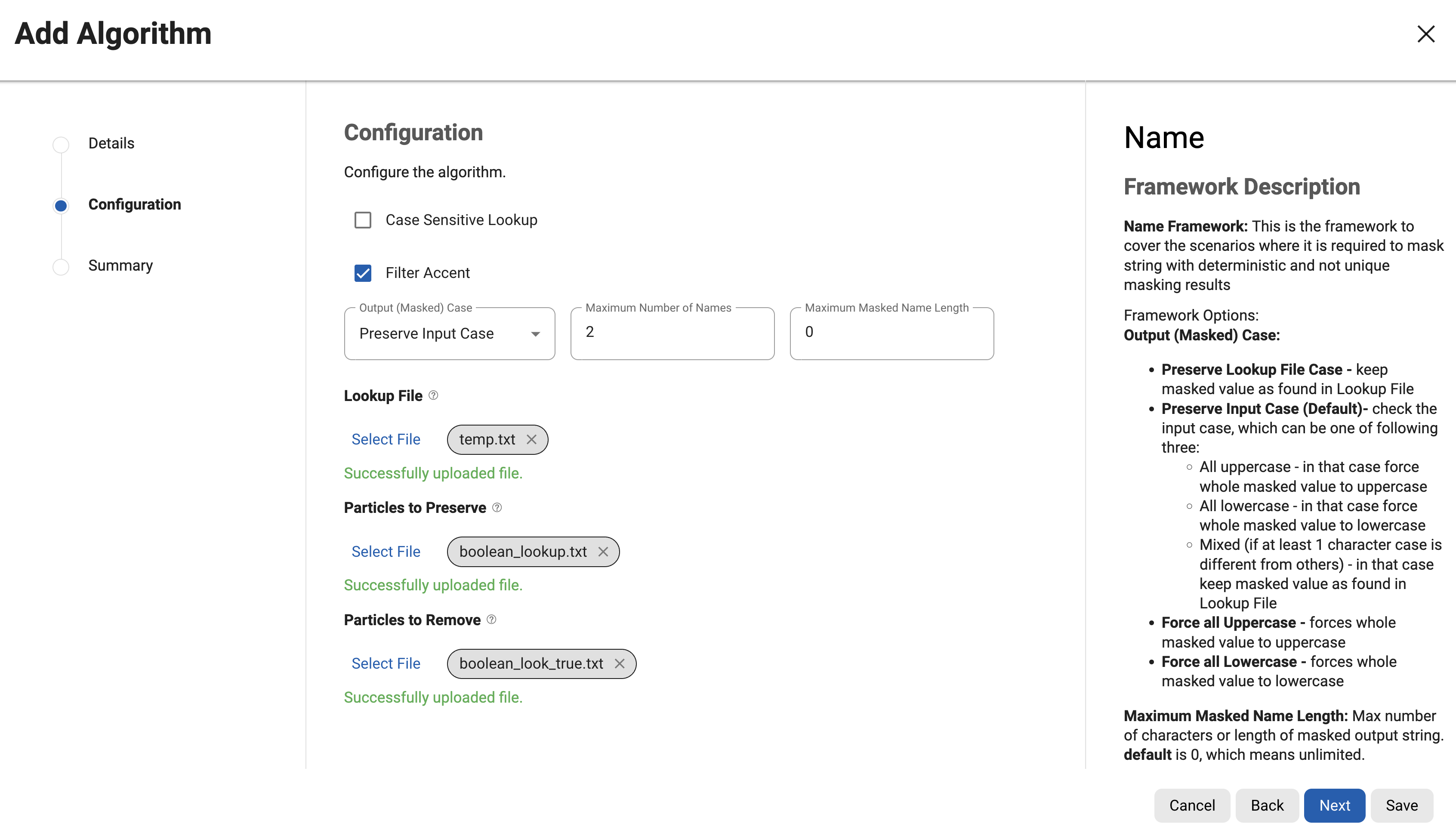
To build your own instance you open + Algorithm, pick the Name framework and configure these options :
| Option | Default | Meaning |
|---|---|---|
| Case Sensitive Lookup | off | Off means "Peter" and "peter" mask to the same name |
| Filter Accent | on | "Adrián" and "Adrian" mask alike |
| Output (Masked) Case | Preserve Input Case | All caps in, all caps out; mixed case uses the lookup file's case |
| Maximum Number of Names | 2 (range 1 to 4) | Names beyond this are dropped |
| Maximum Masked Name Length | 0 (unlimited) | Output is trimmed; the engine also respects the destination column length when it can detect it |
| Lookup File | required | One name per line, ASCII or UTF-8 |
| Particles to Preserve / Remove | optional | Words like "von" kept or removed before masking |
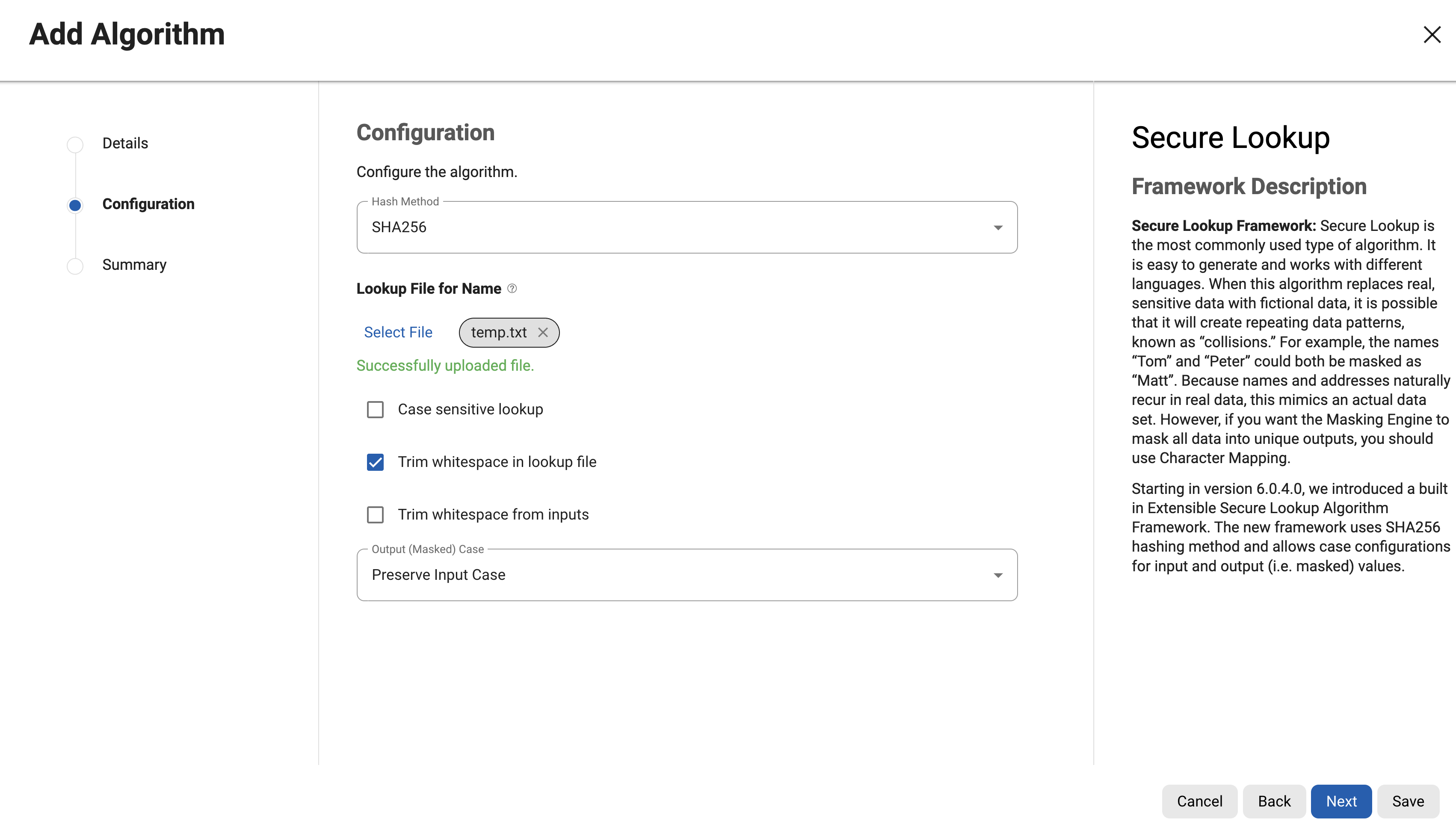
Behind this sits the lookup-file idea from earlier in this section: hash the input, pick a line. The older Secure Lookup framework adds hash method, whitespace trimming options and a warning worth remembering: if a masked value is longer than the column, the job can fail or, worse, referential integrity can break when two columns have different lengths.
| customer_id | Before | After |
|---|---|---|
| 1001 | Asha | Nimisha |
| 1002 | Ravi | Boris |
| 1003 | Meera | Simeon |
9.6 Deep dive: alphanumeric text with Character Mapping
Character Mapping swaps each maskable character for another one from the same group, using a key. You define groups such as [0-9] and [a-zA-Z]; a digit becomes a digit and a letter a letter; anything not in a group (dashes, spaces) is left alone. Every maskable position affects every other, no two text inputs share an output, and a masked value never equals the original if at least one character is masked. That makes it suitable for keys and identifiers .
Three ready instances cover most needs:
| Instance | Masks | Use on | Documented example |
|---|---|---|---|
| dlpx-core:CM Alpha-Numeric | Digits, lower and upper case letters, some Latin and Cyrillic | Text columns only | "ABCxyz123" to "HANwhp391" |
| dlpx-core:CM Digits | Only ASCII digits; letters and symbols stay | Text columns holding numbers (codes, ids) | "ABCxyz123" to "ABCxyz391" |
| dlpx-core:CM Numeric | Digits, keeps digit count; first digit never 0 | Numeric database columns | "99" to "75" |
If no character at all is masked (say, CM Digits on "ABC"), the engine records non-conformant data. CM Numeric also ignores database numeric limits, so on DB2 INTEGER or SQL Server INT columns a masked value can exceed the range and cause a conversion error.
![Character Groups editor with groups [a-zA-Z] and [0-9]](https://help.delphix.com/cc/current/content/resources/images/character_mapping2.png)
| customer_id | Before | After | What to notice |
|---|---|---|---|
| 1001 | ABCDE1234F | KMQTR6021Z | Same shape: 5 letters, 4 digits, 1 letter |
| 1002 | PQRST5678K | HWBNL3947C | Different input, different output |
9.7 Deep dive: SSN with Segment Mapping (or Character Mapping)
An SSN has structure (3 digits, dash, 2 digits, dash, 4 digits) and often serves as a lookup key, so you want unique, format-preserving output. The Segment Mapping page names Social Security Numbers as a typical use and describes exactly the controls you need :
- Up to 10 segments, each up to 6 characters, each treated as Mask alpha-numeric, Mask numeric, Preserve or Mask with a constant value.
- Ignore characters (such as the dash) are removed before masking and put back afterwards, so "123-45-6789" and "123456789" mask alike.
- Numeric segments are masked as whole numbers, alpha-numeric ones character by character.
- Values must match the segment pattern; data longer than the pattern passes through unmasked, and short numeric segments are reported as non-conformant unless you choose "Mask partial segments".
| Setting for the ShopSphere SSN algorithm | Value |
|---|---|
| Segment 1 | Length 3, Mask numeric |
| Segment 2 | Length 2, Mask numeric |
| Segment 3 | Length 4, Mask numeric |
| Ignore Characters | Ignore specific characters: - |
| Short Numeric Segment Handling | Report nonconforming data (default) |
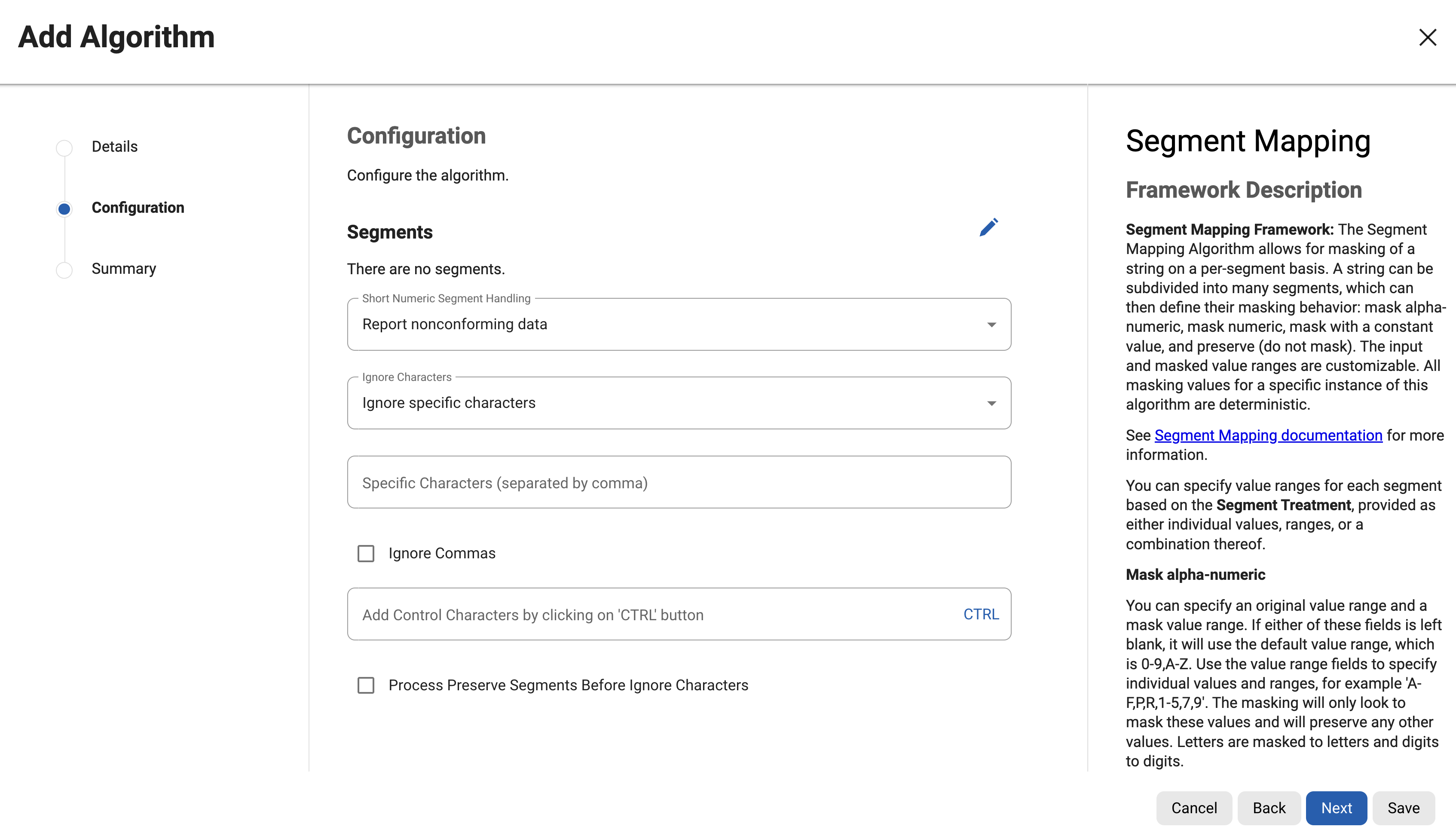
Two alternatives exist. CM Digits (or CM Alpha-Numeric) masks every digit and keeps the dashes automatically, with no setup: the docs' examples turn "999-12-3456" into "453-71-6283" (Character Mapping framework, group [0-9]) and "999-12-3456." into "668-23-1138." (CM Alpha-Numeric). Redact Digits-Zero turns every digit into 0 ("999-12-3456." to "000-00-0000."), which is not unique: many different SSNs become the same value.
The documentation does not say which algorithm the SSN domain uses by default; look at Settings > Domains on your engine. It also does not promise that a masked SSN follows real issuing rules (the profiler's patterns exclude area numbers 000 and 666, for example). If your application validates SSNs, test the output, and consider restricting a numeric segment's mask value range.
| customer_id | Before | After (CM Digits style) |
|---|---|---|
| 1001 | 123-45-6789 | 804-27-1956 |
| 1002 | 234-56-7890 | 561-30-4728 |
| 1003 | 345-67-8901 | 719-85-2043 |
9.8 Deep dive: telephone numbers
Two instances target phones, and both keep every non-digit character in place :
| Instance | What changes | Documented example |
|---|---|---|
| dlpx-core:Phone Unique | The last 7 digits are replaced by a hash of the digits; everything before them stays | "(123)456-7890" to "(123)012-3901" |
| dlpx-core:Phone US | The last 4 digits are hashed and the 3 digits before them become "555" | "(123)456-7890" to "(123)555-3085" |
Both accept at most 30 symbols and need at least one digit; "CALL-ME-FLOWERS" is returned unchanged with a non-conformant data event. ShopSphere's ten-digit numbers have no separators, so Phone Unique keeps the first three digits (987 in 9876543210) and masks the last seven. The page does not guarantee that Phone Unique never gives two inputs the same output, so verify with a distinct count, as the lab queries later in this section do.
| customer_id | Before | After |
|---|---|---|
| 1001 | 9876543210 | 9874120685 |
| 1002 | 9123456780 | 9120719342 |
| 1003 | 9988776655 | 9987203518 |
9.9 More algorithms you will meet: dates, email, mapping, tokenization
The labs use four algorithms, but the rest of ShopSphere (and any real project) needs a few more. Each paragraph below is a short orientation from the framework pages .
9.9.1 Dates (date_of_birth, order_date)
Three out-of-the-box instances differ in how much they preserve. Date Shift Fixed moves every date five days forward and rolls within the month, so the same input always gives the same output and no two dates collide ("2001-02-27" becomes "2001-02-04"). Date Shift Variable picks a random day within the same month and year and can collide. Date Shift Discrete sends every date of one year-month to one fixed day (about one in thirty dates may collide), so it is unsuitable for columns with unique, primary or foreign key constraints. When you build your own Date Shift instance you choose a minimum and maximum shift and a unit; equal values give a fixed shift, 0 inside the range is never used (a date never masks to itself), and Roll keeps all larger and smaller units unchanged. For a column that is not a native date type, set the Date Format in the inventory (default yyyy-MM-dd, case sensitive). Pairs such as admission and discharge need Dependent Date Shift so the order and the interval survive.
9.9.2 Email
The Email framework splits at the "@". The default dlpx-core:Email Unique hashes the whole input into a 52-character Base32 name and replaces the domain with example.com, so every input gets its own output (64 characters in total, which matters for short columns). dlpx-core:Email SL instead picks a readable name such as "E.Duboise" from a 20,000-value lookup, so collisions are possible but the data looks more human. The Email Unique output is what the profiling screenshots showed for the EMAIL domain, so ShopSphere's email column is covered by default; check that the column is wide enough for 64 characters.
9.9.3 Mapping: you decide the replacements
A Mapping algorithm replaces each distinct input with a value you supplied, and it never reuses an output, so there are no collisions. You must provide at least as many replacement values as there are distinct inputs, or the job reports "No free mappings are available". Mappings can be imported as a plain list of outputs or as a CSV with input,output columns, and exported (encrypted with a passphrase), reset or deleted. All mappings load into memory during a job, so give the job enough memory. Mappings can live on the engine or in your own PostgreSQL database shared by several engines. Before engine 6.0.10.0, only one table could be masked at a time with a mapping algorithm; later versions allow concurrent jobs.
9.9.4 Tokenization: masking you can reverse
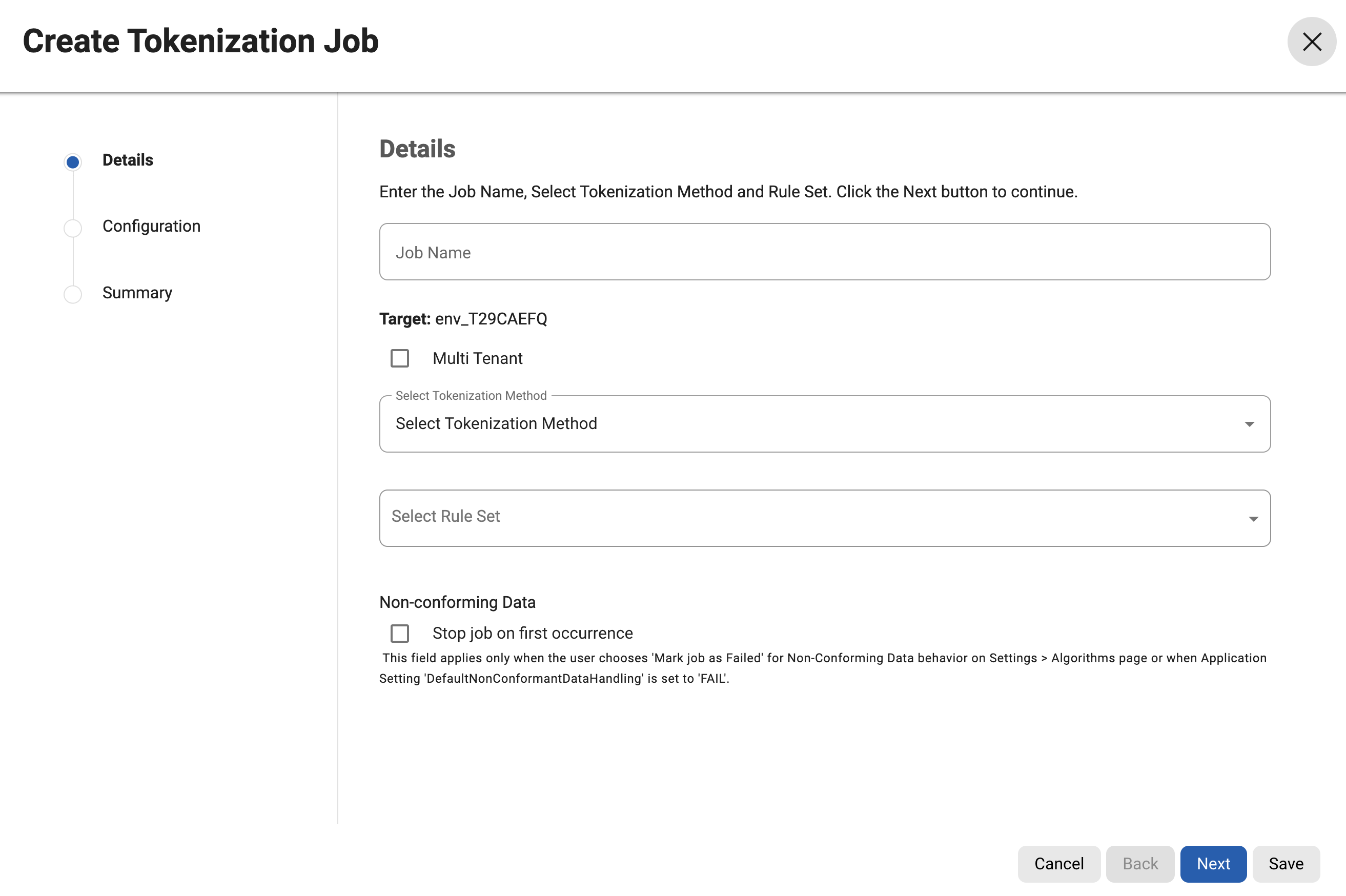
The Tokenization framework encrypts values with AES-128 and Base64 so a vendor can analyse data they cannot read, and you can later re-identify their findings. The output is longer than the input; if it would not fit the column, the framework either fails the job or falls back to a reversible Character Mapping. Segment Mapping, Character Mapping and Mapping can also be used for tokenization under conditions the framework pages list. You create a domain with both a masking and a tokenization algorithm, then a Tokenization environment, and use + Tokenization Job and + Re-Identification Job; the form has the same fields as a masking job.
9.10 Creating, choosing and managing algorithms
9.10.1 Create your own instance
- Settings > Algorithms > + Algorithm.
Your instances are called user-defined algorithms; once saved they are available to all users.
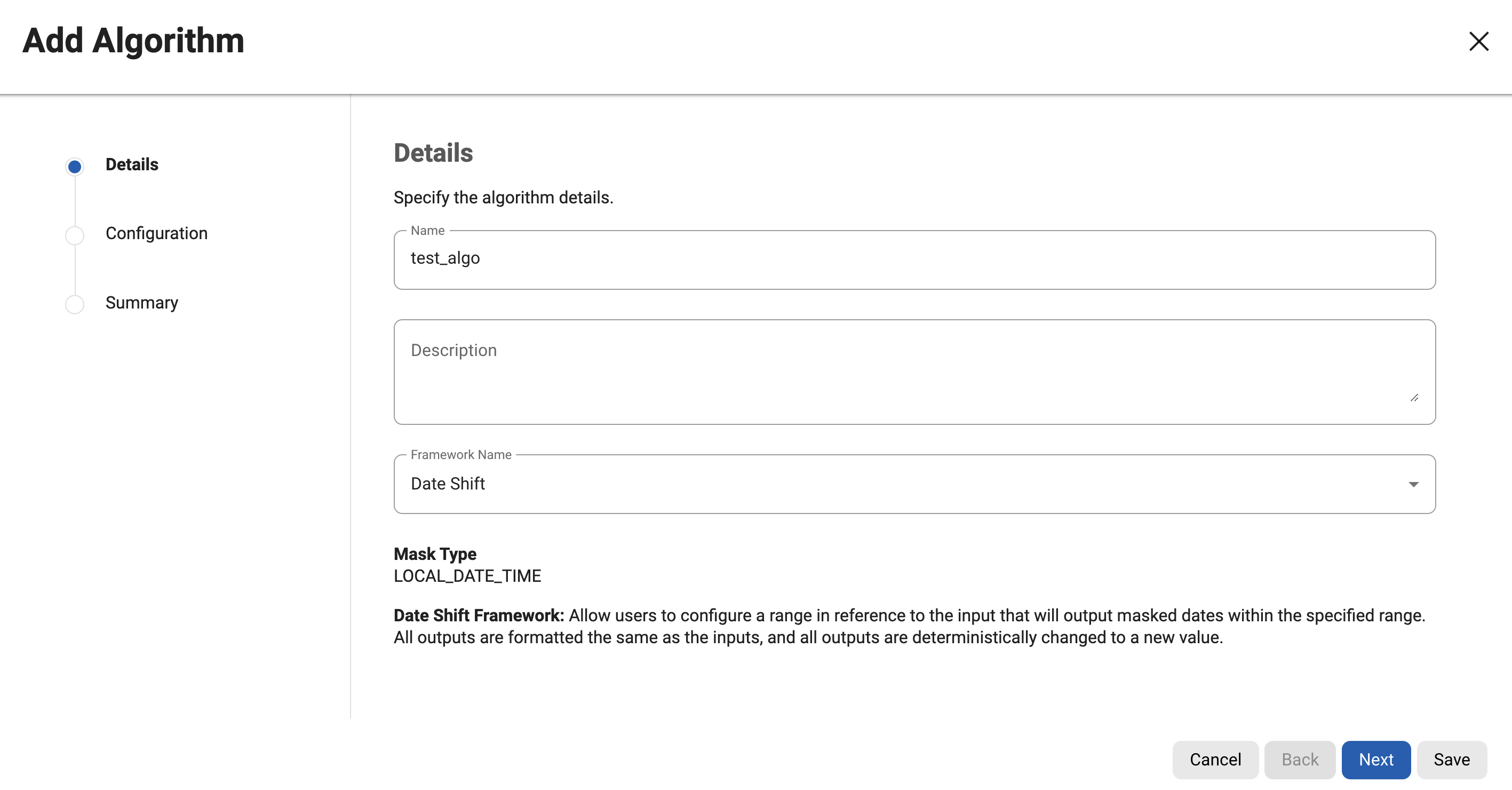
- Enter a unique Algorithm Name, a Description and choose the Framework, then Next.
Name and framework are locked after creation, so choose carefully. The wizard shows the framework's Mask Type (for Date Shift it showed LOCAL_DATE_TIME).
- Fill in the framework's configuration, then Next.
The panel on the right explains each field. The frameworks in the catalogue each have their own options.
- Check the Summary and Save.
The algorithm appears in the grid. Creating and editing are asynchronous tasks; a "Run in background" option may appear if it takes time.
To use a new algorithm in a profiling job you must first attach it to a domain as that domain's default (see the profiling chapter). If you build the inventory by hand, no domain is needed .
9.10.2 Choosing between Character Mapping and Segment Mapping
The docs say Character Mapping is intended to replace Segment Mapping in many cases, but not all .
Prefer Character Mapping when
- Data is dirty or inconsistently formatted: it keeps non-masked characters automatically
- You need Unicode (first plane) rather than just a-z and 0-9
- Inputs differ in length and you want to preserve the last characters (reverse preserve ranges)
- You want every position to influence every other
Prefer Segment Mapping when
- Parts of the value must be masked differently by position
- You need to map input ranges to different output ranges (A-D to W-Z)
- You need numeric segments limited to a value range (up to 6 digits)
9.10.3 Multi-column algorithms
A multi-column algorithm (for example Dependent Date Shift or Multi Column Address) is assigned once but spans several columns, each filling a logical field. It is meant for coordinated masking, such as two dates that must keep their interval. Each non-optional logical field must be assigned for every Algorithm Group number, and incomplete assignments may only be noticed when the job runs. They only work where whole rows are processed together, and cannot be called by other algorithms through chaining .
9.10.4 Usage and syncability (engine administration)
- Usage.
GET algorithm/{algorithmName}/usagelists every column, file field, domain and other algorithm that uses it.PUTon the same path withreplacementAlgorithmNameswaps it everywhere, with optional environment and rule set filters. The docs warn that this can change many inventories and is hard to undo, so first GET usage for both algorithms and export global settings and affected environments . - Syncability. Algorithms are fully syncable between engines (
GET /syncable-objects?object_type=USER_ALGORITHM). Non-deterministic ones (all Secure Lookup Random algorithms, DateShiftVariable, Gender SL, SexualOrientation SL, SecureShuffle) cannot give the same output twice, so they cannot be used for syncable masking. DateShiftFixed and RepeatFirstDigit are listed as fixed. Syncing an out-of-the-box instance updates its key but does not replace its files .
If two engines mask the same source, identical output on both needs the same keys, which is what syncing delivers.
9.11 Masking jobs: in-place or on-the-fly
A masking job lives in an environment next to the profiling jobs of the profiling chapter. A masking environment supports Profiling and Masking jobs; a tokenize environment supports Profiling, Tokenization and Re-Identification jobs, created with the same flow . Start with the one choice that shapes everything else, the masking method.
In-Place
Updates the source environment with masked values. Typical use: you already copied production into a test database (for example a virtual database) and mask that copy where it sits. Risk: if the job fails midway, that database may be partly masked.
On-The-Fly
Reads unmasked data from a source environment and connector, and writes masked data to the target. Typical use: production stays untouched and the masked copy goes elsewhere. Supported pairs: same connector type (Oracle to Oracle, delimited file to delimited file) and database source to delimited-file target.
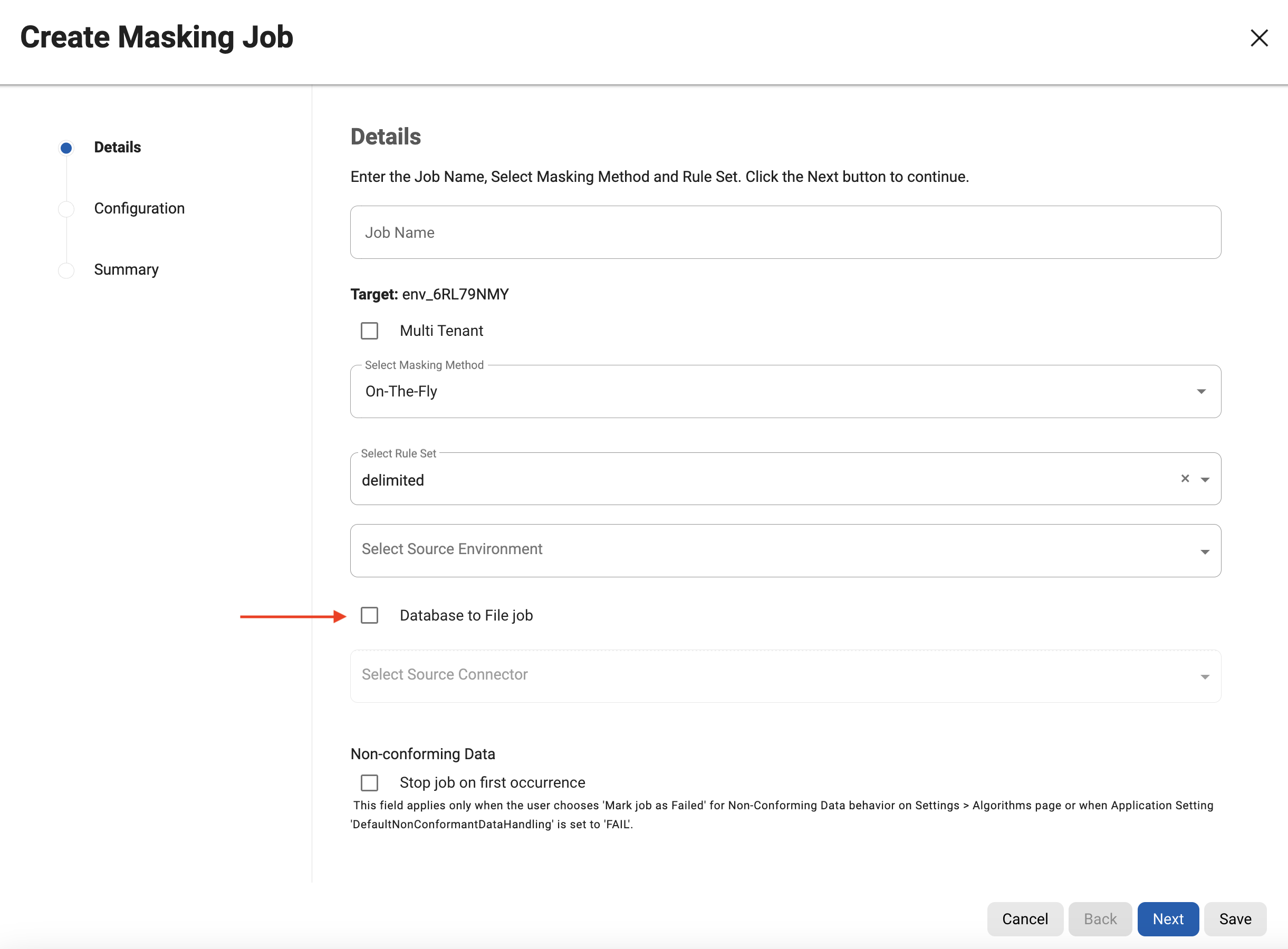
For a database-to-file job, tick Database to File Job so that the source connector list shows database connectors. Target files need not exist in advance if the file name pattern matches the source, but in a database-to-delimited-file job the target files must be created first, with names matching the source tables. You need the View Connector role to create or run on-the-fly jobs .
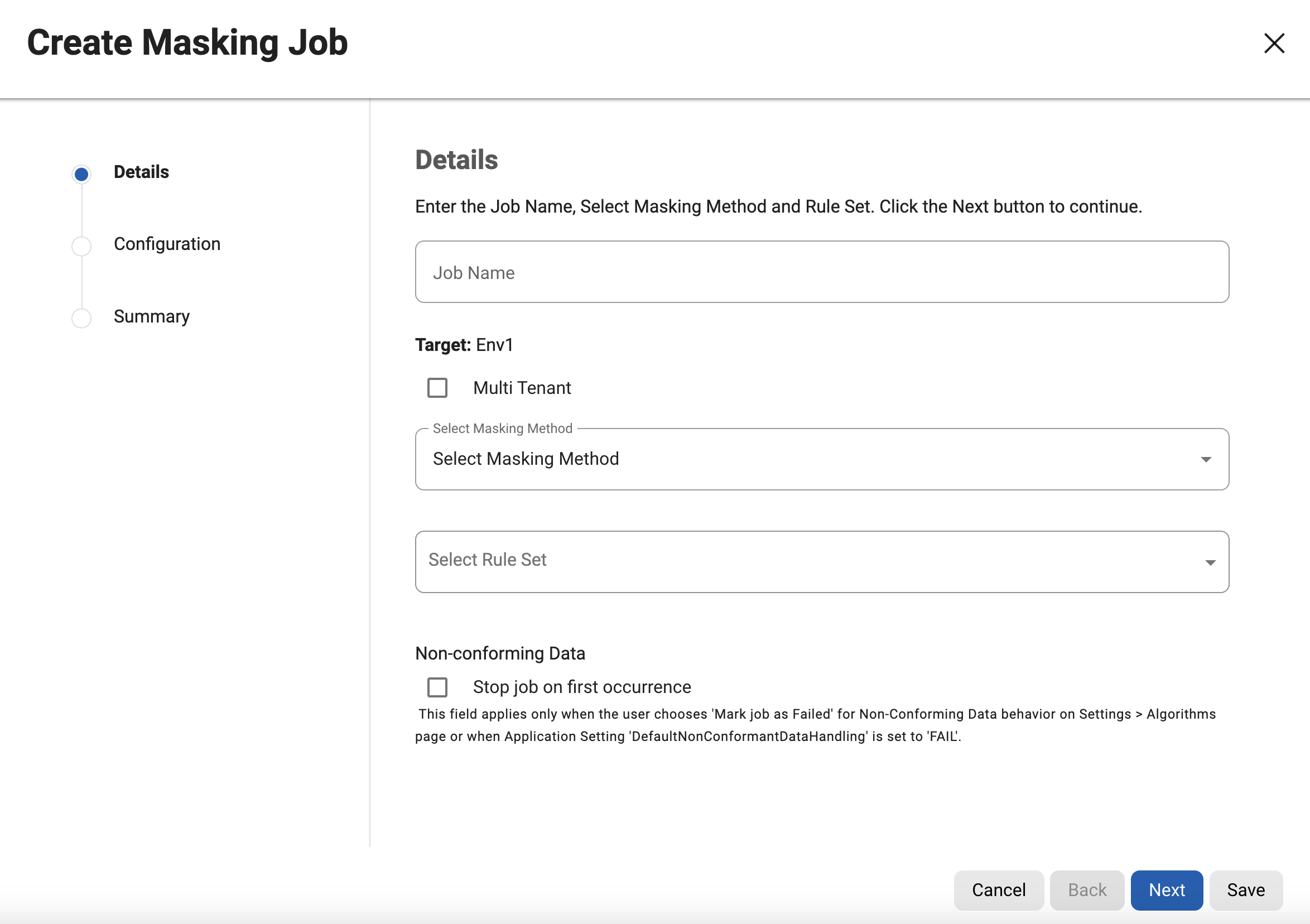
9.11.1 Create a masking job, step by step
- In the environment's Jobs tab click + Masking Job.
The Create Masking Job wizard opens: Details, then Database Options (database rule sets only), Configuration, Summary.
- Details: unique Job Name, Masking Method, Rule Set.
The name must be unique across the entire application. For On-The-Fly you also choose Source Environment and Source Connector.
- Details: decide the optional boxes.
Multi-Tenant reuses a rule set for identical schemas through different connectors, chosen at run time. Selective Data Distribution must be on if the job will be used in masked VDB provisioning. Stop job on first occurrence aborts on the first non-conformant value, but only where the algorithm or global setting says non-conformant data is a failure.
- Database Options: commit size, update threads and friends.
See the table below. This step only appears for database rule sets.
- Configuration: streams, row limit, feedback size, memory, comments, email.
These control speed and memory, not what is masked.
- Summary, then Save.
The job appears in the Jobs list with status CREATED until you run it.

| Field | What it does (from the docs) |
|---|---|
| Commit Size | Rows processed before a commit. The related application setting DatabaseCommitSize has default 10000; the docs do not spell out how it interacts with an empty field. |
| Update Threads | Parallel threads writing to the target database; default from DefaultUpdateThreads (1). Do not use several threads if any table lacks an index, and reduce them if a deadlock appears, especially on T-SQL databases. |
| Batch Update | Loads masked rows in batches of Commit Size. Recommended because it usually speeds the job. |
| Truncate | On-The-Fly only: empty the target tables before loading. |
| Drop Indexes / Disable Triggers / Disable Constraints | Switch off and automatically restore indexes, triggers or constraints so that keys and foreign keys can be updated. Not supported for every database. With driver-support plugins they appear under Enable Tasks. |
| Pre SQL / Post SQL Script | A file of plain SQL statements separated by semicolons (maximum 10 MB) run before or after the job. No PL/SQL or T-SQL extensions, no dynamic SQL, and schema-changing SQL cannot run as a pre-script. The engine always opens a connection, even if no script is loaded. |
| Number of Streams | How many tables are masked in parallel; default from DefaultStreams (1). Even one stream has separate input, masking and output threads. Expect some streams to finish before others. |
| Row Limit | Rows in flight per stream (lines, records or XML elements for files). 0 means unlimited; -1 or blank picks a default by rule set type. Defaults assume rows of about 2000 bytes with 100 masked columns; for bigger rows, add memory or lower the limit. |
| Feedback Size | Rows between log messages. |
| Min / Max Memory (MB) | Memory for the job; the docs recommend at least 1024. |
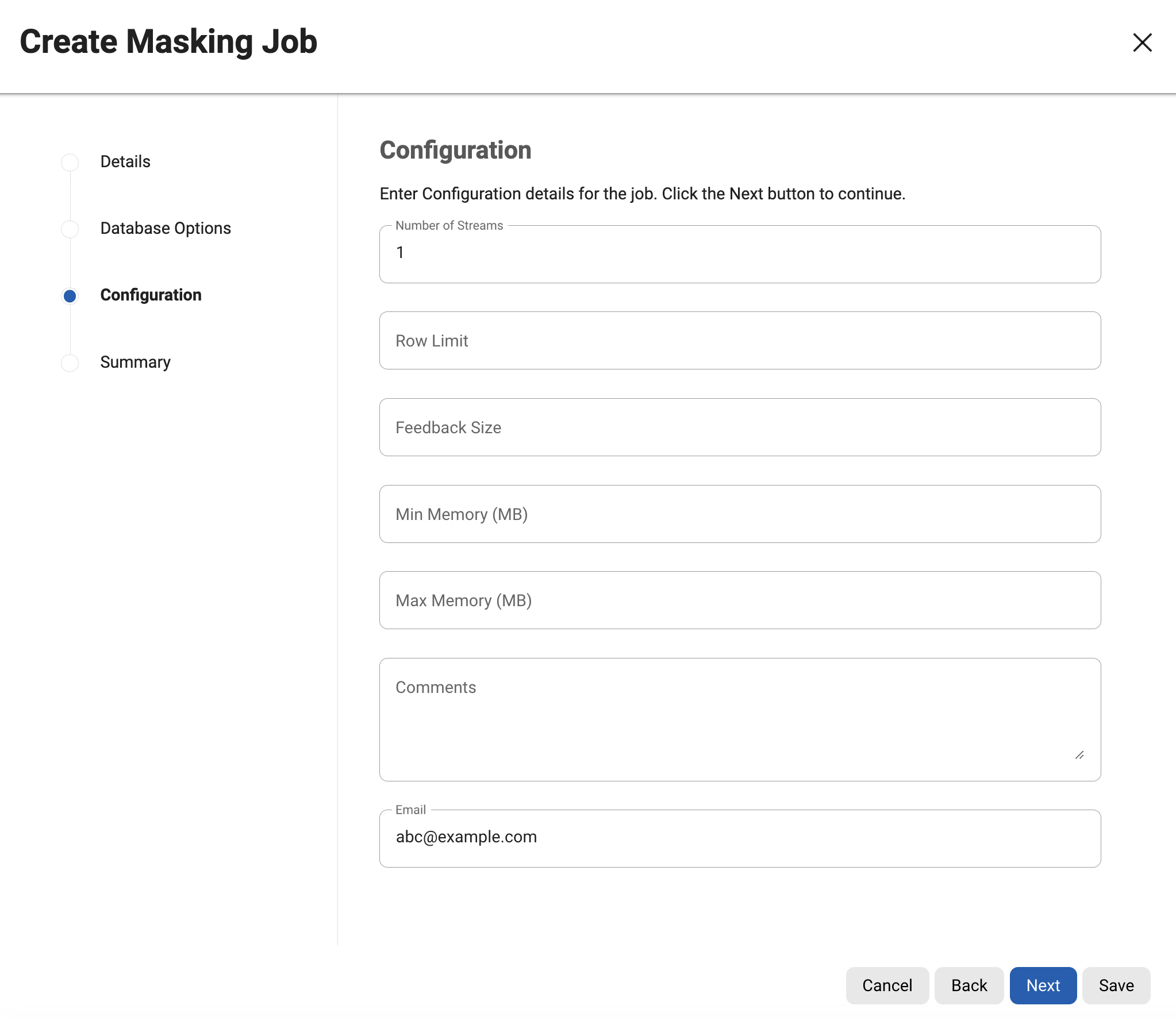
Edit, view, delete. Use the ... menu on the job row; the name cannot be edited, and delete asks for confirmation. A job cannot be edited or deleted while running. The row menu also offers a Checklist for database jobs that runs an Identity Column Check: the rule set's tables must have a primary key, an indexed identity column or a logical key. The check looks only at the rule set, so it still passes if a primary key constraint is disabled by the job .
9.11.2 Run, stop and monitor
Run. Click ... then Run. The engine checks the memory allowed for all running jobs (by default 75% of system memory minus 6 GB reserved for the web application, overridable with MaximumMemoryForJobs) and the number of simultaneous jobs (NumSimulJobsAllowed, default 7). If either limit would be exceeded the job queues .
Stop. Cancel a running masking job and the data can be left semi-masked; indexes, constraints or triggers that were dropped are not recreated. Cancelling a queued job has no effect on your data . Plan to restore from a copy rather than trust a half-masked database.
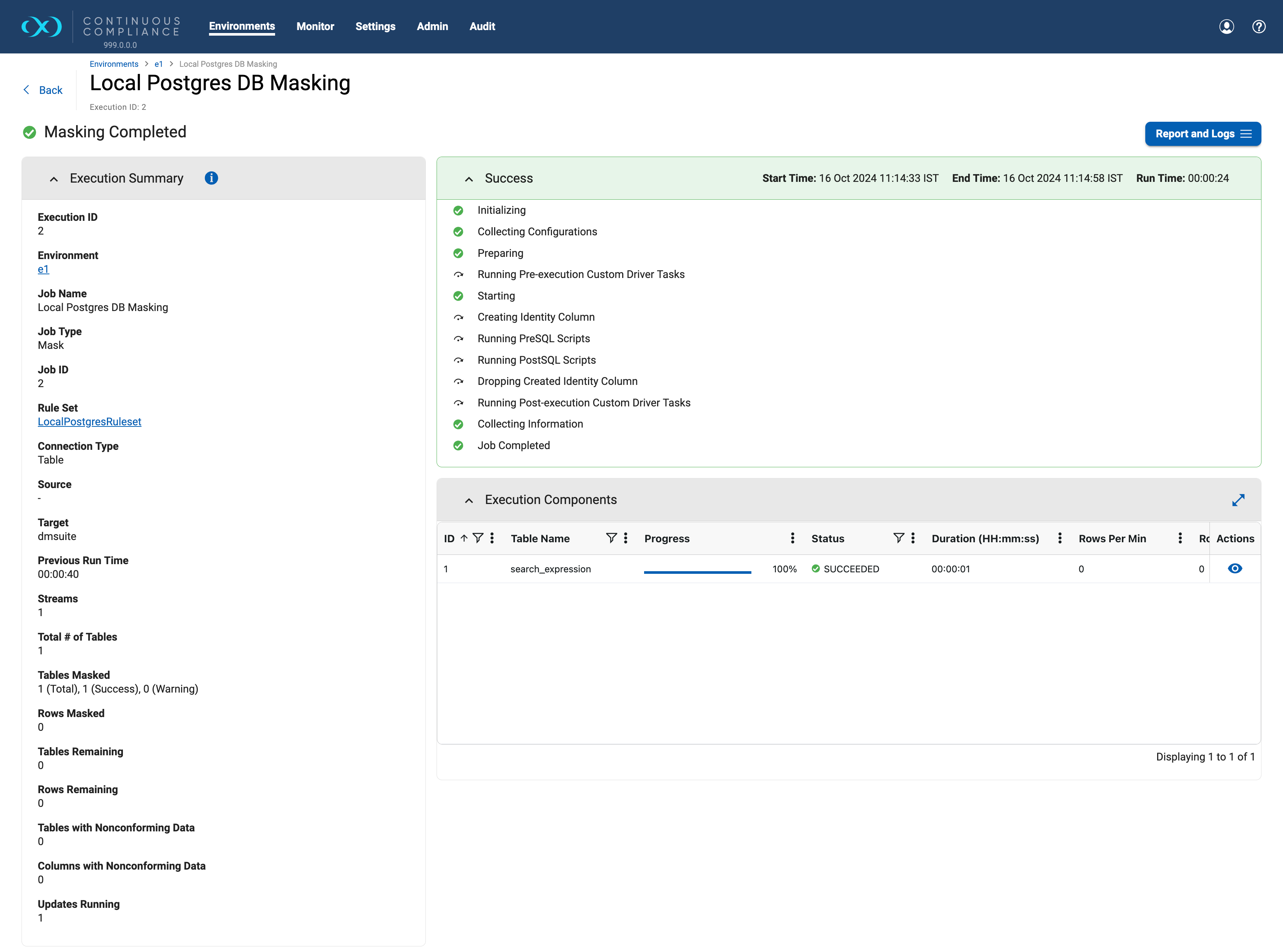
Monitor. Open Monitor > Job Executions or click the job name. The execution page shows a summary (tables masked, rows masked and remaining, tables and columns with non-conformant data, streams), the sequence of events (Initializing, Collecting Configurations, Preparing, Running Pre-execution Custom Driver Tasks, Starting, Creating Identity Column, Running PreSQL and PostSQL Scripts, Dropping Created Identity Column, Running Post-execution Custom Driver Tasks, Collecting Information, Job Completed) and a grid of Execution Components, one row per table or file.

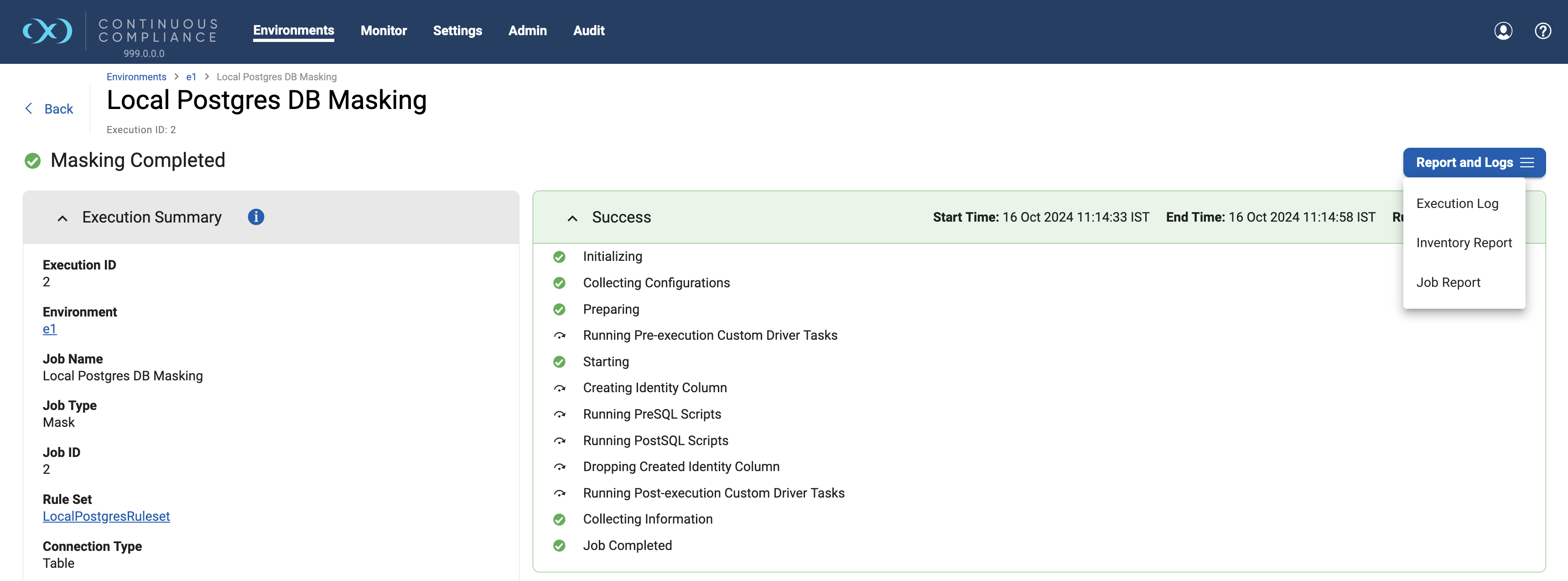
Report and Logs offers the Execution Log plus PDF reports: the Job Report and the Inventory Report (the profiling job showed only Job Report).
9.11.3 Non-conformant data: when a value does not fit the algorithm
If a value does not match what an algorithm expects (letters going into a numeric-only algorithm, an 11-digit string into a 10-digit segment pattern), the job, depending on settings, fails, skips the value, or nulls it. The global default is the application setting DefaultNonConformantDataHandling; an algorithm's own setting overrides it, and a job can override both with Job-level Non-Conforming Data Handling: Use global setting, Fail on encounter (FAIL), Don't mask value (DONT_MASK) or Set value to null (NULLIFY). The job-level override applies only to Hop-based jobs. By default non-conformant data is not masked and the job ends with a warning .
Unmasked data in a test database is a leak, so never ignore a yellow warning. Open the execution component's logs. The Error Report lists the event type (UNMASKED_DATA, or JOB_ABORTED if the job stopped), the cause (PATTERN_MATCH_FAILURE), the row count and the column, plus a sample of the pattern of the bad value, never the value itself. Each character is shown as a class: N digit, L letter, M mark, P punctuation, S symbol, Z separator, O other, U unknown.
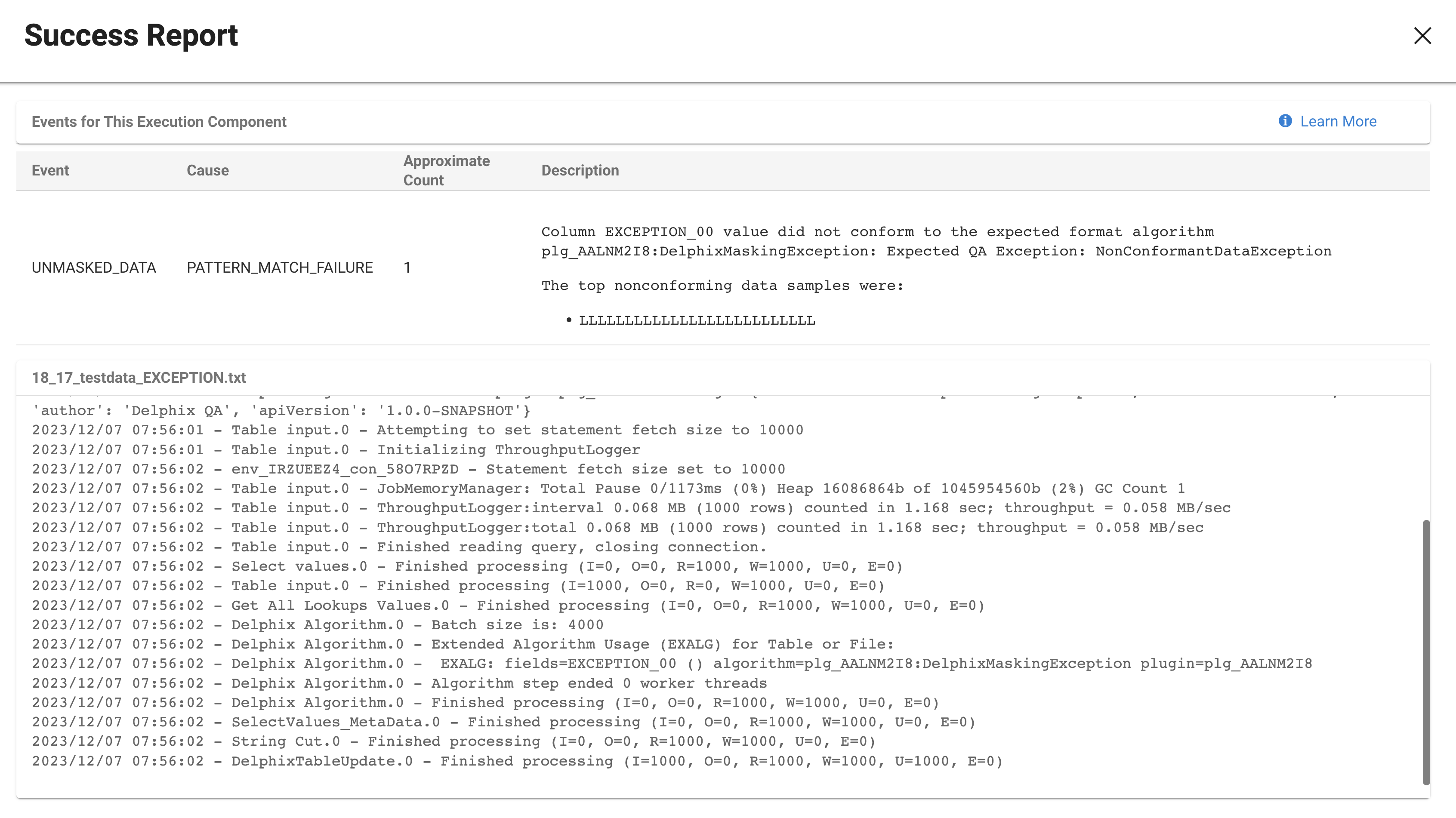
To find the offending rows, translate the pattern into a database query. For the pattern LLLLL on an Oracle column, the docs use SELECT EXCEPTION_00 FROM testdata_EXCEPTION WHERE regexp_like(EXCEPTION_00, '[[:alpha:]]{5}');. For a multi-column algorithm the pattern is shown for every masked column of that algorithm, so you must read the message to find the real culprit.
9.11.4 Speed: PerfLogger and best practices
From version 2026.3 the throughput log is called PerfLogger. It logs at job start (every 10,000 rows), then every 30 seconds after 100,000 rows, and once at the end with totals. The main number is RPM, rows per minute; MB/sec is only informational, and BPR is the average bytes per row. Rows of about 1 KB or more lower RPM. A sharp RPM drop to zero with an unchanged BPR points at the target side (transaction log pressure, auto-growth, many indexes). If RPM falls below earlier runs, check for concurrent jobs, new indexes, constraints or triggers, and bigger rows .
The best practices page recommends, for a dedicated compliance engine, 8 vCPUs and 64 GB RAM minimum (128 GB or more preferred), about one vCPU per concurrent job, at least 1 GB of memory per job and per stream (more for particularly wide rows or big lookup files such as 500,000 values), the engine near the database server on a slow network, and tuning the masked VDB first (for Oracle, no-archivelog mode; for SQL Server, SIMPLE recovery) . Mapping algorithms are the other big memory user: all mappings load into memory, so a 2 GB mapping needs much more job memory than a 2 MB one.
9.12 Labs on ShopSphere
Both labs mask a test copy of ShopSphere, never SHOPSPHERE_PROD. They assume the environment, connector and rule set from the connectors chapter and the rule sets chapter, and an inventory from the profiling chapter. The SQL is generic; adjust it for your database (Oracle, PostgreSQL and SQL Server differ in small ways, noted where it matters). The Delphix hands-on chapter repeats these labs in a wider flow: the Delphix hands-on labs chapter.
An in-place job overwrites the data, so create a copy of the original rows to compare against. In PostgreSQL or Oracle: CREATE TABLE customers_before AS SELECT * FROM customers; (SQL Server: SELECT * INTO customers_before FROM customers;). The snapshot table is a lab convention, not a Delphix feature. Drop it when you finish: it holds the real-looking data.
Lab A: mask FirstName
Goal: mask CUSTOMERS.first_name with dlpx-core:FirstName, run an in-place job and prove the result with SQL.
- Take the snapshot (above) and note the row counts of CUSTOMERS and ORDERS.
You need the "before" numbers to judge "after".
- Open the rule set inventory and make sure only
first_namecarries an assignment: domain FIRST_NAME, algorithmdlpx-core:FirstName.One column keeps the lab clear. Use the Clear Masking Assignment icon on other columns, as described in the profiling chapter.
The inventory shows one assigned column in CUSTOMERS.
- Create the job: + Masking Job, name
ShopSphere_Mask_FirstName, Masking Method In-Place, your rule set.In-place is right here because the target is already a disposable copy.
- Database Options: leave Commit Size at the default, Update Threads 1, Batch Update ticked. Configuration: 1 stream, Min and Max Memory 1024.
Tiny tables need no tuning; one update thread avoids deadlock risk.
- Save, run the job from its "..." menu and watch Monitor > Job Executions.
Status Queued or Running, then Succeeded. Open the job: Tables Masked 1, Rows Masked equals your CUSTOMERS row count, Tables with Nonconforming Data 0.
- Verify with SQL.
Run the queries below and compare to the expected results.
-- 1. row count unchanged
SELECT (SELECT COUNT(*) FROM customers_before) AS before_rows,
       (SELECT COUNT(*) FROM customers)        AS after_rows;

-- 2. side by side
SELECT b.customer_id, b.first_name AS before_name, a.first_name AS after_name
FROM customers_before b JOIN customers a ON a.customer_id = b.customer_id
ORDER BY b.customer_id;

-- 3. how many names were left unchanged
SELECT COUNT(*) FROM customers_before b JOIN customers a
  ON a.customer_id = b.customer_id WHERE a.first_name = b.first_name;

-- 4. distinct counts before and after
SELECT (SELECT COUNT(DISTINCT first_name) FROM customers_before) AS d_before,
       (SELECT COUNT(DISTINCT first_name) FROM customers)        AS d_after;

-- 5. determinism: any original name mapped to more than one output?
SELECT b.first_name, COUNT(DISTINCT a.first_name) AS outputs
FROM customers_before b JOIN customers a ON a.customer_id = b.customer_id
GROUP BY b.first_name HAVING COUNT(DISTINCT a.first_name) > 1;

-- 6. other columns untouched, joins intact
SELECT COUNT(*) FROM customers_before b JOIN customers a
  ON a.customer_id = b.customer_id WHERE a.last_name <> b.last_name;
SELECT COUNT(*) FROM orders o JOIN customers c ON c.customer_id = o.customer_id;
Show a worked answer
Expected results.
- Query 1: both counts equal. Query 2: every row shows a new name; compare with the example table in the first name section.
- Query 3: a small number. The documentation says
dlpx-core:FirstNamecan mask a name to itself, so do not demand zero. With three rows, zero or one is normal. - Query 4:
d_afteris at mostd_before, because Name algorithms are not unique. - Query 5: no rows. The same input must give the same output (deterministic). Rows here would mean the algorithm was re-keyed during the run or case settings differ.
- Query 6: zero mismatches, and the orders-to-customers join count equals the total number of orders, because
customer_idwas not touched.
If it fails: status Warning means open the Error Report (see the non-conformant data part above); status Failed means read the Execution Log. An unchanged column means the algorithm was never saved in the inventory.
Lab B: mask alphanumeric text, SSN and telephone number
Goal: mask tax_id (alphanumeric), ssn and phone with format-preserving algorithms and prove uniqueness, format and consistency. Start from a fresh test copy (restore the original rows and take a new customers_before snapshot).
- Create the SSN algorithm: Settings > Algorithms > + Algorithm, name
SHOPSPHERE_SSN, framework Segment Mapping.Built-in instances exist, but building one shows how Segment Mapping works and guarantees uniqueness.
- Add three segments: length 3 Mask numeric, length 2 Mask numeric, length 4 Mask numeric. Set Ignore Characters to specific characters and enter
-. Leave Short Numeric Segment Handling on "Report nonconforming data". Save.The dashes are removed before masking and restored after, so "123-45-6789" keeps its shape.
The algorithm shows in the grid with owner admin and framework Segment Mapping.
- In the rule set inventory, edit each column: untick Enable Automatic Updates, then set
tax_idto domain TAX_ID withdlpx-core:CM Alpha-Numeric,ssnto domain SSN withSHOPSPHERE_SSN, andphoneto domain TELEPHONE_NO withdlpx-core:Phone Unique. Save each.Overriding the domain default needs automatic updates off, otherwise a later profiling run may undo your choice.
- Create and run job
ShopSphere_Mask_Sensitive(In-Place, Update Threads 1, Batch Update on, 1 stream, memory 1024) as in Lab A.Succeeded, with no tables or columns reported under nonconforming data. A Warning here usually means a value did not fit: open the Error Report.
- Verify with SQL.
-- Format: SSN keeps dashes (expect 0 rows violating)
SELECT COUNT(*) FROM customers WHERE ssn NOT LIKE '___-__-____';

-- Uniqueness: rows minus distinct values (expect 0 for tax_id and ssn)
SELECT COUNT(*) - COUNT(DISTINCT tax_id) AS tax_dupes,
       COUNT(*) - COUNT(DISTINCT ssn)    AS ssn_dupes
FROM customers;

-- Changed? (SSN and tax_id: expect 0 or very close to 0)
SELECT COUNT(*) FROM customers_before b JOIN customers a
  ON a.customer_id = b.customer_id
WHERE a.ssn = b.ssn OR a.tax_id = b.tax_id;

-- Tax id shape, Oracle syntax (PostgreSQL: tax_id !~ '^[A-Z]{5}[0-9]{4}[A-Z]$')
SELECT COUNT(*) FROM customers
WHERE NOT REGEXP_LIKE(tax_id, '^[A-Z]{5}[0-9]{4}[A-Z]$');

-- Phone: ten digits, first three unchanged (expect 0 and 0)
SELECT COUNT(*) FROM customers WHERE LENGTH(phone) <> 10;
SELECT COUNT(*) FROM customers_before b JOIN customers a
  ON a.customer_id = b.customer_id
WHERE SUBSTR(a.phone,1,3) <> SUBSTR(b.phone,1,3);

-- Phone distinct counts, then side by side
SELECT (SELECT COUNT(DISTINCT phone) FROM customers_before) AS d_before,
       (SELECT COUNT(DISTINCT phone) FROM customers)        AS d_after;
SELECT b.customer_id, b.ssn, a.ssn, b.tax_id, a.tax_id, b.phone, a.phone
FROM customers_before b JOIN customers a ON a.customer_id = b.customer_id;

-- Joins still work (orders to customers)
SELECT COUNT(*) FROM orders o JOIN customers c ON c.customer_id = o.customer_id;
Show a worked answer
Why each expectation is justified.
- tax_id: Character Mapping keeps letters as letters and digits as digits, and gives no two inputs the same output, so the shape and uniqueness checks should pass. The docs promise a masked value never equals the input if at least one character is masked.
- ssn: Segment Mapping produces "no overlaps or repetitions", so duplicates should be 0. The page does not say a value can never map to itself, which is why that check is "0 or very close". If your application validates SSN rules (no 000 or 666 area, for instance), inspect the output; these frameworks do not promise valid issuing patterns.
- phone: Phone Unique masks only the last seven digits and keeps all other characters, so the first three digits must be unchanged. The documentation does not guarantee distinct inputs always give distinct outputs, so a lower
d_afterthand_beforeis a finding to report, not necessarily a failure. - Joins: none of these columns is a key, so the join count equals the number of orders.
Consistency across tables. If an SSN or tax id also appears in another table or file, that column must use the same algorithm, or the same person gets two different masked values and tests break.
Extra challenge. Repeat the SSN step with dlpx-core:CM Digits instead of the custom algorithm and compare the output. Which one gave better-looking SSNs?
9.13 Common mistakes and gotchas
- Using a non-unique algorithm on a key or unique column. Secure Lookup, Name and Date Shift Discrete can collide. Use Character Mapping, Segment Mapping or Mapping for keys, and the same algorithm on every column that must still match, including foreign keys.
- Ignoring the yellow Warning status. Non-conformant values are left unmasked by default, so real data can reach the test database. Read the Error Report after every run.
- Testing for "zero unchanged values" with name algorithms. The documentation says a masked name can equal the input; test for "a small number", and use Character Mapping when a changed value is mandatory.
- Running an in-place job on the only copy of the data. Cancelling or failing midway can leave data semi-masked, and dropped indexes or triggers are not recreated.
- Several update threads on tables without indexes. The docs warn of deadlocks, especially on T-SQL databases.
- Re-keying an algorithm casually. It changes every masked value, so test data from before and after no longer matches.
- Letting the profiler overwrite your algorithm choice. Untick Enable Automatic Updates when you assign by hand (see the profiling chapter).
- Assuming a masked SSN or phone number is a valid real-world number. The frameworks keep shape and uniqueness, not issuing rules.
- Giving a job too little memory. Below the recommended 1024 MB, and with large lookup files or mappings, performance suffers or jobs fail.
9.14 Recap
- A framework is a configurable kind of algorithm; an instance is a ready recipe you assign to a column. Output is repeatable for the same input, key and configuration.
- Lookup frameworks (Secure Lookup, Name) pick a line from a list file and may collide. Character Mapping and Segment Mapping are keyed and collision free, which suits keys and identifiers.
- Algorithms used in the labs:
dlpx-core:FirstNamefor first names, Segment Mapping or CM Digits for SSN,dlpx-core:CM Alpha-Numericfor alphanumeric text,dlpx-core:Phone Uniquefor telephone numbers. - A masking job is in-place (changes the data where it sits) or on-the-fly (reads a source, writes a target). Key settings: commit size, update threads, batch update, streams, row limit, memory, pre and post SQL.
- Run the job, then monitor status, components, logs and the Error Report; non-conformant data is left unmasked by default.
- Always verify with SQL: row counts, side by side, distinct counts, uniqueness, format and join checks.
Not all sensitive data sits in a database. Customers export spreadsheets, partners drop .dat feeds on an SFTP server, and batch jobs write flat text files that testers later load. A masking project has to cover those files too. The good news is that Delphix masks files with the same algorithms and the same ideas you have already met: a connector, a rule set, an inventory and a masking job. The new piece is the file format: because a text file has no built-in column names, you must tell the engine where the fields are.
The chapter ends with a lab that masks a ShopSphere customers.dat file end to end. Connectors and rule sets are introduced in the connectors chapter and the rule sets chapter; profiling and the inventory are in the profiling chapter; the algorithms and job options come from the algorithms and masking jobs chapter. Flat-file basics are also in the data basics chapter. Tool-specific facts are from the Delphix Continuous Compliance documentation 2026.5; screenshots come from engine versions 22.0.0.0 to 999.0.0.0 (a build number shown in some banners). The customers.dat sample is example data.
9.15 Words to know first
- Flat file
- A plain text file where each line is a record and each record holds fields in a fixed order, such as a
.txt,.csvor.datfile. The extension is only a habit; the engine cares about the layout. - Record / field
- A record is one line (one customer). A field is one value in it (the phone number).
- Delimited file
- Fields are separated by a character such as
,or|. - Fixed-width file
- Every field has a set length, so field two starts at a known position, with no separator.
- File format (definition)
- A small description file you upload that lists a file's field names (and, for fixed width, lengths). It is metadata only. Many data files can share one format.
- End-of-record
- The character or characters that end a line: LF on Linux, CR+LF on Windows.
- Text enclosure
- A character, often a double quote, that wraps a value so the value may contain the delimiter.
"Menon, Asha"is one field. - Escape
- How a literal enclosure character inside an enclosed value is written, by default by doubling it.
- Record type and qualifier
- When one file mixes record layouts, a record type names each layout and up to three qualifiers say how to recognise it.
- Header and footer
- Lines at the start or end that should be copied through unmasked.
- File connector / rule set
- The connector says where the files are. The file rule set lists which files (or name patterns) to process and which format each uses.
- Encoding
- How characters become bytes. ASCII and UTF-8 are supported for the main file types; mainframe data must be EBCDIC.
9.16 How a text file becomes fields the engine can mask
A database table knows its own columns. A text file does not. Here is the ShopSphere sample used throughout this section, as a pipe-delimited file. All data is fake.
customer_id|first_name|last_name|email|phone|ssn|date_of_birth|zip_code|tax_id
1001|Asha|Menon|asha.menon@example.com|9876543210|123-45-6789|1990-04-12|560001|ABCDE1234F
1002|Ravi|Kumar|ravi.k@example.com|9123456780|234-56-7890|1985-11-02|600017|PQRST5678K
1003|Meera|Nair|meera.n@example.com|9988776655|345-67-8901|1999-07-23|682001|LMNOP9012Q
To the engine this is just characters. For it to apply "first name algorithm to field 2", it needs a map: field 1 is customer_id, field 2 is first_name, and so on. That map is the file format. The rest of the chain mirrors databases:
The docs state the reason directly: unlike databases, files typically carry no built-in metadata describing their fields, so you supply it in Settings > Data Formats .
9.16.1 Look at the file before you describe it
The extension (.txt, .dat, .csv) tells the engine nothing; only the layout matters. Before you write a format, answer four questions about the actual file. These commands are ordinary Linux tools, not Delphix features:
head -3 customers.dat                      # what separates the fields?
cat -A customers.dat | head -2             # $ marks LF; ^M$ means CR+LF (Windows)
awk -F'|' '{print NF}' customers.dat | sort | uniq -c   # same field count on every line?
file customers.dat                         # ASCII or UTF-8 text?
If cat -A shows ^M$ at line ends, the end-of-record is CR+LF. If the field counts vary, the file has several record layouts or stray delimiters, which points to record types or enclosures.
The same ShopSphere record as fixed width, with lengths 6, 12, 12 and 30, looks like this (dots stand for padding spaces):
1001..Asha........Menon.......asha.menon@example.com......
^1-6  ^7-18       ^19-30      ^31-60
Field 2 starts at position 7 because field 1 is six characters long. The engine computes every start from the lengths you list, which is why one wrong length shifts everything after it.
9.17 Supported file types and encodings
| Type | Encodings | Notes |
|---|---|---|
| Fixed Width | ASCII, UTF-8 | Supported |
| Delimited | ASCII, UTF-8 | Supported |
| XML | ASCII, UTF-8 | Supported |
| JSON | ASCII, UTF-8 | Supported |
| Parquet | UTF-8 | Supported |
| Mainframe data set | EBCDIC only | Uses a COBOL copybook as the format; separate connector page |
All of these are masked with the same algorithms available for other sources. JSON or XML stored inside a database column or a delimited field can be handled by Document Store Type masking, which is outside this section .
9.18 Delimited versus fixed-width, and the characters that matter
Delimited
Fields separated by a delimiter. Needs: the delimiter, optionally a text enclosure, an end-of-record. Fields can have any length. The format file lists field names, one per line, and no header.
Sample: 1001|Asha|Menon
Fixed-width
Fields occupy fixed positions. Needs: an end-of-record and exact field lengths. The format file lists name,length per line. Length is counted in characters, not bytes, so multi-byte characters count once.
Sample: 1001Asha Menon
9.18.1 End-of-record
Choose LF for Linux-style files and CR+LF for Windows-style ones in the rule set's file properties. The docs do not describe the failure mode; a wrong choice likely glues lines together or leaves a stray carriage return in the last field. The rule set page also lets you use a control character as delimiter or end-of-record: click the CTRL button for a virtual keyboard, or type it as $[hex value], for example $[01] for ^A. The docs say to avoid typing ^t or \t .
9.18.2 Enclosures and escaping
Take the line 1004|"Rao, Kiran"|... with a pipe delimiter and a double quote enclosure. The comma inside the quotes belongs to the value. If a value itself contains a quote, it must be escaped. The rule set offers an Enclosure Escaping Strategy :
- Double Enclosure (the default): the escape character is the enclosure character, so
""means one literal quote. - Custom: any single character except escape sequences and control characters.
- Escape "Enclosure Escape Character" (checkbox): the escape character can also escape itself, so with
*as escape,**is one literal*.
For a large number of rule sets the docs provide an API script that updates these settings through PUT /file-metadata, for all delimited rule sets with an enclosure or for one rule set ID. A custom escape character or the "escape the escape" flag is not supported for delimited fields holding structured (JSON or XML) data; only double enclosure is.
9.19 File format definitions
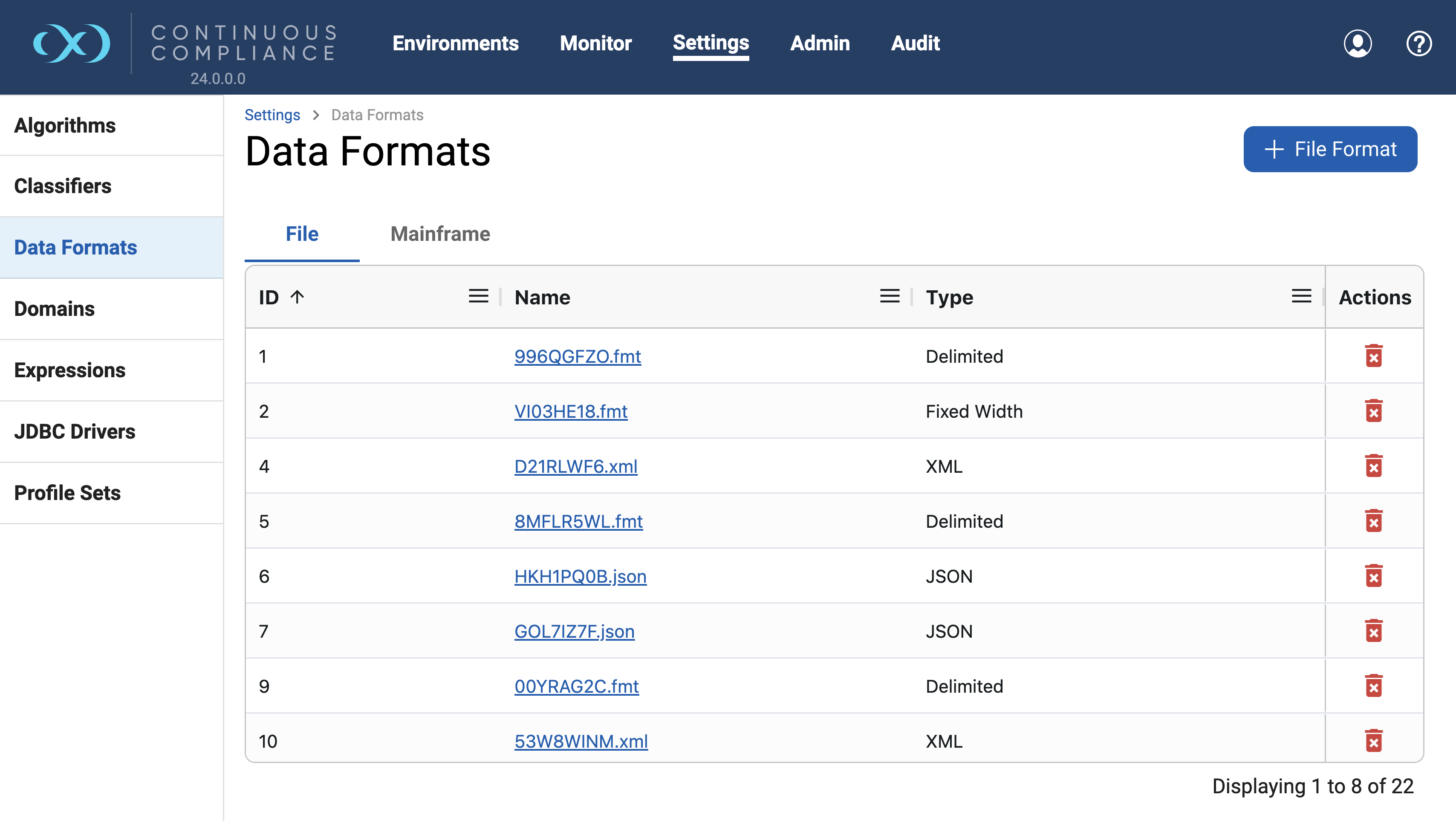
Open Settings > Data Formats. The File tab lists formats with ID, Name and Type (Delimited, Fixed Width, XML, JSON, Parquet); the Mainframe tab holds copybooks. Click a name to open it.
Schema only. Upload field names, never production data, sample records or PII; for XML, JSON and Parquet use empty tags, nulls or dummy values. Global effect. A format is shared: changing its inventory changes every data file that uses it, in every rule set. The format screens show a banner saying so .
9.19.1 Build a format file
You create the definition as a small text file, then import it.
| File type | What the definition file contains |
|---|---|
| Delimited | Field names, one per line, no header |
| Fixed-width | Field name, a comma and the length, one per line, no header |
| XML, JSON | An example document with the structure only |
| Parquet | A schema-only file, or a .txt or .fmt file listing the schema |
| Mainframe | The COBOL copybook itself (duplicate field names are not supported) |
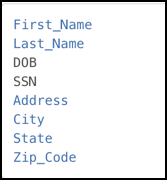
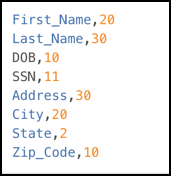
If your data does not match the format, the docs describe two behaviours for delimited files. Fewer fields than the format: delimiters are added after masking to reach the full count (Data1,Data2 becomes Masked1,Masked2,). More fields than the format: the extras are lost (Data1,...,Data4 becomes three masked fields). In both cases the output no longer matches the input shape, so keep formats accurate. For fixed-width files a wrong length shifts every later field, so you mask the wrong characters. On Windows, save format files with LF line endings, since CRLF can pass your eye but fail the engine's parser .
9.19.2 Import a format, step by step
- Settings > Data Formats > File tab > + File Format.
The wizard opens at Format Type.
- Choose the type (for example Delimited) and click Next.
The wizard shows formatting examples for each type.
- Import Format: optionally name it, click Choose File, select your definition file, Next.
If you leave the name blank, it takes the uploaded file's name.
- Delimited and fixed-width only: set the number of header or footer records, or leave them empty, then Next.
These records are copied to the output unmasked.
- Review Summary and Save.
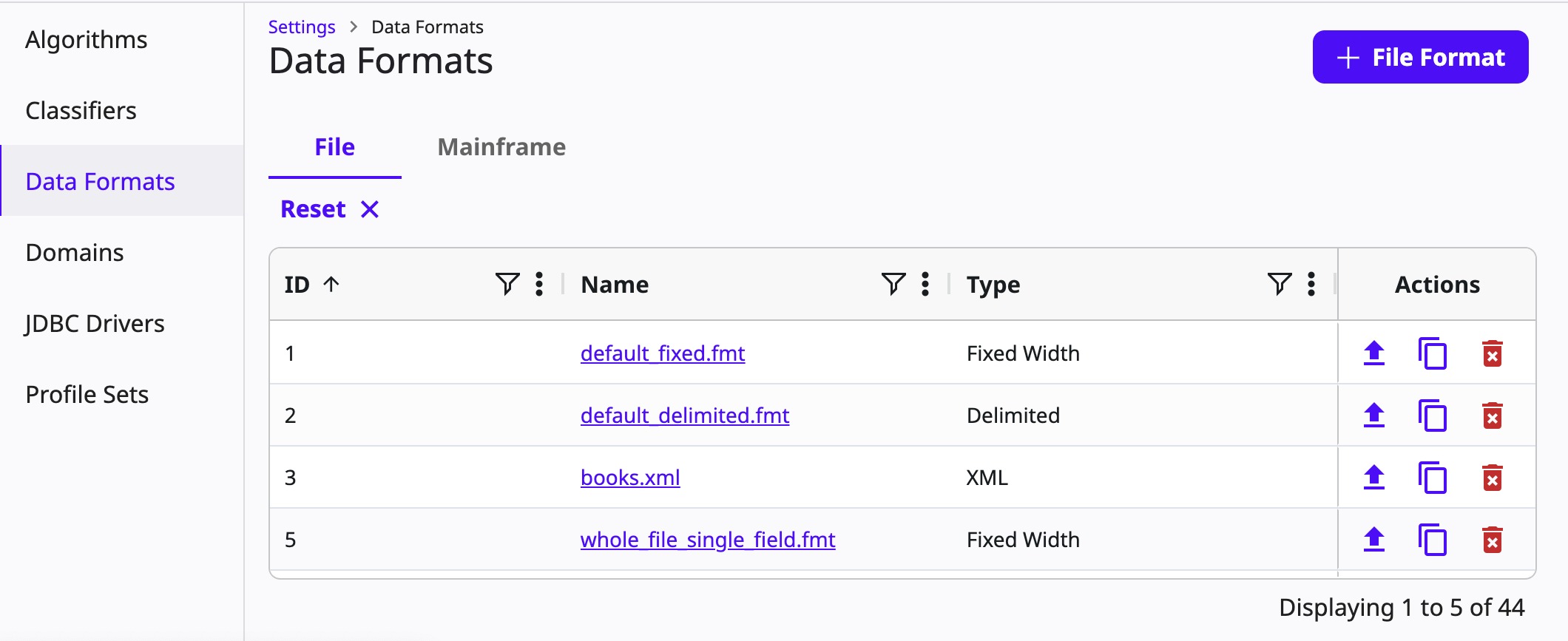
The format appears in the File tab with its type.
From the same list you can edit, Duplicate (with an option not to copy masking assignments), Export and Delete a format. Exporting an XML or JSON format gives a template with placeholder values; namespaces in exported XML must be copied back by hand before reuse .
9.20 Record types, qualifiers, header and footer
Real feeds often mix layouts in one file. The docs' example has lines like address, account1234, 9A Lexington Street, ... and email, account1234, bar@example.com: the first field says what kind of record follows. A record type describes one layout; up to three qualifiers (a field plus a regular expression) tell the engine which lines belong to it. A line gets exactly one record type, and if several qualifiers match, the engine cannot guarantee which wins. Record types and header/footer apply only to delimited and fixed-width formats, and can be managed only on the Formats page, not on the inventory page .
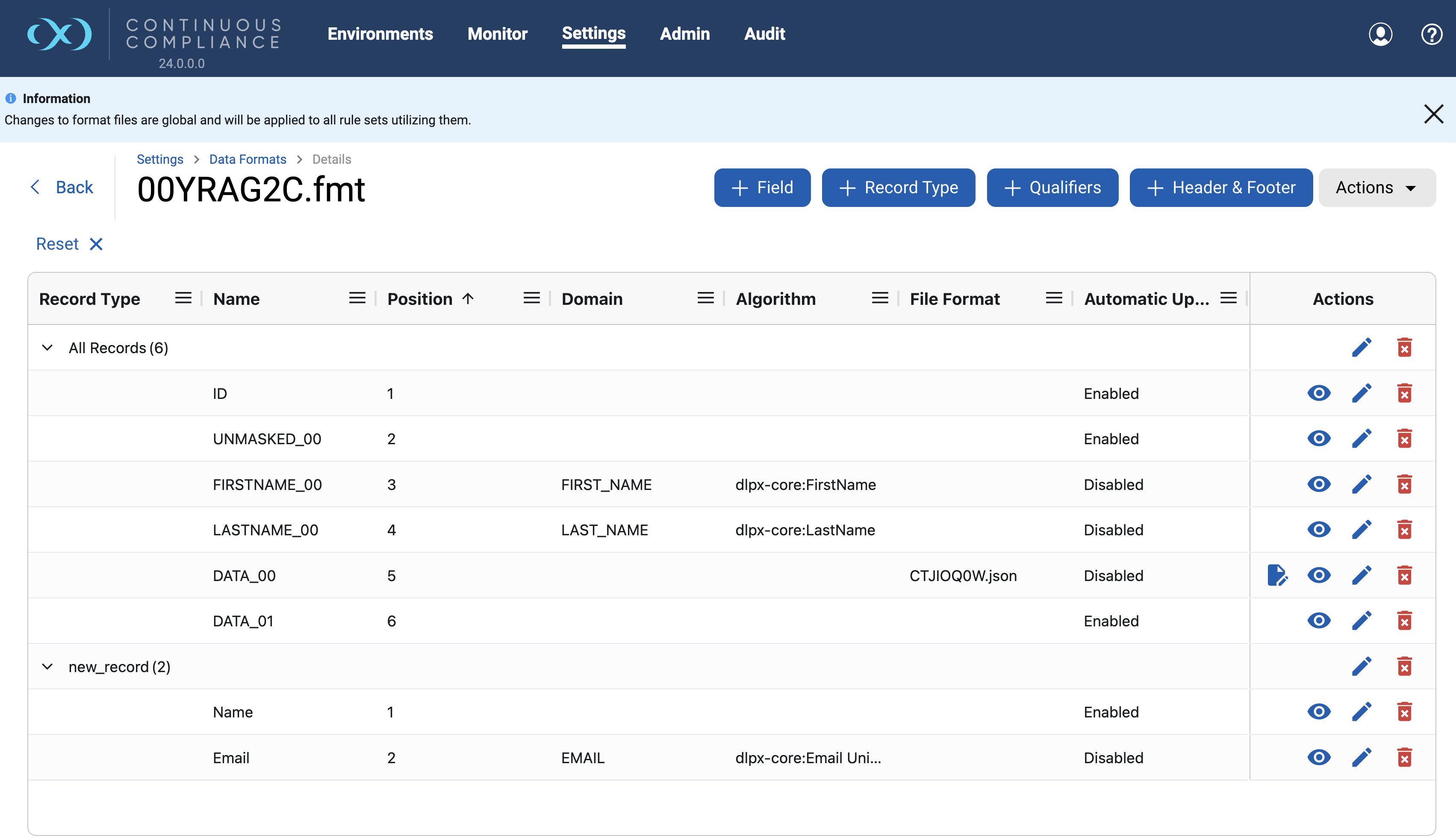
- Add a record type: + Record Type, enter a Record Name, Choose File (a definition file for that layout), Save.
Each layout needs its own field list.
- Add qualifiers: + Qualifiers, pick the record type, choose 1 to 3 qualifiers, and for each give a Field Name and a Regular Expression.
The record type applies when its expressions match the chosen fields. For the example, field
typewith expressionaddress. - Header and footer: + Header & Footer, enter how many records at the start and the end to leave unmasked, Save.
Those lines reappear unchanged in the masked output. Without this, a header such as
customer_id|first_name|...would be treated as data.
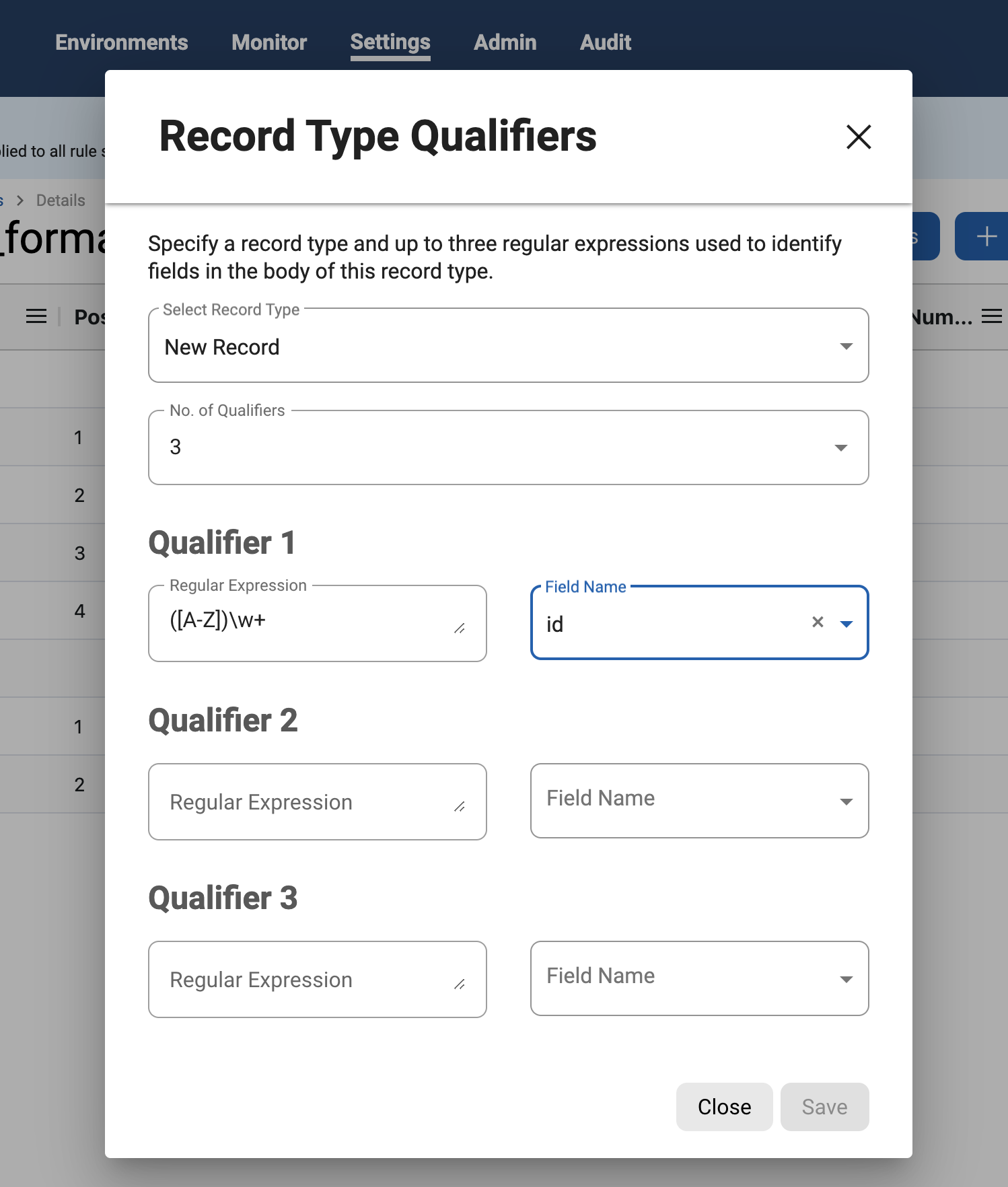
([A-Z])\w+) and a Field Name drop-down set to "id". Source page ↗Editing a record type's name and deleting a record type are in its row's Actions column. To reach the format from a rule set inventory, use the Edit File Format button.
9.21 Adding and editing fields in a format
New fields can be added only in delimited, fixed-width and JSON formats (XML and mainframe fields cannot be deleted). Click + Field on the format page.
- Fill in Field Name (or JSON Path), and the Formatting section (Record Type and Position).
These are mandatory because they place the field in the line.
- Optionally set the Masking section: leave Enable Automatic Updates ticked if profiling may decide, or untick it to assign Domain and Algorithm yourself.
Picking a DATESHIFT algorithm adds a date format picker.
- Save.
The field appears under its record type. View, Edit and Delete are in the row's Actions.
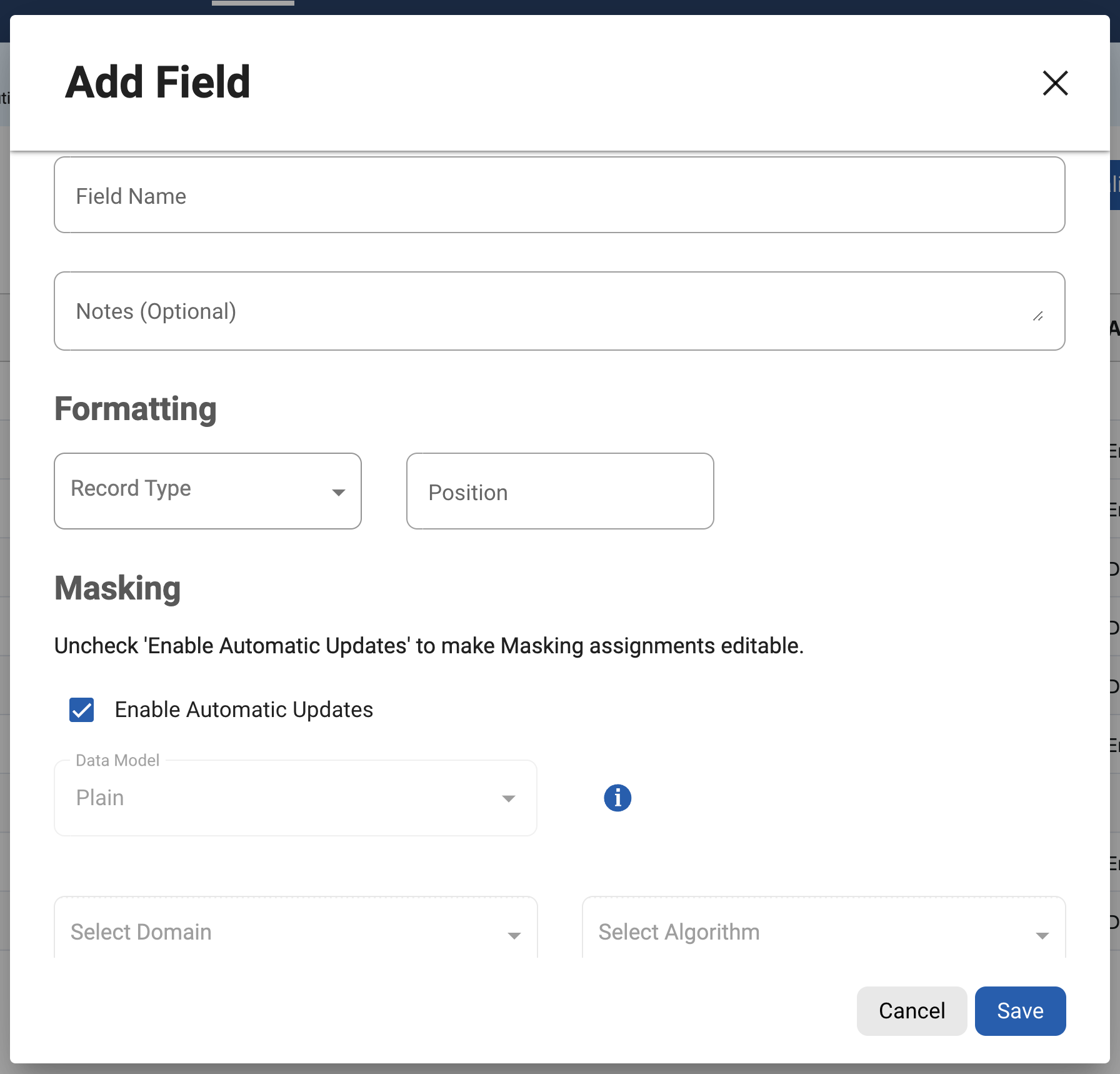
9.22 Connectors that reach files
A file connector tells the engine where files live. In Environments > your environment > Connectors > + Connection, choose a Source Type that starts with "File" (Delimited, Fixed Width, XML, JSON, Parquet) and then a Connection Mode.
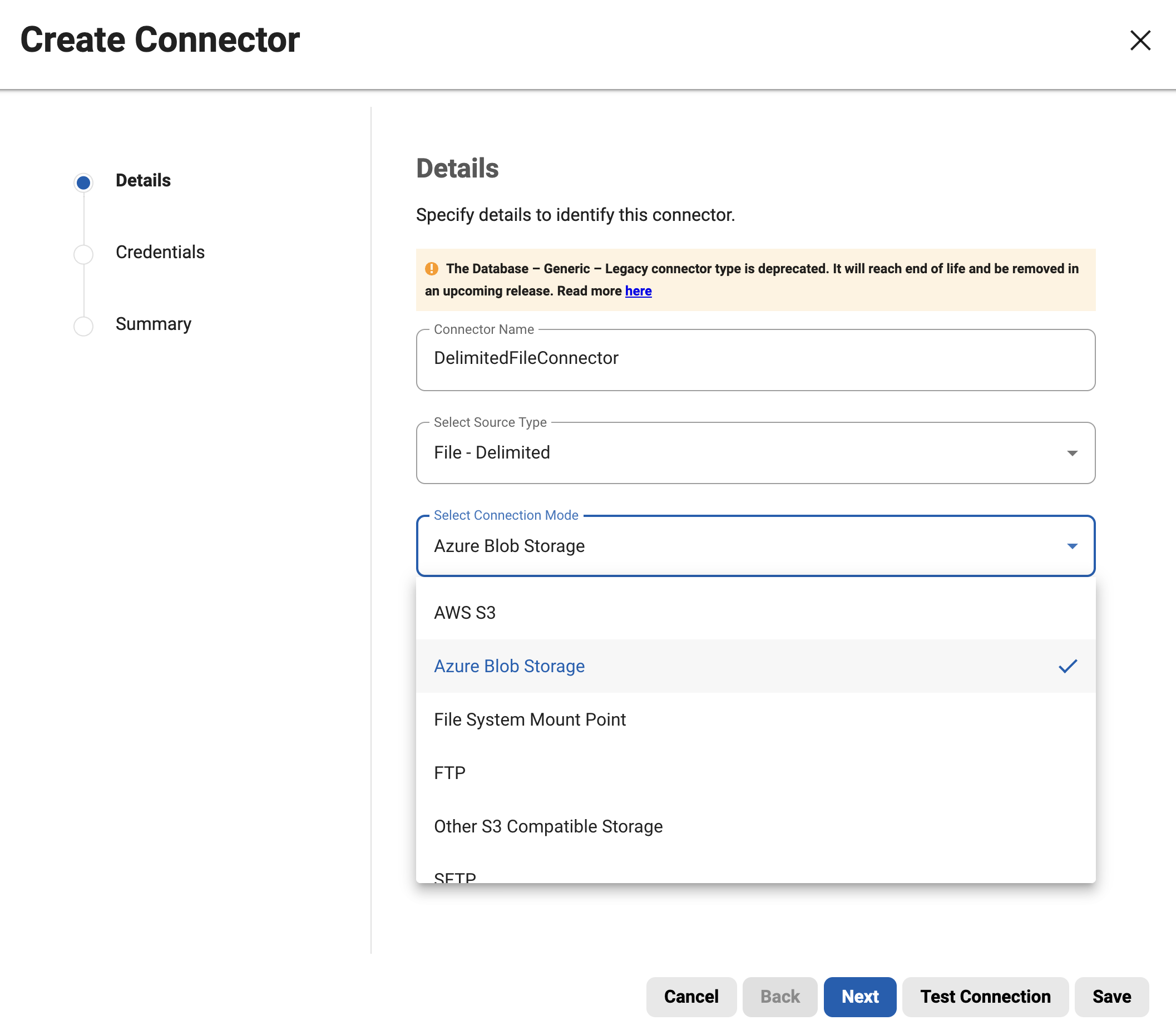
| Connection mode | You provide | Notes from the docs |
|---|---|---|
| Filesystem Mount Point | A mount defined through the Mount Filesystem API (NFS or CIFS server address and path), then path | Mounts sync with the connector; a CIFS password does not sync |
| SFTP | Path, server name, port, user name, password or public key | "User Directory as root" makes the path relative to the user's home |
| FTP | Same fields as SFTP | FTP and FTPS are disabled in containerized deployments |
| FTPS | Same fields | Mainframe data sets only |
| AWS S3 | Bucket, region, prefix, delimiter, auth type | Auth by access and secret key, or by role (role only works for engines hosted on AWS EC2) |
| Other S3 Compatible Storage | Bucket and endpoint details | For vendors that speak the S3 protocol, for example GCP |
| Azure Blob Storage | Account, container, prefix, delimiter, auth type | Auth by access key, managed identity or service principal; prefix and delimiter are not checked by Test Connection |
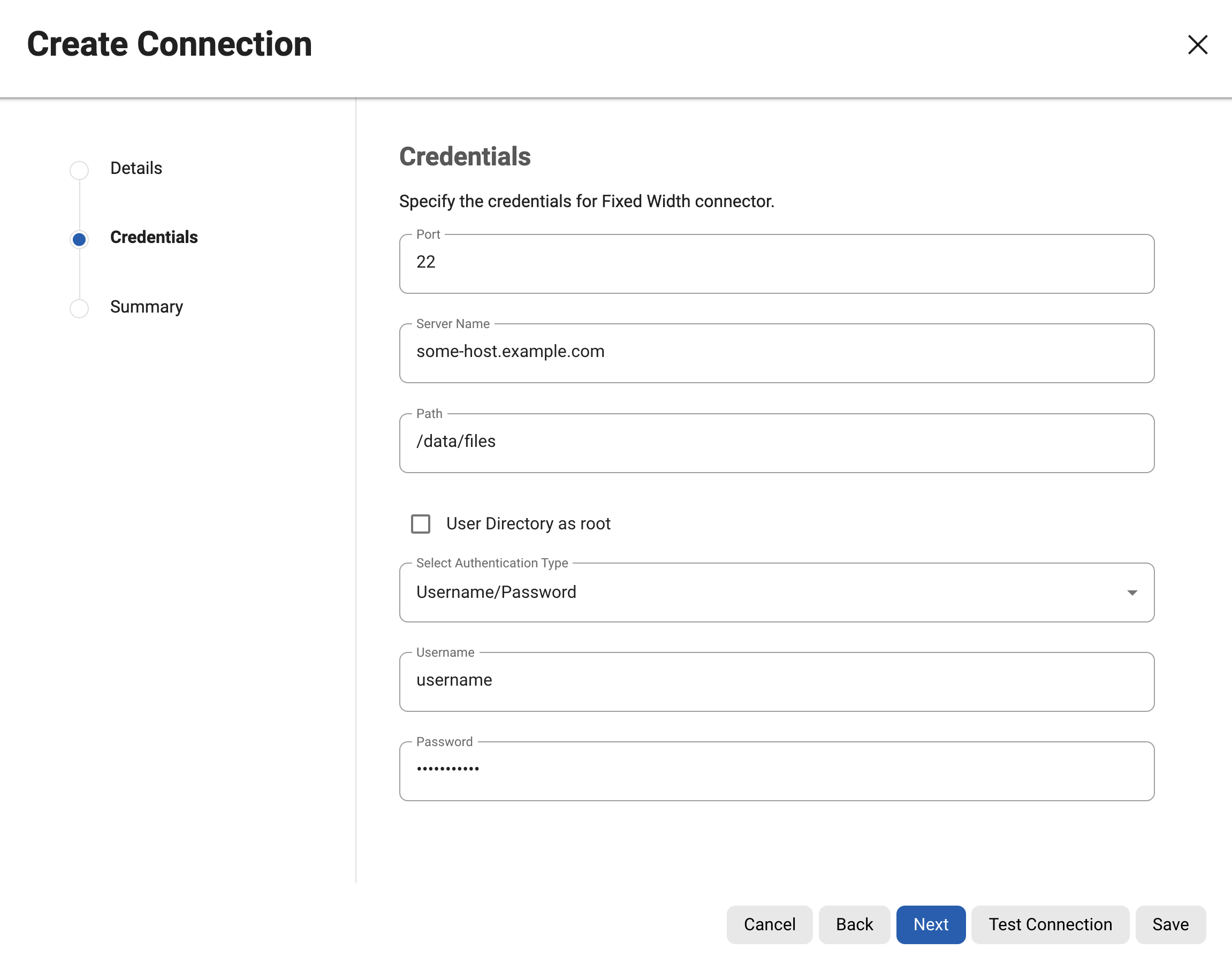
Mounts in plain words. A mount makes a folder on a file server (shared over NFS or CIFS) appear as a folder on the engine, so the engine can read and write files there as if they were local. You register the mount first (a name, the server address and the shared path) and then pick it in the connector. Use SFTP when the files sit on a normal server you can log in to, and a mount when the share already exists.
Cloud storage. "Prefix" and "delimiter" work as in the cloud vendor's list-objects calls: the prefix (for example json/) limits which objects the engine sees. On-the-fly note. For on-the-fly file masking you need a second connector (and environment) for the target. One page says the target rule set's file path must already point to a file with the same name in the target directory, which the masked file then replaces. The masking job page says target files need not exist in advance if the file name pattern matches the source. The docs do not reconcile these two statements; test on your engine version.
9.22.1 Mainframe data sets (overview)
The engine can also mask IBM z/OS data sets, described by a COBOL copybook, but the data must be EBCDIC (not ASCII or UTF-8). Where a record area can be read in several ways (COBOL REDEFINES), you give redefine conditions such as [CUST-TYPE]='P' so that exactly one reading applies per record. Operators are =, <, <=, >, >= with AND, OR and NOT. Mainframe formats list a variable-length checkbox in the rule set and can be reached over FTPS or other file modes. Masking a node that has Level 88 children is not supported .
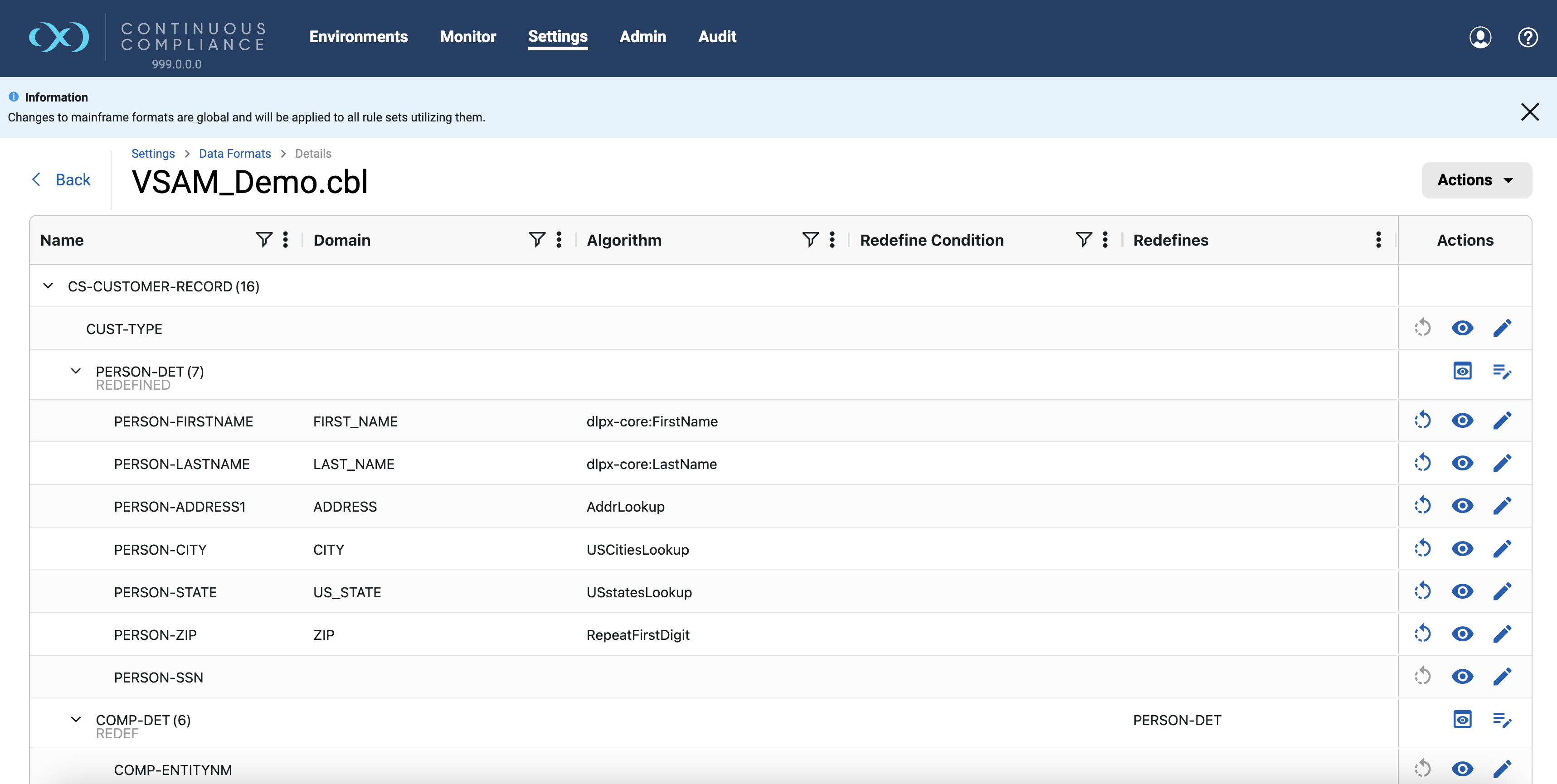
9.23 The file rule set
In the environment's Rule Sets tab click Add Rule Set, choose Flat Files (the other choices are Database, Semi-Structured and Copybook), then Continue. The wizard has three steps: Details (name and a connector, filtered by rule set type), Data Files, Summary. In Data Files you add files with Add File Name (lists files the connector can see) or Add File Pattern (Java regular expressions, case sensitive, for example .*\.txt). Properties are applied to all selected files or patterns :
| Property | Applies to | Meaning |
|---|---|---|
| File Name or Pattern, Is Pattern | All | A name or regular expression. Patterns work for file-to-file jobs, not database-to-file jobs, where the target file name must equal the source table name |
| Format File | All | The format from Settings > Data Formats. Essential: wrong format, wrong fields |
| End of Record | Delimited, fixed width | LF (Linux) or CR+LF (Windows), or a custom or control character |
| Delimiter | Delimited | Blank for other types |
| Text Enclosure, Enclosure Escape Strategy, Escape Enclosure Escape Character | Delimited | As described earlier |
| Mask Whole File | Fixed width | Read the entire file as one input (see below) |
| Variable Length | Copybook | Records may have different lengths |
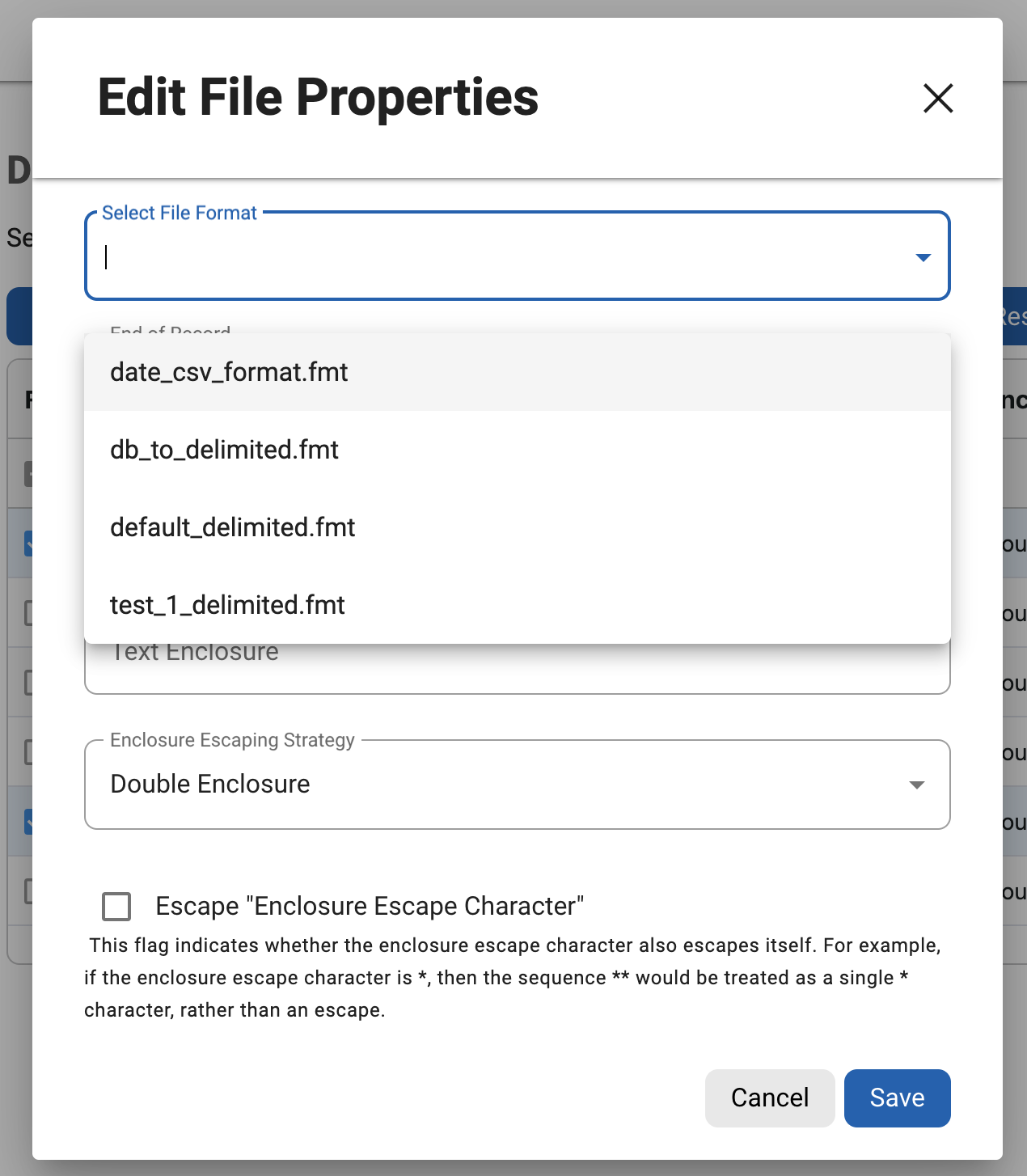
Nothing is added until you click Save in the dialog, and the rule set itself is saved on the last step. Edit later with Edit in the rule set's row menu, changing formats through Edit Selected.
Patterns are tempting, but files matched by one pattern all use the same format, delimiter and end-of-record. If customers_*.dat and orders_*.dat differ, make separate rule sets or separate patterns with their own properties.
9.24 Assigning algorithms to file fields
Click the rule set name to open the file inventory. Pick a file or a format in the File Format drop-down and the record types and fields appear. Edit a field with the pencil icon, as in the profiling chapter: tick or untick Enable Automatic Updates, choose Domain and Algorithm, set a date format for DATESHIFT algorithms. Profiling can fill this in for delimited, fixed-width, XML and mainframe files, and the inventory can be exported to CSV for delimited, fixed-width and XML files .
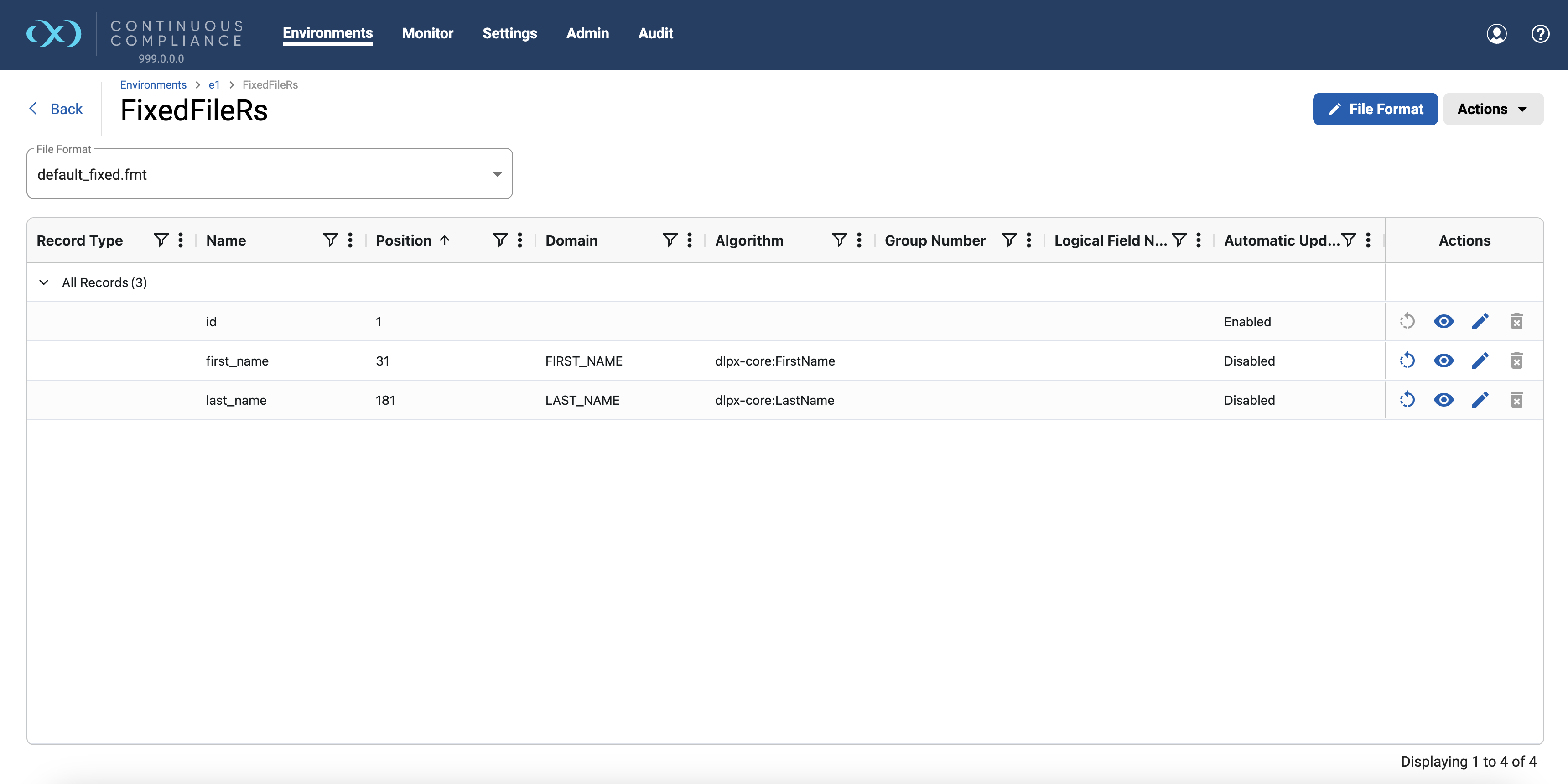
Formatting properties (position, record type) are edited on the format page, not here, because the inventory belongs to the format.
9.25 File masking jobs
A file job uses the same + Masking Job wizard as in the algorithms and masking jobs chapter, with differences you will notice at once: there is no Database Options step (no commit size, update threads, triggers or constraints), and for files the Row Limit counts delimited or fixed-width lines, mainframe records or XML elements in process per stream . The choice that matters is the method.
In-Place
The engine reads the original file, masks each field, writes the result to a hidden temporary file ending .msk in the connector's location, and only after success writes it over the original. If anything fails, the original stays intact, and the user and group permissions stay the same.
On-The-Fly
Reads the source file and writes masked data straight to the target file, with no temporary file. The docs say it is significantly faster than in-place. Source and target use different connectors, so you create a separate environment and connector for the source.
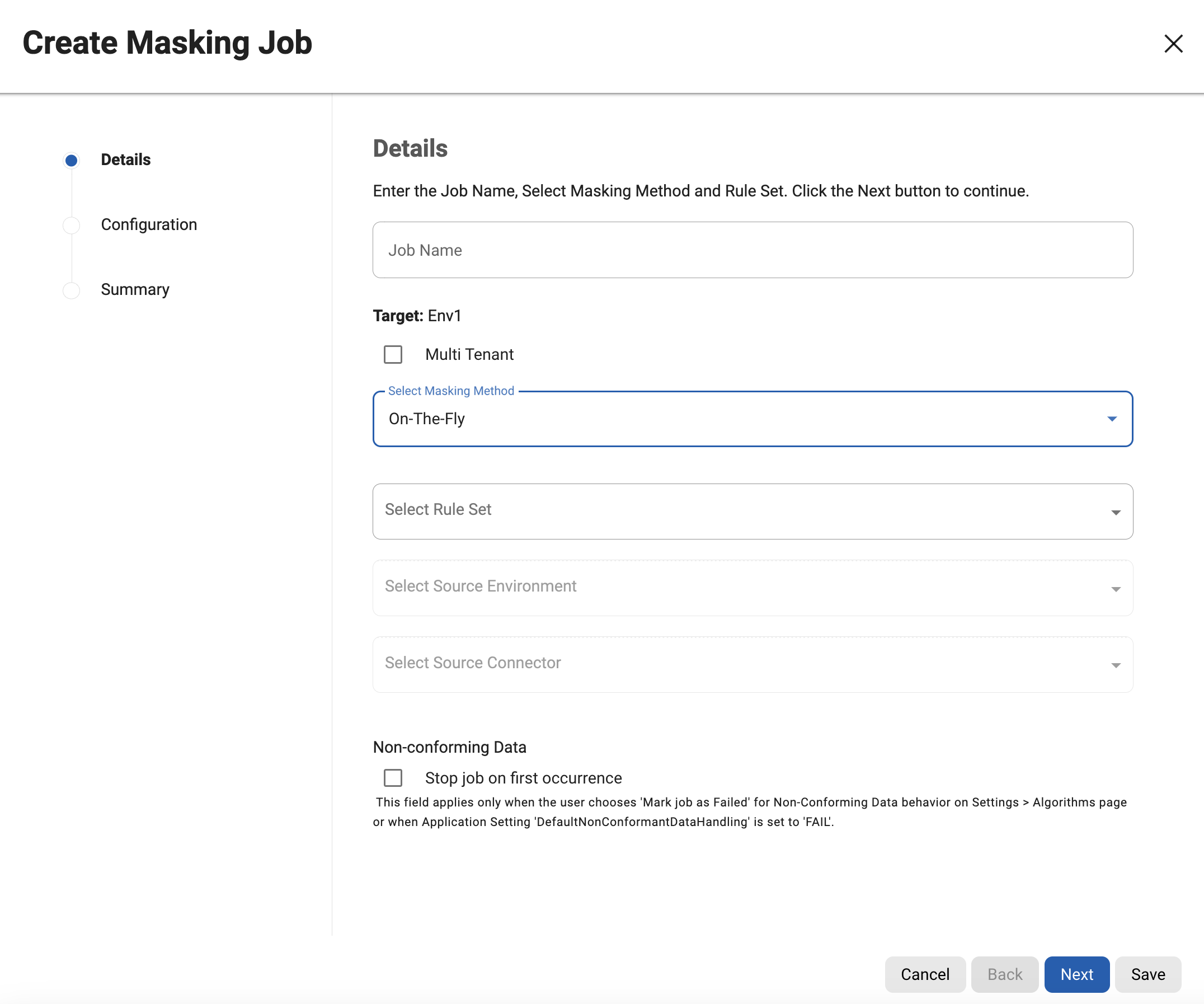
For file-to-file jobs the target does not need to be a database. If your source is a database and the target a delimited file, tick Database to File Job as described earlier, make the target files in advance with the source table names, and expect binary data to be written as hex strings (the default hex prefix is \x) . If a file pattern matches nothing on the source, the job still reports success although no file was masked, so check the Execution Components for the file names. Monitoring and logs work as for databases; file jobs report Bytes Masked as well as Rows Masked, and the execution summary calls them Files rather than Tables.
9.25.1 A ShopSphere variant: database table to masked delimited file
Suppose the test team wants a masked extract of CUSTOMERS as a file, without ever writing unmasked data to disk. That is the database-to-delimited-file on-the-fly case:
- Create the target connector and an empty target file named like the source table (for example
CUSTOMERS) in the target directory.The docs require the target file to exist and match the table name for this case.
- Create a delimited file rule set for the target file, with a format whose field names are the table's column names, and assign algorithms to those fields.
The Create Masking Job screenshot with the "Database to File job" checkbox (in the algorithms and masking jobs chapter) shows a delimited rule set chosen for such a job. The documentation does not spell out how fields are matched to table columns, so confirm this on your engine version.
- Create the masking job: On-The-Fly, tick Database to File Job, choose that rule set and the source environment and database connector.
Without the tick, only file connectors appear in the source list.
- Run it and open the output file.
Masked rows appear as delimited lines; binary columns, if any, appear as hex strings.
9.26 JSON, XML, Parquet and whole-file masking (brief)
These are covered by the same connector, format, rule set and job chain, with a path language instead of positions.
| Type | How fields are named | What the format file shows |
|---|---|---|
| JSON | JSON Path: $[*]['First_Name'] for a list of objects, $['First_Name'] for one object | Only fields you want to mask need to appear (values may be null placeholders); one record per structure is enough |
| XML | XPath: /Person/First_Name; attributes use "@" (for example /employee/@name) | A document with empty tags or dummy values; the root element is required |
| Parquet | Column path: First_Name; nested Location/Address; lists Emails/list/element | A schema-only file or a .txt or .fmt schema listing; binary columnar format |
Whole-file masking. Sometimes a file should go to one algorithm in one piece (a free-text document, say). Create a fixed-width connector and a format with exactly one field of length 0, tick Mask whole file in Edit Selected for the data file (End of Record then disappears), and assign an extended algorithm to the one field. The default limit is 200 MB per file, adjustable with the application setting Whole File Masking Max File Size In MB; Add Record Types, Add Fields and Delete are disabled for such formats .
9.27 Lab: mask a ShopSphere customers.dat file
Lab: from a text file to a masked file
Goal: mask customers.dat in place on a file server, using a delimited format, a connector, a file rule set, algorithm assignments and a masking job, then verify the output with shell commands. Use a work copy on a disposable path, never a real feed. Names such as customers_delimited.fmt and /data/shopsphere/work are examples. The algorithms were introduced in the algorithms and masking jobs chapter.
- Create the sample file on the file server and keep an untouched backup elsewhere.
Use the four lines shown earlier, saved with LF line endings. Put
customers.datin/data/shopsphere/work/and a copy namedcustomers.dat.origsomewhere the connector cannot see, such as your home directory. You need the original to prove the change.The work directory holds exactly one file.
- Create the format definition
customers_delimited.fmt: nine lines, one field name per line, in file order, no header.customer_id,first_name,last_name,email,phone,ssn,date_of_birth,zip_code,tax_id. The first line of data is a header, but the definition lists names only. - Import it: Settings > Data Formats > + File Format > Delimited, choose the file, set 1 header record and 0 footer records, Save.
The header line
customer_id|first_name|...is then copied through unmasked instead of being treated as a customer.A format named customers_delimited.fmt of type Delimited appears in the File tab.
- Create the connector: Connectors > + Connection, Source Type File - Delimited, mode SFTP (or Filesystem Mount Point), server, port, path
/data/shopsphere/work, credentials. Click Test Connection, then Save.The connector's path is where the engine looks for files.
Test Connection reports success.
- Create the rule set: Rule Sets > Add Rule Set > Flat Files, name
ShopSphere_Files, choose the connector, then in Data Files click Add File Name, tickcustomers.dat, and set Format File tocustomers_delimited.fmt, End of Record LF, Delimiter|, Text Enclosure blank. Save, Next, Save.Delimiter and end-of-record are properties of the data file, not of the format.
The rule set shows Source Type Delimited with one file.
- Optional: run a profiling job on the rule set (see the profiling chapter) to see which fields the ASDD profiler flags.
Field names such as first_name, ssn and email are recognisable, so most fields should be flagged. Compare with your plan below.
- Open the inventory and assign algorithms, one Edit per field, unticking Enable Automatic Updates first.
Plan:
first_nameFIRST_NAME withdlpx-core:FirstName;last_nameLAST_NAME withdlpx-core:LastName;emailEMAIL withdlpx-core:Email Unique;phoneTELEPHONE_NO withdlpx-core:Phone Unique;ssnSSN with yourSHOPSPHERE_SSNordlpx-core:CM Digits;date_of_birthDOB with a Date Shift algorithm and Date Formatyyyy-MM-dd;zip_codeZIP withdlpx-core:CM Digits;tax_idTAX_ID withdlpx-core:CM Alpha-Numeric. Leavecustomer_idunassigned.Eight fields carry an algorithm; customer_id has none.
- Create the job: + Masking Job, name
ShopSphere_Mask_File, In-Place, rule setShopSphere_Files. Configuration: 1 stream, memory 1024, Save. Run it from the "..." menu.There is no database step for file rule sets.
Status Queued, Running, Succeeded. Execution Components lists
customers.datwith 100% progress. - Verify with the commands below.
Run them in the work directory and compare to the expected results.
# 1. line count and header
wc -l customers.dat customers.dat.orig
head -1 customers.dat

# 2. every line still has 9 fields
awk -F'|' '{print NF}' customers.dat | sort | uniq -c

# 3. no original value survives in the columns that use unique-style algorithms
for c in 4 5 6 9; do
  cut -d'|' -f$c customers.dat.orig | tail -n +2 > /tmp/orig_$c.txt
  echo "column $c exact matches:" $(cut -d'|' -f$c customers.dat | tail -n +2 | grep -c -x -F -f /tmp/orig_$c.txt)
done

# 4. SSN shape (expect 0) and duplicates (expect 0)
cut -d'|' -f6 customers.dat | tail -n +2 | grep -c -v -E '^[0-9]{3}-[0-9]{2}-[0-9]{4}$'
cut -d'|' -f6 customers.dat | tail -n +2 | sort | uniq -d | wc -l

# 5. customer_id untouched
diff <(cut -d'|' -f1 customers.dat.orig) <(cut -d'|' -f1 customers.dat) && echo ids identical

# 6. no leftover temporary file, same owner and permissions
ls -la
Show a worked answer
Expected results.
- Command 1: both files have 4 lines; the first line of the masked file is still the header.
- Command 2:
4 9, meaning four lines with nine fields each. A different number means the delimiter or format is wrong, or a masked value contained the delimiter. - Command 3: all zeros. The algorithms for email, phone, SSN and tax id are designed to change every value. Do not run this check for names: the docs allow a masked name to equal the original.
- Command 4: 0 and 0. The shape holds and the SSNs are unique.
- Command 5: "ids identical".
- Command 6: only
customers.datis present. The hidden.msktemporary file used by in-place masking has been renamed over the original, and owner and group are unchanged.
An example masked line (values will differ): 1001|Nimisha|Haldane|XF35TNMKPPTMQF4CX5264ZRXOMJJL2DQVE3KTZNIJ2NS6EUH7GLA@example.com|9874120685|804-27-1956|1990-04-17|312904|KMQTR6021Z. Notice: the email is the long Email Unique form, the phone keeps its first three digits, and the date moved five days with the same format.
If it did not work. Nothing masked but status Succeeded: the file name or pattern does not match any file on the connector path. Fields shifted: wrong delimiter or format. Header masked: header count is 0. Extra characters at line ends: end-of-record should be CR+LF if the file came from Windows. Job fails on missing file: the connector path is wrong.
Mini exercise: a fixed-width version
Goal: see why lengths matter. Make a format customers_fixed.fmt with lines customer_id,6, first_name,12, last_name,12, and a data line 1001 Asha Menon .
- Import it as Fixed Width, add a fixed-width rule set and assign
dlpx-core:FirstNameto first_name.The format gives the start position of each field from the cumulative lengths.
- Change first_name to length 10 and rerun on a fresh copy.
The masked first name no longer lines up with the original field: the engine now reads characters 7 to 16 as the first name, so part of the last name and padding get masked or left behind. This is predicted from the docs' warning about wrong lengths; try it and look.
9.28 Common mistakes and gotchas
- Uploading real data as a "format". Format files are schema only. A copy of last week's feed in the format dialog puts real values in the engine.
- Forgetting that a format is shared. Editing fields or algorithm assignments for one file changes every file and rule set that uses the same format.
- Wrong delimiter or end-of-record. The job may succeed while masking the wrong text. Open the output and look.
- Header not declared. The header row is masked as if it were a customer.
- Field count mismatch. Extra fields are silently dropped and missing ones are padded with delimiters.
- Wrong fixed-width lengths. Every later field shifts. Count characters, not bytes.
- File name pattern that matches nothing. The job can still end in success, so read the Execution Components.
- Windows line endings in the format file. Use LF to avoid parsing failures.
- Assuming UTF-16 or other encodings work. The docs list ASCII and UTF-8 (UTF-8 for Parquet, EBCDIC for mainframe).
- Treating a masked file as safe without checking it. Run the verification commands and grep for known real values.
9.29 Recap
- Files have no built-in column names, so a file format definition (schema only) maps positions or names to fields. Formats are global and shared.
- Delimited files need a delimiter and end-of-record (and optionally an enclosure and escape strategy); fixed-width files need exact lengths.
- Record types with up to three qualifiers handle mixed layouts; header and footer counts protect unmasked lines.
- Connectors reach files by filesystem mount, SFTP, FTP or FTPS, S3, S3-compatible storage and Azure Blob; mainframe data needs EBCDIC and a copybook.
- A file rule set lists files or patterns and gives each its format, end-of-record and delimiter; the inventory assigns algorithms to fields.
- In-place file masking writes a hidden
.mskfile and replaces the original on success; on-the-fly writes to a separate target and is faster. - Always verify the output file: line counts, field counts, original values gone, unique fields still unique.
Five labs put the earlier Delphix chapters together, run in order on one small data set (ShopSphere) so that each lab leaves behind what the next one needs: Lab 4 (connector to a VDB), Lab 5 (connections and profiling), Lab 6 (masking files), Lab 7 (masking FirstName) and Lab 8 (masking alphanumeric text, SSN and telephone number). Concepts are not re-taught; each lab links to the chapter that owns them.
UI steps come from the Delphix Continuous Compliance 2026.5 documentation; the sources list names each page. The official screenshots come from different releases (the corner label reads 21.0.0.0, 22.0.0.0, 24.0.0.0, 26.0.0.0 and, in one, a development build number), so labels, button order and extra fields on a real engine will differ; read each screenshot as "what to look for". Database type, file access method and login method may also differ from the lab setup.
9.30 Words to know first
- Masking engine
- The Delphix Continuous Compliance engine, where you define connectors, rule sets, profiling jobs and masking jobs.
- VDB (virtual database)
- A full read-and-write copy of source data that Delphix Continuous Data provisions from a dSource or another VDB. To the masking engine it is another database. See the Delphix overview and terminology chapter.
- Application and environment
- An application is a tag for the real system (here ShopSphere). An environment groups connectors, rule sets and jobs; its purpose is Mask or Tokenize/Re-Identify.
- Connector
- Saved details the engine uses to reach one database or file location (connectors and VDB).
- Rule set and inventory
- A rule set lists the tables or files to profile or mask. Its inventory records, per column or field, the domain and algorithm (rule sets and keys).
- Profiling job, domain
- A profiling job assigns a domain (a kind of sensitive data such as FIRST_NAME, with one default algorithm) to columns that look sensitive (Delphix profiling).
- In-place and on-the-fly
- In-place masking updates data where it sits; on-the-fly reads a source and writes masked values to a target (algorithms and masking jobs).
- Non-conformant data
- A value that does not fit what an algorithm expects. By default it is left unmasked and the job records a warning, so a "successful" job can still leave data exposed.
9.31 How the five labs chain together
Lab 4 gets the engine talking to a database. Lab 5 asks which columns are sensitive. Lab 6 repeats the idea for files. Labs 7 and 8 fix algorithm choices and run real masking jobs. If a lab fails, the later ones starve, so do not skip its verification.
9.32 Setup data for every lab
All labs use the ShopSphere tables.
9.32.1 The database
The lab copy must be a database the engine may change: a VDB or other disposable copy, never SHOPSPHERE_PROD. The docs recommend a VDB as the masking target and call it the best security practice because it runs in a sandbox (Preparing data). Load the four ShopSphere tables with three customers (plus two or three orders each and a few items and products):
| customer_id | first_name | last_name | phone | ssn | zip_code | tax_id |
|---|---|---|---|---|---|---|
| 1001 | Asha | Menon | 9876543210 | 123-45-6789 | 560001 | ABCDE1234F |
| 1002 | Ravi | Kumar | 9123456780 | 234-56-7890 | 600017 | PQRST5678K |
| 1003 | Meera | Nair | 9988776655 | 345-67-8901 | 682001 | LMNOP9012Q |
The table omits email and date_of_birth for width; the other columns are as in the running example. Take the "before" snapshot now and save the output:
SELECT customer_id, first_name, last_name, phone, ssn, zip_code, tax_id
FROM   customers ORDER BY customer_id;

SELECT COUNT(*) AS orphans
FROM   orders o LEFT JOIN customers c ON c.customer_id = o.customer_id
WHERE  c.customer_id IS NULL;
The orphan query counts orders whose customer is missing. It must return 0 before and after masking; if it is not 0 now, the "keys survived" check later means nothing. A masking job can report success while a column was never masked, so only a comparison of the data proves the work: the snapshot is the left-hand side of that proof.
9.32.2 The files
Lab 6 needs two files with the same customers, in a location the engine can reach. A pipe-delimited customers.dat without a header:
1001|Asha|Menon|123-45-6789|9876543210
1002|Ravi|Kumar|234-56-7890|9123456780
1003|Meera|Nair|345-67-8901|9988776655
And a fixed-width customers_fixed.txt: customer_id 4 characters, first_name 10, last_name 10, ssn 11, phone 10 (45 per line):
1001Asha      Menon     123-45-67899876543210
1002Ravi      Kumar     234-56-78909123456780
1003Meera     Nair      345-67-89019988776655
Copy both to an original folder first: Lab 6 compares against them and an in-place job overwrites the file it masks.
9.32.3 Prerequisites
- A login with a role that can add environments, connectors, rule sets and jobs and run jobs; check which one you hold (Users and roles).
- Network access from the engine to the database, and a masking user. The docs recommend a separate masking user with read, write and update rights plus index, trigger and constraint rights if you use those job options; profiling alone needs schema view and read (Database user permissions).
- A SQL client, and a text editor and
difffor the files. - Job and object names must be unique on the engine (the docs say job names are unique across the application), so add your initials if several people share one engine.
9.33 Lab 4: create a connector to a VDB
9.33.1 Goal and prerequisites
Create an application, an environment and a database connector so that the engine can reach the ShopSphere VDB, and prove the connection works. Every later lab depends on it. You need the setup data and "before" snapshot, plus from the DBA: database type, host, port, database name, schema, and a masking user and password. A wrong guess here is the most common reason Test Connection fails.
What "a connector to a VDB" means. The documentation describes database connectors and describes a VDB as a database that Delphix Continuous Data provisions (Delphix masking terminology); it describes no special "VDB connector". Create an ordinary database connector and point it at the VDB's host, port and database name. In-place masking rewrites data, so doing it on a disposable VDB keeps production untouched. (Masking as part of VDB provisioning is a separate setup with restrictions, described on Provision masked VDBs; this lab does not use it.)
9.33.2 Steps
- Log in and open the Environments page.
Everything else (connectors, rule sets, jobs) hangs under an environment.
A grid with ID, Application, Environment, Purpose and Approval, plus + Application, + Environment and Actions buttons.
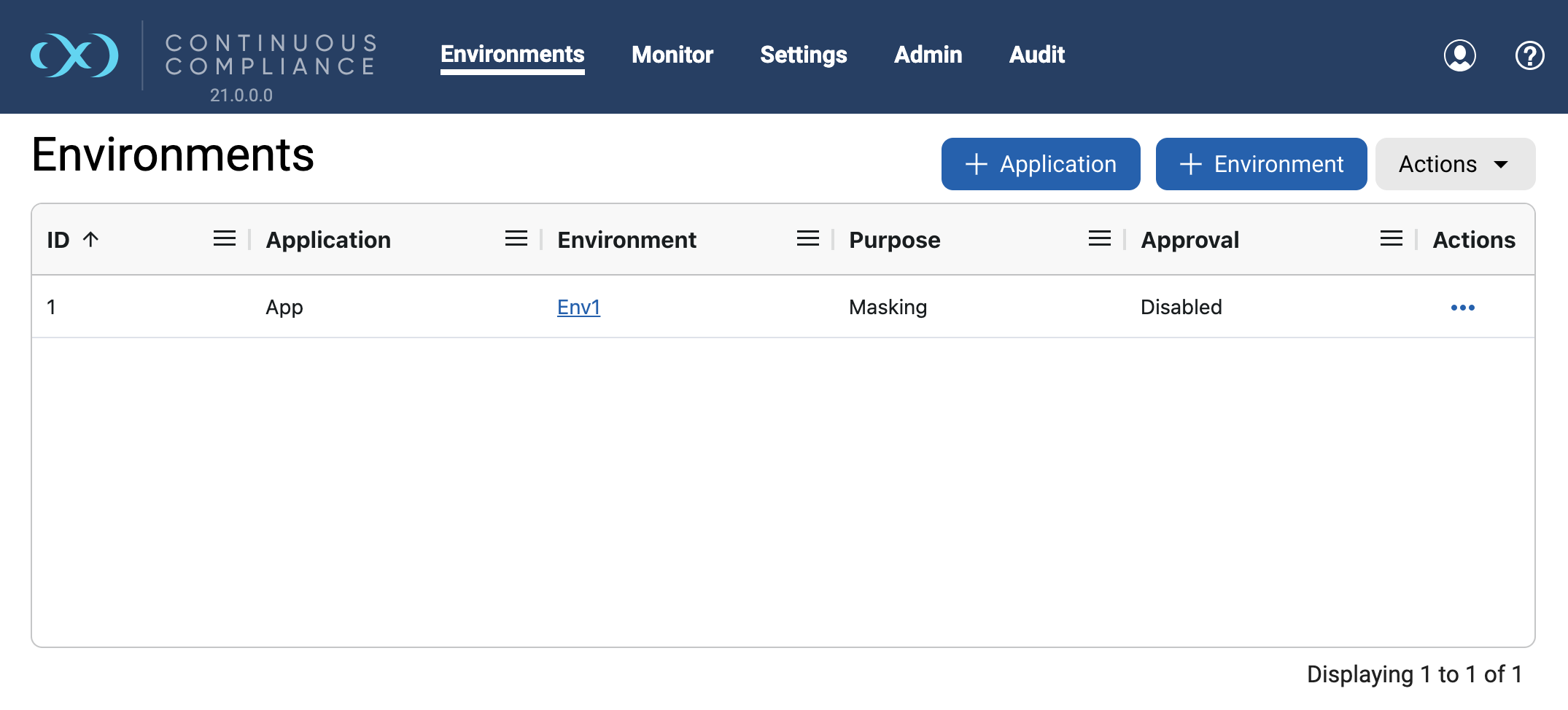
- Add the application, then the environment.
Click + Application, enter
ShopSphere, Save: the docs say an application must exist before an environment can be created. Then + Environment: application ShopSphere, nameShopSphere_DB_Mask, Purpose Mask. Leave the approval-workflow box off: it makes an approver sign off a database inventory before any job runs, which suits real projects but is a hurdle in a first lab. Choose Save And View.The environment shows three empty tabs: Jobs, Rule Sets, Connectors.
- Open Connectors and click + Connection.
The wizard has the steps Details, Credentials, Custom Properties and Summary.
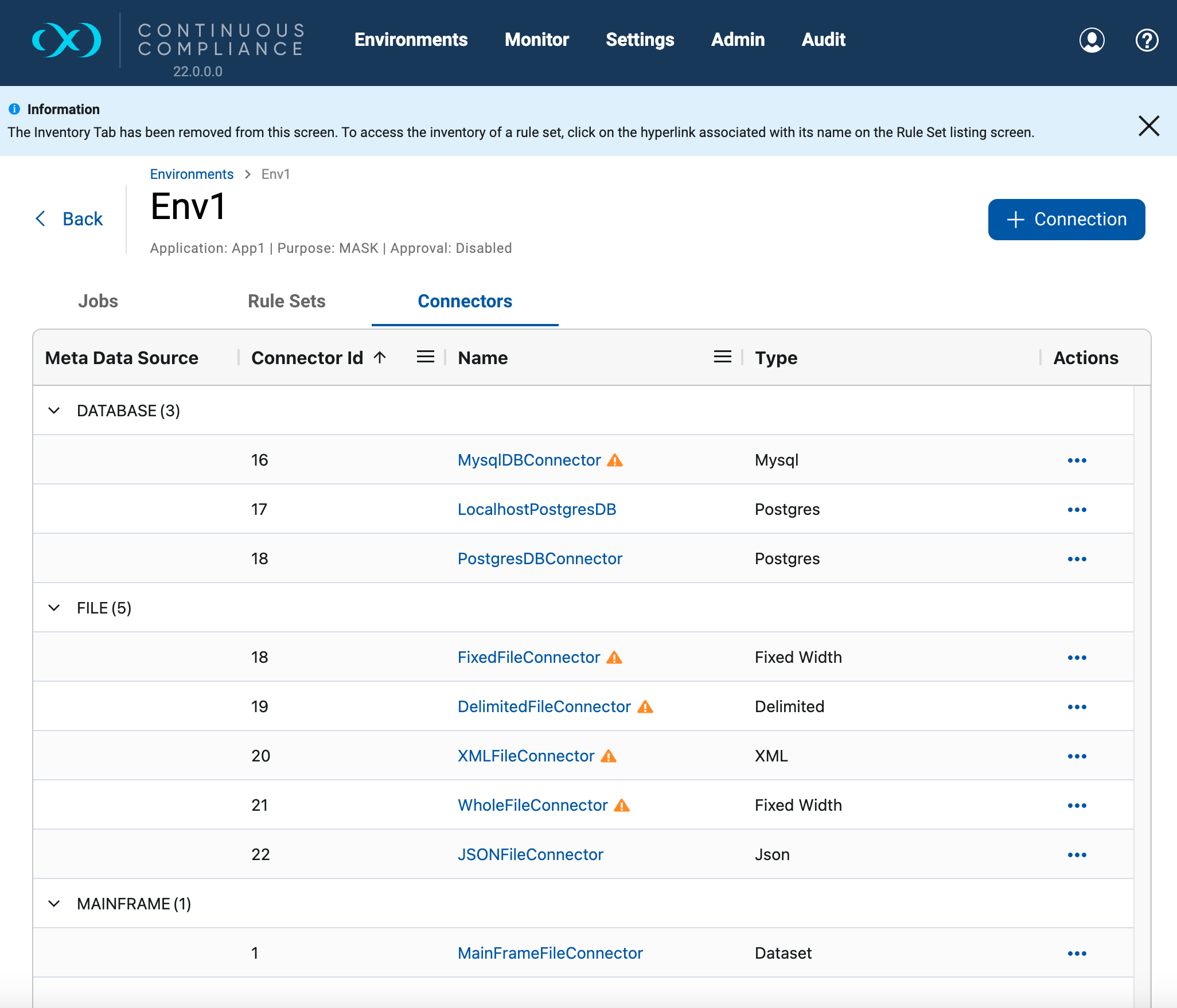
- Details: name it and choose the type.
Connection Name
SS_VDB_Conn. Each Source Type entry is prefixed with its Meta Data Source ("Database - Sybase" in the screenshot). For Oracle, MS SQL Server and Sybase you also choose Basic (host and port) or Advanced (a full JDBC URL); pick Basic unless told otherwise.
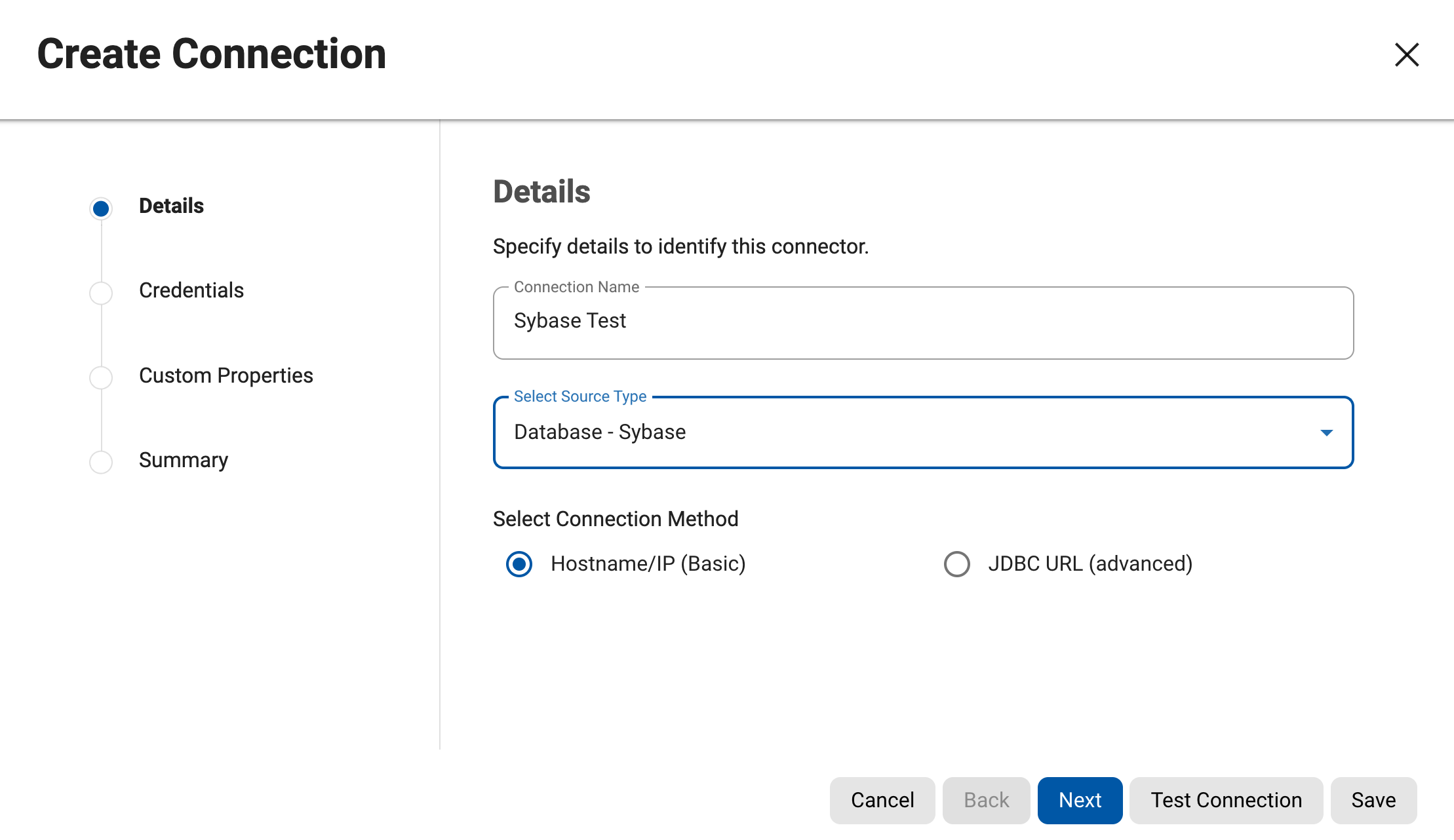
- Credentials: the database facts.
Fields depend on the type. The docs list Schema Name (the schema holding the tables), Database Name (case-sensitive: it must match what the instance knows), Host Name/IP, Port (SQL Server defaults to 1433), SID (Oracle) and Instance Name (SQL Server: if given, the port is ignored and port 1434 of the SQL Server Browser Service is used, so the firewall must allow it). Then the masking user's name and password.
All required fields filled; the password shows as dots.
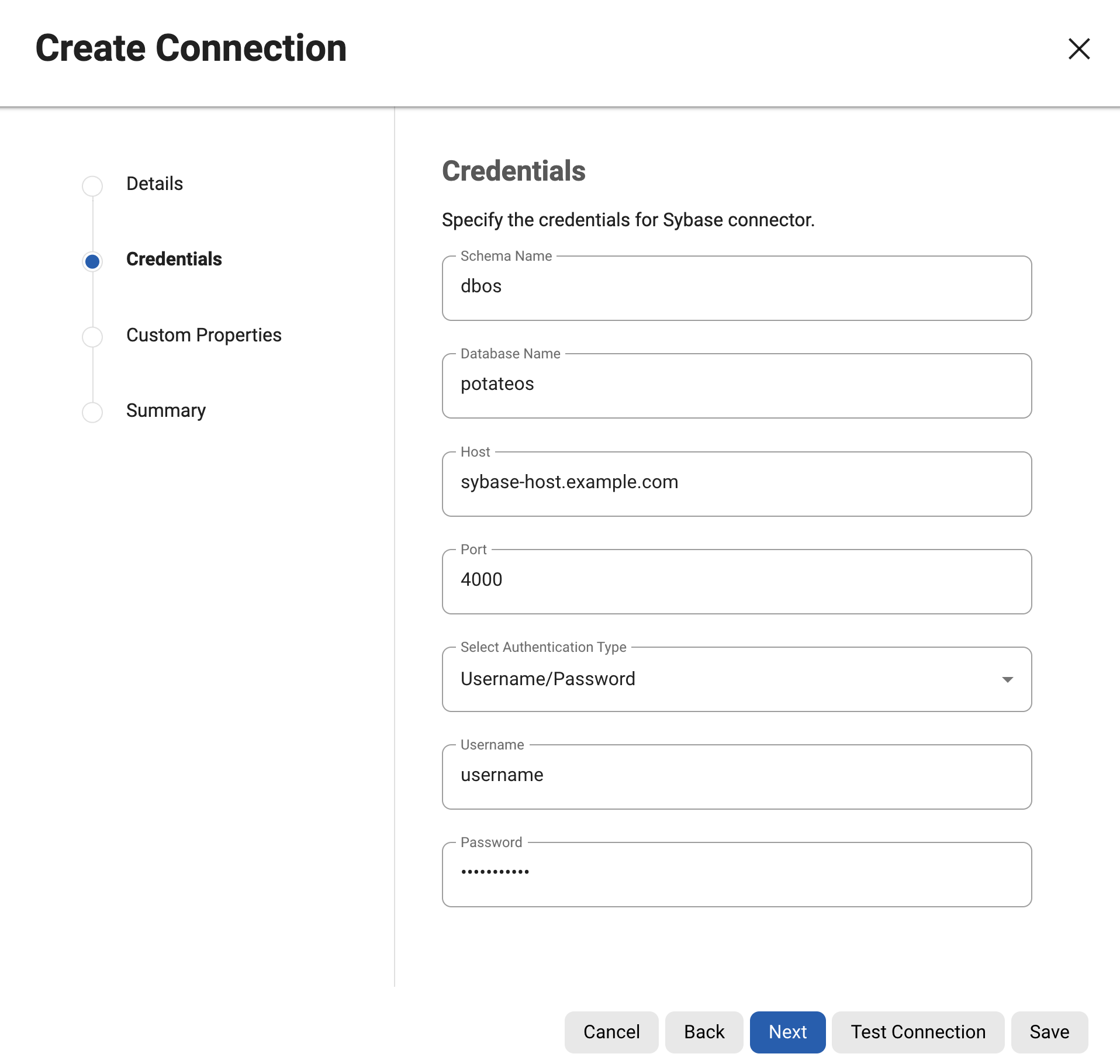
- Skip Custom Properties.
That step uploads a Java properties file. The docs warn that its values are readable by anyone who can view connectors, so secrets belong in the form fields.
- Click Test Connection, then Save.
The docs say the engine uses the wizard's information to attempt a database connection and reports success or failure. Testing before saving lets you fix mistakes while the form is open.
A success message. After Save, SS_VDB_Conn appears under DATABASE with a Connector ID.
- Test the saved connector from the grid.
Open the row's actions menu and choose Test Connection. This proves the saved connector works, not only the form.
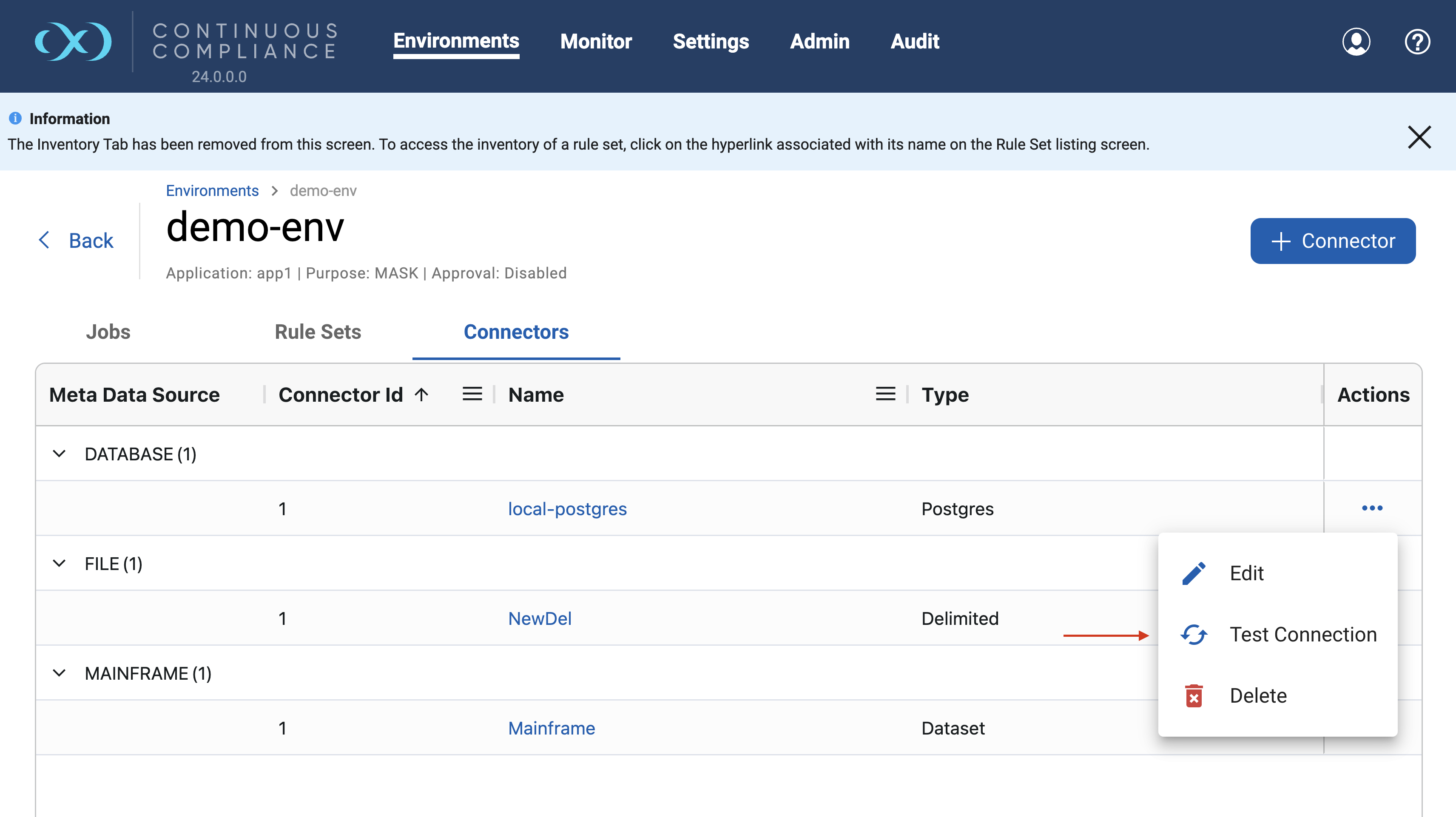
9.33.3 Verification checks
- Test Connection succeeds twice (wizard and grid); screenshot the message.
- SS_VDB_Conn is under DATABASE with an ID and no warning triangle. The docs say the numeric ID is how the masking API refers to the connector.
- With the masking user in your SQL client,
SELECT COUNT(*) FROM customers;returns 3. - Record the exact database name, schema and host.
9.33.4 What can go wrong
| Symptom | Likely cause | What to do |
|---|---|---|
| "Database not found" style failure | Database Name in the wrong case (the field is case-sensitive) | Copy the name exactly from the DBA |
| Hang or timeout | Host, port or firewall; for a SQL Server instance name, port 1434 | Check routes from the engine |
| Warning triangle after saving | Authentication incomplete | Edit, tick Change Password, re-enter |
| Test passes but Lab 5 lists no tables | Wrong schema or missing rights | Fix Schema Name and grants |
9.34 Lab 5: create a rule set and profile the VDB
9.34.1 Goal
Turn the connector from Lab 4 into a rule set that lists the four ShopSphere tables, run a profiling job over it, read what the profiler found, and correct anything it got wrong. At the end you have an inventory: a table that says which column gets which domain and algorithm.
9.34.2 Prerequisites and setup data
- Lab 4 is finished: connector SS_VDB_Conn tests successfully.
- The CUSTOMERS, ORDERS, ORDER_ITEMS and PRODUCTS tables exist in the VDB. The concepts behind this lab are in the rule sets and keys chapter and the Delphix profiling chapter.
9.34.3 Steps
- Open the environment's Rule Sets tab and click + Rule Set.
A rule set is the engine's "shopping list" of tables. Profiling and masking jobs both work on a rule set, never on a connector directly.
A dialog asks "What type of data does this Rule Set contain?" with four choices: Database, Semi-Structured Files (JSON or XML), Flat Files (delimited or fixed-width) and Copybook (mainframe).
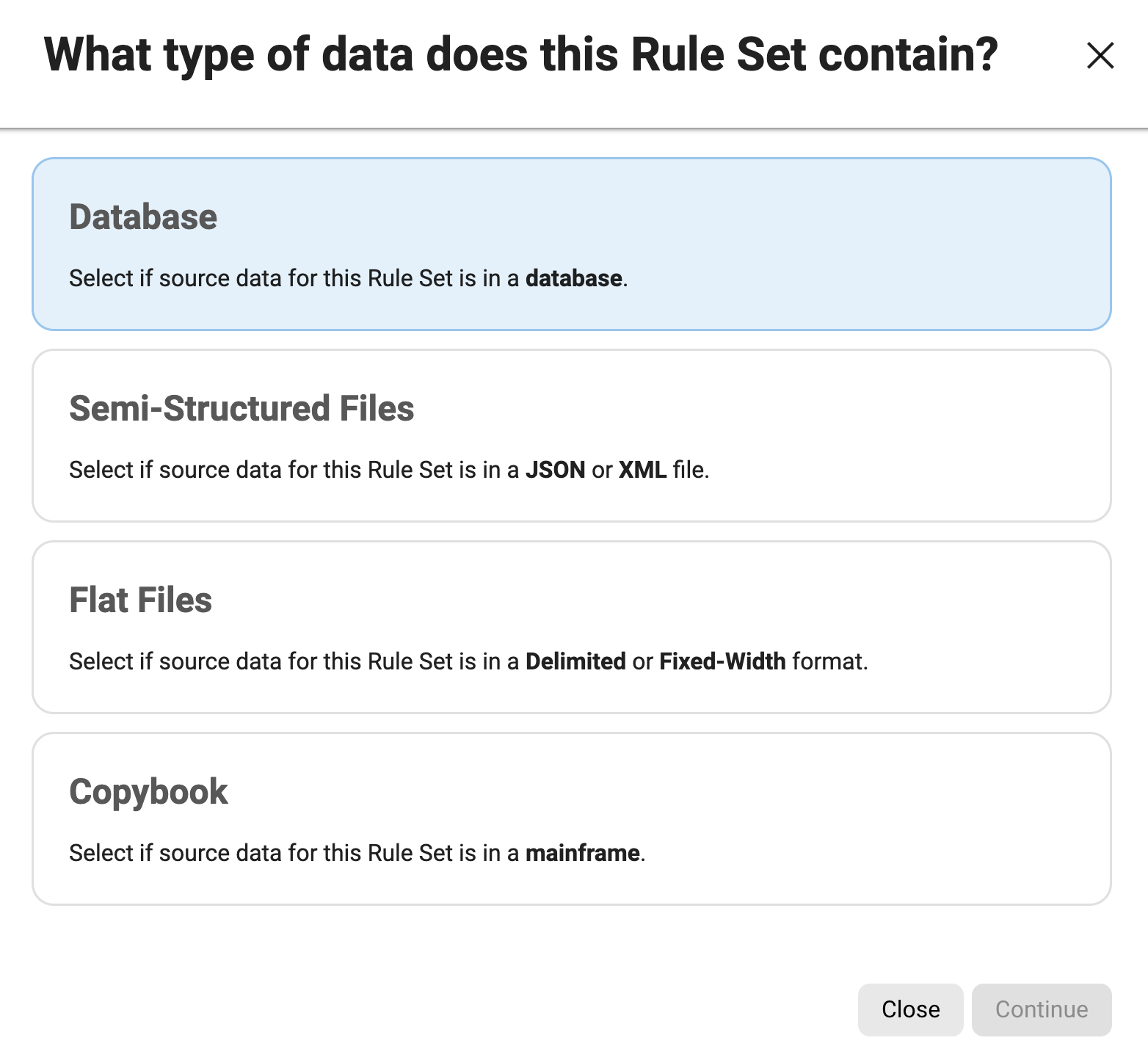
- Choose Database, click Continue, and fill in the Details step.
Name the rule set
SS_DB_RSand pick SS_VDB_Conn from the connector drop-down. The docs say the drop-down lists only connectors that match the chosen type; if it is empty, you have no suitable connector yet. - Data Tables step: click Add Tables and select the four tables.
The Add Database Table dialog lists the tables the connector can see. Tick CUSTOMERS, ORDERS, ORDER_ITEMS and PRODUCTS and click Save. The docs note that this dialog shows tables only, not views, indexes or stored procedures.
The grid shows four rows with the columns Table Name, Logical Key, Filter and Custom SQL. Logical Key, Filter and Custom SQL are empty.
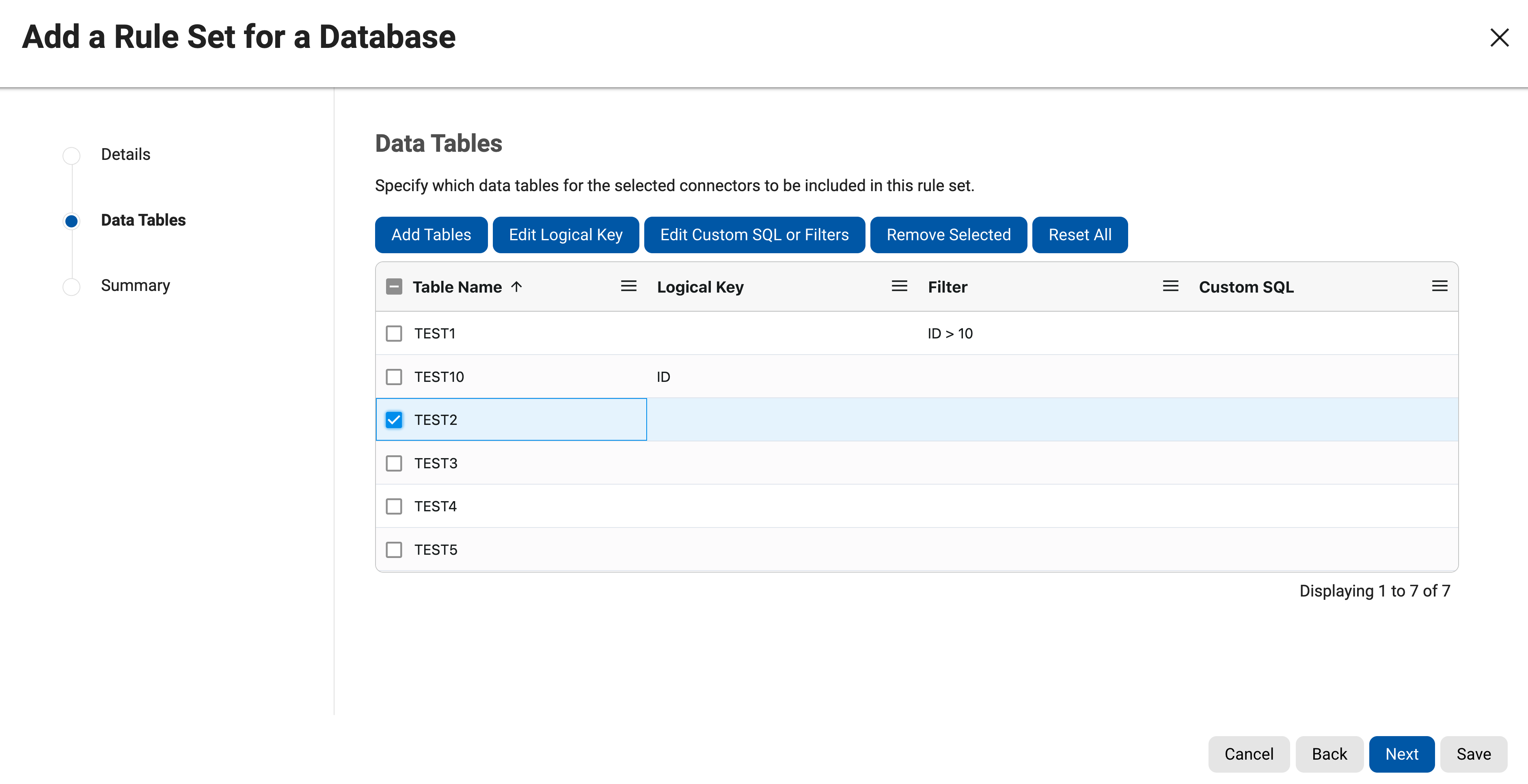
- Check keys before you save.
Each table should have a primary key. The docs explain what happens otherwise: with in-place masking and no primary key, you must name an existing column as a logical key (it does not change the database; it only tells Delphix how to identify a row). If you give neither, the engine creates an identity column, which needs permission to change the schema, and the job may fail without it. All four ShopSphere tables have primary keys, so leave Logical Key empty.
- Click Next, review the Summary, and click Save.
For a database rule set the save is an asynchronous task: a task ID appears in a bottom message, and you can watch it under Monitor, Async Tasks. The engine is reading the table definitions from the database in the background.
The rule set SS_DB_RS appears in the Rule Sets grid. The docs say the Refresh/Save icon shows an hourglass while the engine rescans tables; in the official grid screenshot finished database rule sets show a green tick.
- Run the rule set Checklist.
In the rule set's actions menu choose the verify (Checklist) action. The docs describe an Identity Column check: every table must have a primary key, an indexed identity column or a logical key. Catching a missing key now is cheaper than a masking job that fails later.
- Create the profiling job.
Go to the Jobs tab, click + Profiling Job, and fill in the wizard. Job Name:
SS_Profile_DB(must be unique). Rule Set: SS_DB_RS. Profile Set: ASDD Standard, the set recommended for databases (Out of the box profiling settings). Leave Multi Tenant, Multiple Profiler Expression Check and "Clear previous auto domain assignments" unticked for the first run.
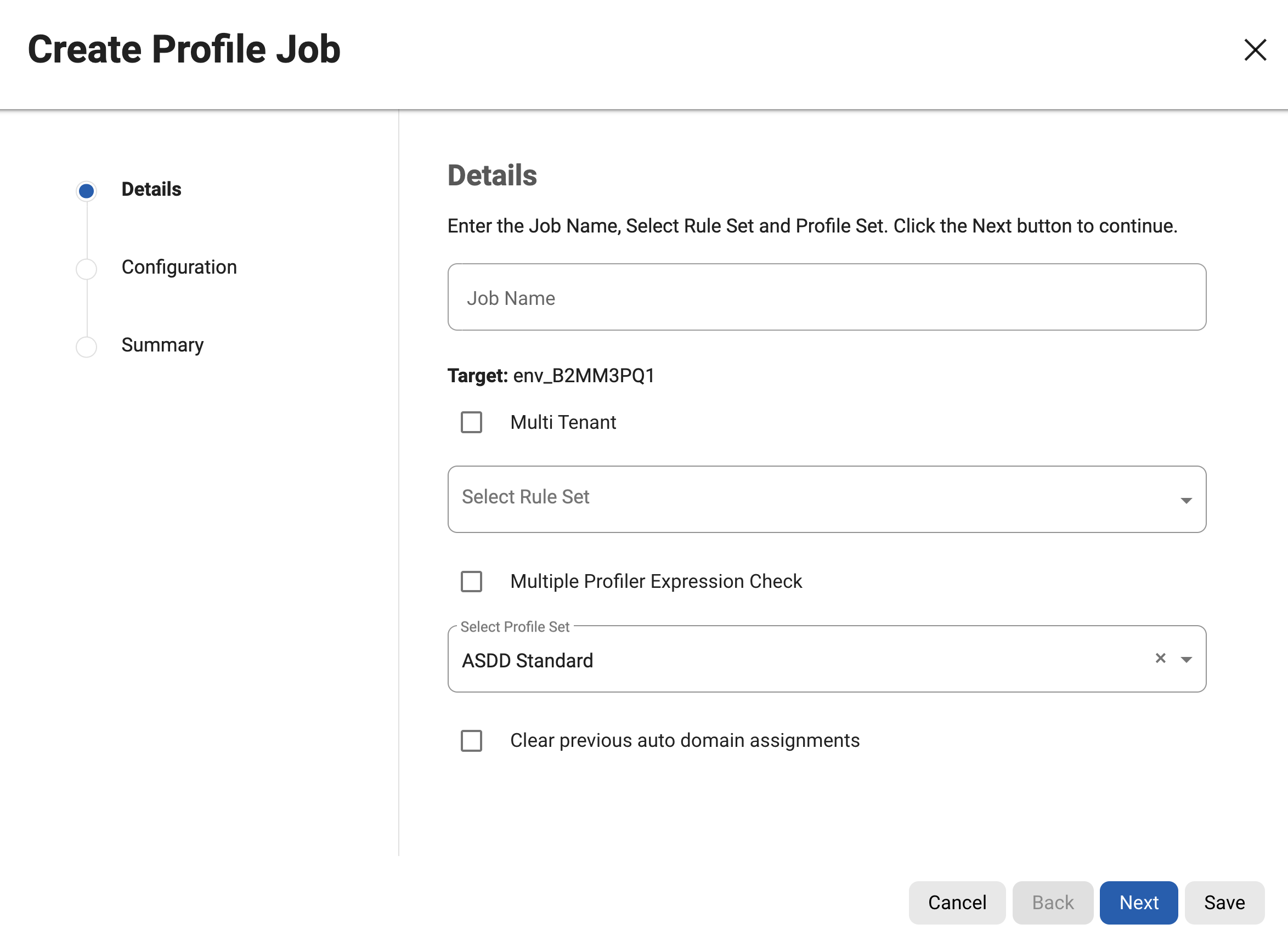
- Configuration step: keep the defaults.
Number of Streams defaults from an application setting (the screenshot shows 1). Feedback Size, Min and Max Memory, Comments and Email are optional. The docs add one rule worth remembering: with an ASDD profile set, Max Memory must be at least 1024 MB for each stream, so 4 streams need 4096 or more. Click Next, check the Summary and Save.

- Run the job.
On the Jobs tab open the row's actions menu (the three dots) and click Run. The engine first checks free memory and the number of simultaneous jobs (the docs give a default limit of 7) and may queue the job instead of starting it.
The job's Status changes from CREATED to QUEUED or RUNNING and then to SUCCEEDED. WARNING or FAILED means you must read the logs before moving on.
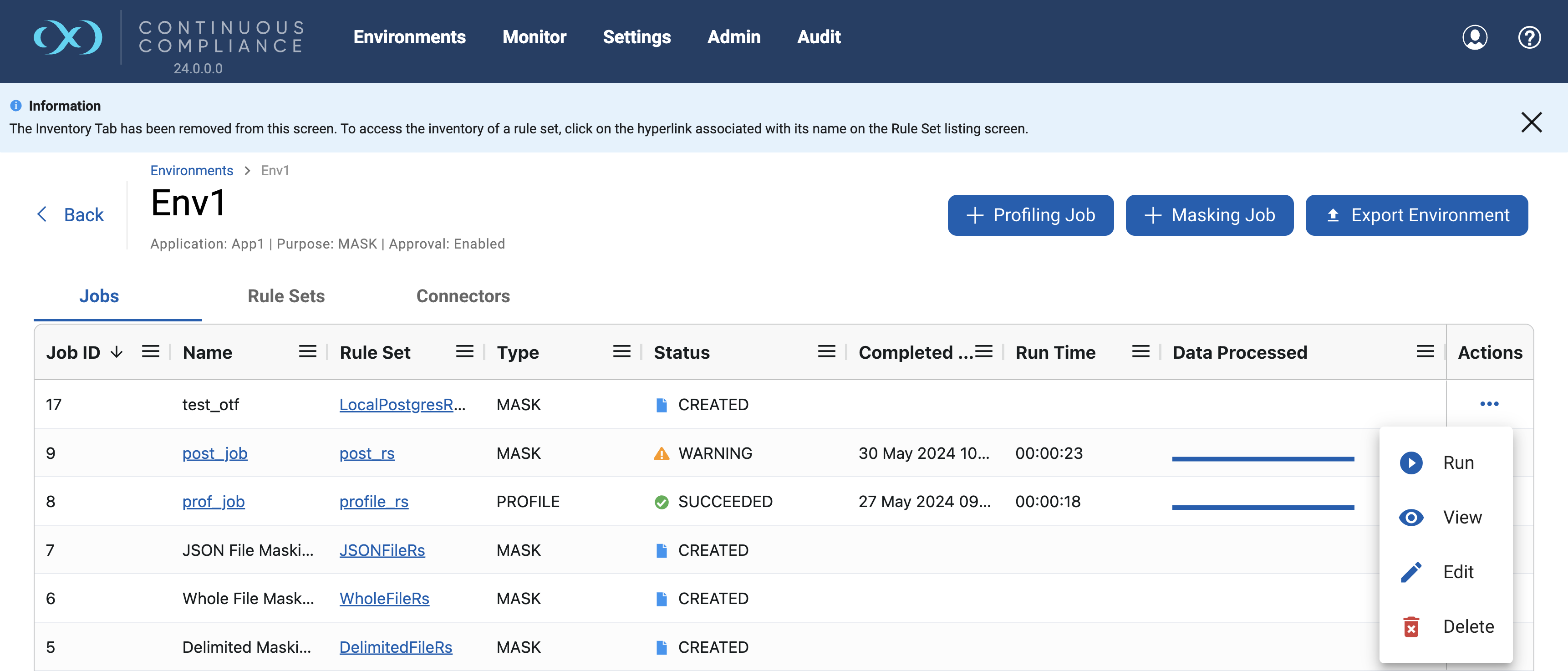
- Read the Profile Results.
Click the job name (or use Monitor, Job Executions). The docs say a finished profiling job shows the findings table by table and column by column under Profile Results. For a database you can also open the rule set: the assigned algorithm column in the inventory is the result.
- Open the inventory and correct the findings.
Click the rule set name to open its inventory. For any column the profiler got wrong, click the Edit icon in the Actions column. Untick Enable Automatic Updates first: while it is ticked, a later profiling run may overwrite your choice. Then pick the Domain and Algorithm you want and click Save. To record the proof, use Actions, Export Rule Set: it downloads the inventory as a CSV.
The official Edit dialog images show a file field, not a database column. The docs call the same dialog Edit Field/Column and say it is used for both kinds, so expect small differences in the database version. The File Format drop-down in the inventory appears only for file rule sets. The next lab uses the file versions.
9.34.4 Expected results for ShopSphere
The table below is a prediction, made by reading the published classifier patterns in the ASDD standard profile set (ASDD standard profile set) against the ShopSphere column names. Confidence values depend on your engine's settings, so the real result can differ. Where it differs, that is a finding to record, not a failure of the lab.
| Column | Expected domain | Why (pattern or type rule) | Default algorithm |
|---|---|---|---|
| first_name | FIRST_NAME | name pattern, plus a first-name value list in ASDD | dlpx-core:FirstName (seen in an official screenshot) |
| last_name | LAST_NAME | name pattern | dlpx-core:LastName (seen in an official screenshot) |
| "email" path and an email data pattern | dlpx-core:Email Unique appears in an official profile screenshot | ||
| phone | TELEPHONE_NO | "phone" path | dlpx-core:Phone Unique appears in an official profile screenshot |
| ssn | SSN | "ssn" path; string or number of 9 or more characters; a US-style data pattern | Not stated in the documentation; check Settings, Domains |
| date_of_birth | DOB | birth-date path | An official docs example shows DOB with DateShiftDiscrete; confirm on your engine |
| zip_code | ZIP | "zip" path; type length of 4 or more. The data pattern covers 5-digit and ZIP+4 US codes, so 6-digit codes like 560001 should be found by name, not by value | Not stated; check Settings, Domains |
| tax_id | TAX_ID | "tax id" path; string or number of 6 or more characters (no data pattern in the ASDD set) | Not stated; check Settings, Domains |
| customer_id, order_id, total_amount, product_code | none expected | no matching pattern; keys must not be masked in this lab | none |
9.34.5 Verification checks
- The profiling job ends SUCCEEDED, and the Execution Summary lists all four tables as profiled with none remaining.
- The inventory shows a Domain and an Algorithm for each of the eight sensitive ShopSphere columns above, or you have recorded which ones are missing and fixed them by hand.
- No key column (customer_id, order_id, item_id) has an algorithm. Masking a primary or foreign key without a plan breaks joins.
- Export Rule Set and keep the CSV. This is your record of "what did the profiler find and what did we decide".
9.34.6 What can go wrong
| Symptom | Likely cause | What to do |
|---|---|---|
| Add Tables lists nothing | Schema Name on the connector is wrong, or the user cannot see the schema | Edit the connector and fix the schema; retest |
| Rule set Checklist fails | A table has no primary key, indexed identity column or logical key | Add a logical key in the rule set's Data Tables step |
| Profiling job is rejected with an ASDD error | The connector type is not supported by ASDD | Pick a supported type or choose another profile set; ASDD supports databases and several file types (ASDD features and support) |
| Job stays QUEUED | Memory or simultaneous-job limit reached on a shared engine | Check the queue on the Monitor screen; wait or ask the engine administrator |
| A column you expected is missing in the results | Name and type rules did not match; for tax_id or zip_code the value rule may not apply | Assign the domain and algorithm by hand in the inventory |
| Your manual choice is replaced after a re-profile | Enable Automatic Updates was left ticked | Untick it before assigning, or accept the profiler's choice |
| A new table added to the VDB is not profiled | Profiling covers only tables in the rule set (docs) | Add the table to the rule set, then run again |
9.35 Lab 6: mask a delimited and a fixed-width file
9.35.1 Goal
Mask the customer files customers.dat (pipe-delimited) and customers_fixed.txt (fixed-width) with the file side of the engine. Files carry no built-in description of their columns, so this lab adds one step the database labs did not need: telling the engine what the fields are, with a file format.
9.35.2 Prerequisites and setup data
- The two files from the setup section exist in a working folder, and the originals are copied to a separate
originalfolder. - You know how the engine reaches that folder. The docs list the connection modes Filesystem Mount Point, SFTP, FTP, FTPS (mainframe datasets only), AWS S3, Other S3 Compatible Storage and Azure Blob Storage. A mount point also needs a mount created through the Mount Filesystem API before you can pick it in the connector (Managing remote mounts). The file concepts are in the file masking chapter.
- A new environment named
ShopSphere_File_Mask(same steps as in Lab 4, Purpose: Mask).
9.35.3 Steps
- Create two file connectors.
In the new environment open Connectors, click + Connection, and choose a File source type: Delimited for
SS_Delim_Connand Fixed Width forSS_Fixed_Conn. The type matters because it decides what the rule set will ask for later. For SFTP the credential step asks for Path (the directory that holds the files), Server Name, Port and User Name, plus Password or a public key. The docs add that, from version 6.0.9.0, an "User Directory as root" option exists when the path is relative to the SFTP user's home directory. Test the connection if the wizard offers it.Both connectors appear under the FILE group in the Connectors grid, with types Delimited and Fixed Width.
- Write the two format files.
The docs say the engine needs a description of the fields and that a format file contains only the structure, never production data or personal information. For a delimited file the format file lists the field names, one per line, with no header. For a fixed-width file each line is a field name, a comma and the field length. The two official sketches below show the shape.
Formats for ShopSphere, saved as
ss_delim.fmtandss_fixed.fmt:customer_id first_name last_name ssn phonecustomer_id,4 first_name,10 last_name,10 ssn,11 phone,10Give the fields meaningful names. The profiler uses names (and, with ASDD, values) to decide what is sensitive, so
first_nameis findable andFIELD_03is not. On Windows, save with LF line endings, because the docs warn that CRLF files can fail the engine's validation.
- Import the formats.
Go to Settings, Data Formats, tab Files, click + File Format. The wizard asks for the Format Type, then the file to import (a custom name is optional), then, for delimited and fixed-width formats only, the number of header and footer records (leave them empty: the lab files have none), and ends with a Summary. Save. Do this twice, once per file type.
Both formats appear in the Data Formats grid with their Type (Delimited or Fixed Width).
- Create a flat-file rule set for each file.
In the environment's Rule Sets tab click + Rule Set, choose Flat Files, and pick the matching connector. In the Data Files step click Add File Name, tick
customers.dat(orcustomers_fixed.txt), and set its properties: Format File (ss_delim.fmt or ss_fixed.fmt), End of Record (Linux LF unless the file came from Windows), and, for the delimited file, the Delimiter|. Text Enclosure stays empty because the sample has no quotes. Save asSS_Delim_RSandSS_Fixed_RS.Each rule set lists one file with its format and delimiter.
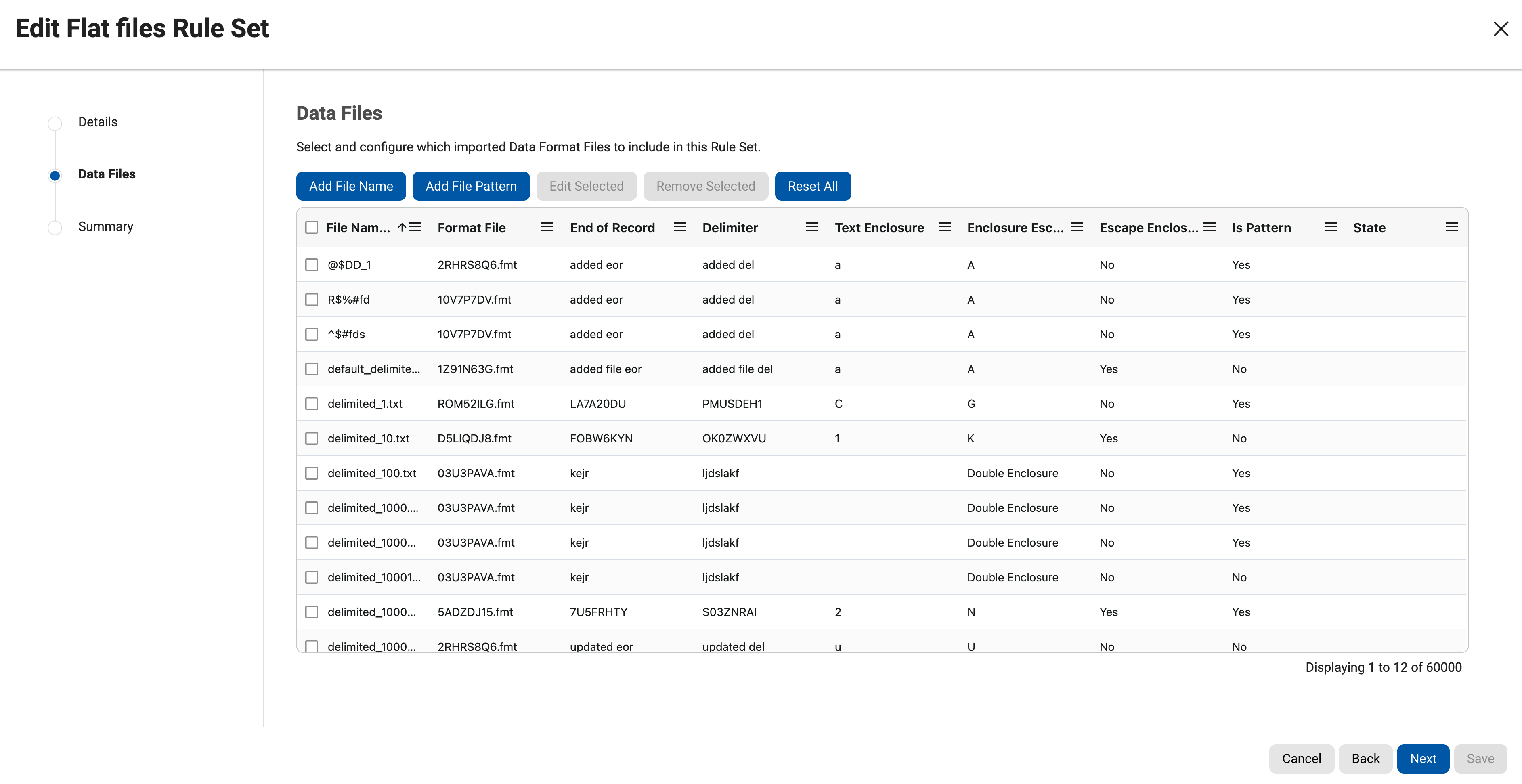
- Profile both rule sets.
Create one profiling job per rule set exactly as in Lab 5 (+ Profiling Job, rule set, ASDD Standard) and run them. ASDD supports delimited and fixed-width files. The results grid lists File Name, Field Name, Algorithm and Domain.
Fields first_name, last_name, ssn and phone get domains. If the field names in your format were meaningless, only a data-level match could find them.
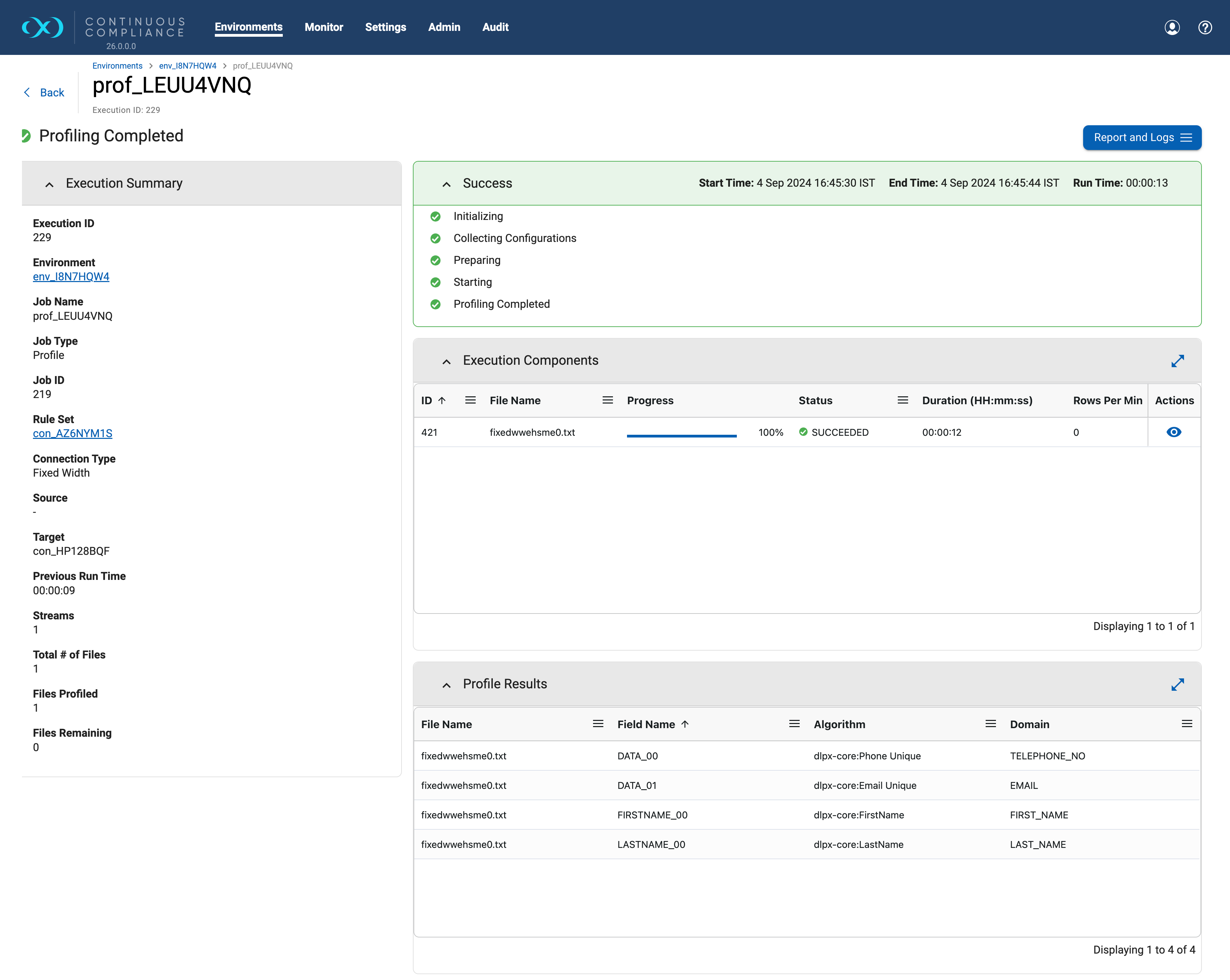
- Set the algorithms in the inventory.
Open each rule set's inventory, choose the file format in the drop-down if asked, and edit the fields: first_name gets
dlpx-core:FirstName, last_name getsdlpx-core:LastName, ssn getsdlpx-core:CM Digits(the reason is in Lab 8). Leave customer_id and phone alone in this lab. Untick Enable Automatic Updates first if you override a profiler assignment. - Create a masking job per rule set.
Jobs tab, + Masking Job. Choose Masking Method In-Place so the working copy is overwritten, pick the rule set, and keep the other settings at their defaults. The docs say in-place jobs update the source with masked values, and on-the-fly jobs read from one place and write to another. A file job does not show the database-options step. Names:
SS_Mask_DelimandSS_Mask_Fixed. - Run both jobs and check the status.
Run, then open Monitor, Job Executions. Click the job name and read the Execution Summary: files masked, rows masked, files with non-conforming data.
Status SUCCEEDED, rows masked 3 per file, no non-conforming data. A yellow WARNING means some values were left unmasked.
The jobs page says target files are created automatically when the name pattern matches the source (but a database-to-delimited-file job needs the target files to exist beforehand). The connector page says the target rule set must point at an existing entry in the target directory. If an on-the-fly file job masks nothing, create an empty placeholder with the same file name in the target folder and run again.
9.35.4 Verification checks
Run these in a shell on the folder that holds both the masked and the original files:
diff original/customers.dat customers.dat
awk -F'|' '{print NF}' customers.dat | sort | uniq -c
awk '{print length($0)}' customers_fixed.txt | sort | uniq -c
diff <(cut -c1-4,36-45 original/customers_fixed.txt) <(cut -c1-4,36-45 customers_fixed.txt)
The last command compares only the customer_id (characters 1 to 4) and phone (characters 36 to 45) columns of the fixed-width file. It should print nothing. It needs a shell that supports process substitution, such as bash.
- Names and SSN differ between original and masked, and the SSN still looks like
ddd-dd-dddd. - customer_id and phone are identical to the original (they were out of scope).
- Every line of the delimited file has 5 fields, and every line of the fixed-width file is still 45 characters. A different count means the masked value did not fit the field or the format did not match the data.
- Row count is unchanged: 3 lines in each file.
- Consistency: save the masked files as
run1, copy the originals back into the working folder, run both jobs again, and rundiffagainst therun1copies. It should print nothing, because the docs describe the Name and Character Mapping frameworks as deterministic for the same configuration and key.
9.35.5 What can go wrong
| Symptom | Likely cause | What to do |
|---|---|---|
| Job succeeds but nothing changed | On-the-fly target file missing, or the file name or pattern does not match | Check the placeholder file and the File Name or Pattern column of the rule set |
| A delimited file lost its last fields | More fields in the data than in the format file; the docs say extra fields are dropped after masking | Add the missing field names to the format and reimport; restore from the original |
| A delimited file gained an extra delimiter | Fewer fields in the data than in the format (docs: delimiters are appended) | Make the format match the data |
| Fixed-width: the wrong part of the line is masked | A wrong field length shifts every later offset | Recount lengths; the docs warn about exactly this |
| Fixed-width line got longer | A masked name was longer than the field. The docs do not say how this case is handled | Check line length; on a copy of the algorithm set a Maximum Masked Name Length (an option of the Name framework) |
| Format import fails on Windows | The format file has CRLF line endings | Convert to LF and import again |
| Warning for a Phone or SSN value | Non-conforming data, such as text in a phone field | See the log of the file in Execution Components |
9.36 Lab 7: mask FirstName in the database
9.36.1 Goal
Run one real in-place masking job on the ShopSphere VDB that changes customers.first_name and nothing else, then prove by query that the job did exactly that. The algorithm rationale is in the algorithms and masking jobs chapter; here you see it work.
9.36.2 Prerequisites and setup data
- Labs 4 and 5 are done: rule set SS_DB_RS exists and has an inventory.
- The VDB can be restored if a job goes wrong, for example from a snapshot or bookmark taken before the run. Not documented: the exact restore route for a given VDB (the docs describe rewind and refresh for masked VDBs only).
- Two extra lab-only things in the VDB (delete them afterwards): a copy table for before/after comparison, and an edge-case customer. The copy table holds unmasked fake data. In real work you would never copy sensitive data next to the masked data.
CREATE TABLE customers_before AS SELECT * FROM customers;

INSERT INTO customers
  (customer_id, first_name, last_name, email, phone, ssn, date_of_birth, zip_code, tax_id)
VALUES
  (1004, 'Asha', 'Iyer', 'asha.i@example.com', 'CALL-ME-NOW', 'N/A',
   '1992-01-15', '560002', NULL);

INSERT INTO customers_before SELECT * FROM customers WHERE customer_id = 1004;
Customer 1004 has the same first name as 1001. Two customers named Asha should receive the same masked first name; that is the consistency check. Its phone and SSN values are deliberately bad: Lab 8 uses them to show non-conformant data.
9.36.3 Steps
- Make a rule set that contains only today's masking.
A masking job masks every column that has an algorithm in the inventory. After Lab 5 your inventory has eight columns assigned. To mask only first_name, duplicate the rule set (the row's actions menu, Duplicate), name the copy
SS_DB_RS_FN, and open its inventory. The docs say a copy includes the inventory and any filters. Use the "Clear Masking Assignment" icon on each assigned row (it works per column, as in the profiling chapter): the docs say it removes that assignment and disables automatic updates, after a short confirmation bar. Then edit first_name only.The inventory shows an algorithm for first_name and blank algorithm cells for every other column.
- Assign the algorithm.
Edit CUSTOMERS.first_name: untick Enable Automatic Updates, Domain FIRST_NAME, Algorithm
dlpx-core:FirstName, Save. This is the algorithm the profiler proposed in the official profiling screenshot, so you are confirming, not inventing.
It is an instance of the Name framework and needs string input. Null, empty and whitespace-only values are returned unmasked, and it raises no non-conformant-data errors. A single character is treated as an abbreviation and masked to a single character. By default at most two names are masked and returned, and leading and trailing white space is not preserved. It is deterministic for the same configuration and key and it is not unique: collisions are possible, and a masked value can even equal the input (FirstName, Name framework). The Name framework page adds that its default comparison is case-insensitive, so "Peter" and "peter" mask to the same value.
- Create the masking job.
Jobs tab, + Masking Job. Job Name
SS_Mask_FirstName. Masking Method: In-Place. Rule Set: SS_DB_RS_FN. Leave "Stop job on first occurrence" off and Multi Tenant off. Next, the database options: Commit Size and Update Threads can stay default; the docs warn that several update threads can cause deadlocks, especially on tables without an index. Do not tick Disable Constraints, Drop Indexes or Disable Triggers: first_name is not a key. Number of Streams: 1. Save.
- Run the Checklist, then run the job.
The job's Checklist action repeats the identity-column check. Then choose Run in the actions menu. Take the VDB snapshot first.
- Watch the execution.
Open the job name from Monitor, Job Executions. The Execution Summary counts tables and rows masked and, importantly, tables and columns with non-conforming data. The Events list shows the stages in order, from initialising and collecting configuration to job completed. Execution Components lists each table with progress and rows per minute.
Masking Completed, one table masked (CUSTOMERS), rows masked equal to the row count (4), nonconforming data 0.
9.36.4 Verification checks
-- 1. first names changed
SELECT c.customer_id, b.first_name AS before_name, c.first_name AS after_name
FROM   customers c JOIN customers_before b ON b.customer_id = c.customer_id
ORDER  BY c.customer_id;

-- 2. how many unchanged?
SELECT COUNT(*) AS unchanged
FROM   customers c JOIN customers_before b ON b.customer_id = c.customer_id
WHERE  c.first_name = b.first_name;

-- 3. same input, same output (1001 and 1004 are both Asha)
SELECT COUNT(DISTINCT first_name) AS distinct_masked
FROM   customers WHERE customer_id IN (1001, 1004);

-- 4. nothing else changed
SELECT COUNT(*) AS other_changes
FROM   customers c JOIN customers_before b ON b.customer_id = c.customer_id
WHERE c.last_name <> b.last_name OR c.phone <> b.phone OR c.ssn <> b.ssn;- Query 1 shows a different name on every row. Query 2 should return 0, but it is not guaranteed to: the docs say the masked value can equal the input. If one row matches, record it and move on; it is a property of the algorithm, not a failure.
- Query 3 returns 1: both Asha rows got the same masked name.
- Query 4 returns 0 and the "orphans" query from the setup still returns 0.
- Screenshot the Execution Summary and save the job report (Report and Logs).
9.36.5 What can go wrong
| Symptom | Likely cause | What to do |
|---|---|---|
| Other columns changed too | You ran SS_DB_RS (all assignments) instead of SS_DB_RS_FN | Restore the VDB; check which rule set the job points at (View action) |
| Job fails on a deadlock error | More than one update thread on a table without an index | Reduce Update Threads to 1 (docs) |
| Job fails on commit or length | Masked value longer than the column | Check column width; the Name framework can cap length |
| Nothing changed, job SUCCEEDED | No algorithm assigned (Clear Assignments removed it, or Save was missed) | Reopen the inventory and confirm the row |
| Rule set shows a stale table list | Table structure changed since the last refresh | Refresh the rule set; assignments are kept |
| You cannot edit or delete the job | It is running; the docs say editing and deleting are blocked while running | Wait, or Cancel the job (this leaves semi-masked data: restore afterwards) |
9.37 Lab 8: mask alphanumeric text, SSN and telephone number
9.37.1 Goal
Mask three different kinds of value with three algorithms, verify format and consistency with queries, and deliberately feed in two bad values to see what non-conformant data looks like in a log. The ShopSphere table has no free alphanumeric column, so this lab adds one, membership_code, such as SS-A7K29X.
9.37.2 Prerequisites and setup data
ALTER TABLE customers ADD membership_code VARCHAR(12);
UPDATE customers SET membership_code = 'SS-A7K29X' WHERE customer_id = 1001;
UPDATE customers SET membership_code = 'SS-B3M81Q' WHERE customer_id = 1002;
UPDATE customers SET membership_code = 'SS-C9D55R' WHERE customer_id = 1003;
-- customer 1004 keeps membership_code NULL on purpose
ALTER TABLE customers_before ADD membership_code VARCHAR(12);
UPDATE customers_before b SET membership_code =
  (SELECT c.membership_code FROM customers c WHERE c.customer_id = b.customer_id);
Then refresh the rule set SS_DB_RS (actions menu, Refresh) so it sees the new column, duplicate it as SS_DB_RS_Sens, clear its assignments, and assign the three below. Lab 7's first-name masking is not repeated here.
9.37.3 Choosing the algorithms
The table separates what the docs state from the design choice. The default algorithm for the SSN domain is not stated in the documentation, so confirm it in Settings, Domains.
| Column | Algorithm | Basis in the docs | Design choice or caution |
|---|---|---|---|
| membership_code (alphanumeric text) | dlpx-core:CM Alpha-Numeric | Masks ASCII digits, lower and upper case letters, keeps other characters; for non-numeric data types. Example: "ABCxyz123" becomes "HANwhp391" | The "SS-" prefix will be masked too. To keep it, a custom Character Mapping instance with a preserve range is the documented route |
| ssn (text, ddd-dd-dddd) | dlpx-core:CM Digits | Masks every digit and keeps letters and punctuation; Character Mapping gives one-to-one output for text inputs and is deterministic until the key changes | Design choice. Segment Mapping with dashes ignored is the other documented option for SSNs. The docs do not say outputs follow US SSN validity rules |
| phone (10 digits) | dlpx-core:Phone US | Keeps the first digits, replaces the three digits before the last four with 555, and masks the last four with a hash of the digits; other characters are preserved; input up to 30 symbols and at least one digit | Design choice for a clearly fake number. Phone Unique (last 7 digits hashed) was the profiler's own pick in the official screenshot; the page does not promise uniqueness |
Pages: CM Alpha-Numeric, CM Digits, Phone US, Character Mapping and Segment Mapping.
9.37.4 Steps
- Assign the algorithms in SS_DB_RS_Sens.
For each of the three columns, Edit, untick Enable Automatic Updates, set Domain (membership_code has no built-in domain: pick one that fits or leave the domain empty as your engine allows) and Algorithm, Save.
Three assigned rows, every other column blank.
- Create and run the job
SS_Mask_Sensitive.In-place, rule set SS_DB_RS_Sens, defaults elsewhere. Take the snapshot first. Run it.
The status is WARNING (non-conformant) rather than SUCCEEDED, because customer 1004's SSN and phone do not fit. This is the expected outcome in this lab.
- Read the warning.
Open the job, then View Logs on the CUSTOMERS row in Execution Components. The docs say each event shows Event type UNMASKED_DATA (or JOB_ABORTED), Cause PATTERN_MATCH_FAILURE, a row count and the column name, and that only a pattern of the bad value is shown (L for letters, N for digits, P for punctuation), never the value itself. For "CALL-ME-NOW" expect a pattern like letters, punctuation, letters, punctuation, letters.
9.37.5 Verification checks
-- SSN keeps its shape and stays unique (rows with a real SSN)
SELECT COUNT(*) AS bad_shape FROM customers
WHERE customer_id <= 1003 AND ssn NOT LIKE '___-__-____';
SELECT COUNT(DISTINCT ssn) AS distinct_ssn FROM customers WHERE customer_id <= 1003;

-- nothing left equal to the original
SELECT COUNT(*) AS unmasked FROM customers c
JOIN customers_before b ON b.customer_id = c.customer_id
WHERE c.customer_id <= 1003
  AND (c.ssn = b.ssn OR c.phone = b.phone OR c.membership_code = b.membership_code);

-- phone pattern, PostgreSQL syntax (use REGEXP_LIKE on Oracle)
SELECT customer_id, phone FROM customers
WHERE customer_id <= 1003 AND phone !~ '^[0-9]{3}555[0-9]{4}$';

-- the edge row stayed as it was, which is the problem to report
SELECT customer_id, ssn, phone, membership_code FROM customers WHERE customer_id = 1004;- bad_shape is 0 and distinct_ssn is 3. unmasked is 0, with the same caution as Lab 7: an equal value is possible but unlikely.
- The phone query returns no rows.
- membership_code values differ from the originals, keep the "-" and keep the 9-character shape; the NULL stays NULL (the docs say null, empty and whitespace-only values never trigger non-conformant handling in Character Mapping).
- Row 1004 still shows "N/A" and "CALL-ME-NOW". These bad values stayed unmasked and produced the warning. In real life this is how bad source data leaks through, so a WARNING status must never be ignored.
- Orphan query from the setup: 0. Other columns unchanged.
9.37.6 What can go wrong
| Symptom | Likely cause | What to do |
|---|---|---|
| CM Alpha-Numeric used on a numeric column | The docs say use it only on non-numeric data types | Use CM Numeric for numeric columns; CM Digits for numbers inside text |
| CM Numeric on a text SSN | It masks but always raises a non-conformant warning on alphanumeric input | Use CM Digits for text |
| Job SUCCEEDED but 1004 is untouched | Job-level handling is "do not mask" for non-conformant data (the default) | Choose Fail on encounter or Set value to null for sensitive columns, or clean the source |
| Phone looks masked but two customers share it | Phone US varies only four digits | Fine for phone; use a unique-output algorithm only if the column must be unique |
| SSN masked in one table but not in an extract file | Different algorithm or key in the two places | Use the same algorithm instance everywhere the SSN appears |
9.38 Where your engine may differ from the docs
| Detail | What the docs say | What may differ |
|---|---|---|
| Connector wizard | Details, Credentials, Custom Properties, Summary; button "+ Connection" | One screenshot shows "+ Connector"; fields vary by database type |
| Inventory access | Through the rule set name | Older engines had an Inventory tab; screenshots show a banner about its removal |
| Profile sets | ASDD Standard is recommended | Older engines may offer only legacy sets (Financial, HIPAA) |
| Default algorithm per domain | Seen in screenshots for names, email, phone; not stated for SSN, ZIP, TAX_ID in the documentation | Check Settings, Domains; an administrator may have changed them |
| File access mode | Seven connection modes | FTP and FTPS are disabled in containerized deployments (docs); a lab may allow one mode |
| Messages and log wording | Not reproduced here | Read your own message |
9.39 Common mistakes and gotchas
- Masking a database you cannot restore. Cancelling a running in-place job leaves semi-masked data, the docs warn. Snapshot first.
- Believing SUCCEEDED means "all masked". Non-conformant values are skipped by default; read the non-conforming-data line of the summary every time.
- Running a rule set with leftover assignments. A job masks every assigned column in its rule set.
- Letting the profiler overwrite your choice. Untick Enable Automatic Updates before assigning by hand.
- Trusting a file format without checking the data. A wrong field count or length silently drops or shifts data, and editing a shared format changes every file that uses it.
- Using a non-unique algorithm where uniqueness matters. Name and lookup-style algorithms can collide; Character Mapping is the documented unique-output family.
- Keeping screenshots of unmasked rows. A screenshot of unmasked rows is itself a copy of sensitive data: capture counts and patterns, or mask first. The engine's non-conformant log shows only patterns (docs).
9.40 Recap
- The labs form a chain: connector, rule set and profile, files, FirstName, then text, SSN and phone.
- A "connector to a VDB" is an ordinary database connector pointed at a VDB, a safe place to mask.
- Profiling proposes; the inventory is where you decide. Turn off automatic updates before overriding.
- Files need a format file: field names for delimited, names and lengths for fixed-width.
- Verify with before/after queries, not job status alone. Explain every warning before sign-off.
- CM Digits and CM Alpha-Numeric keep format with unique text output; Phone US gives fake but plausible numbers; FirstName is realistic but not unique.